Windows When "Windows protected your PC" appears — 3 steps
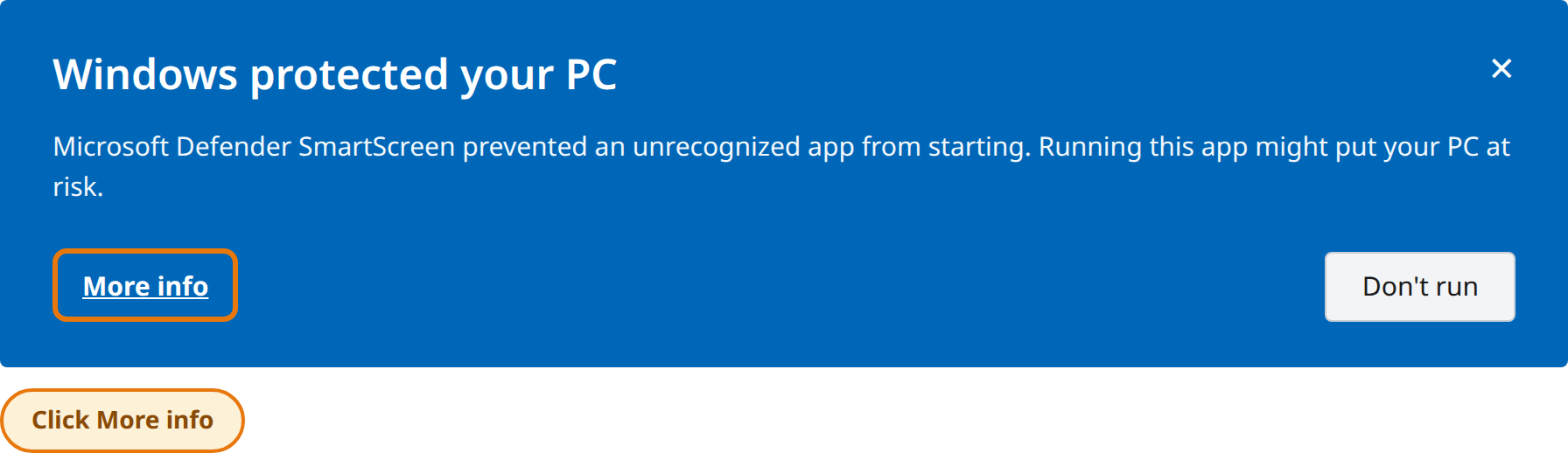
The program is code-signed, but Windows SmartScreen shows this window for newly released software while it builds reputation. Just follow steps ①②③ below.
1In the "Windows protected your PC" window, click "More info".
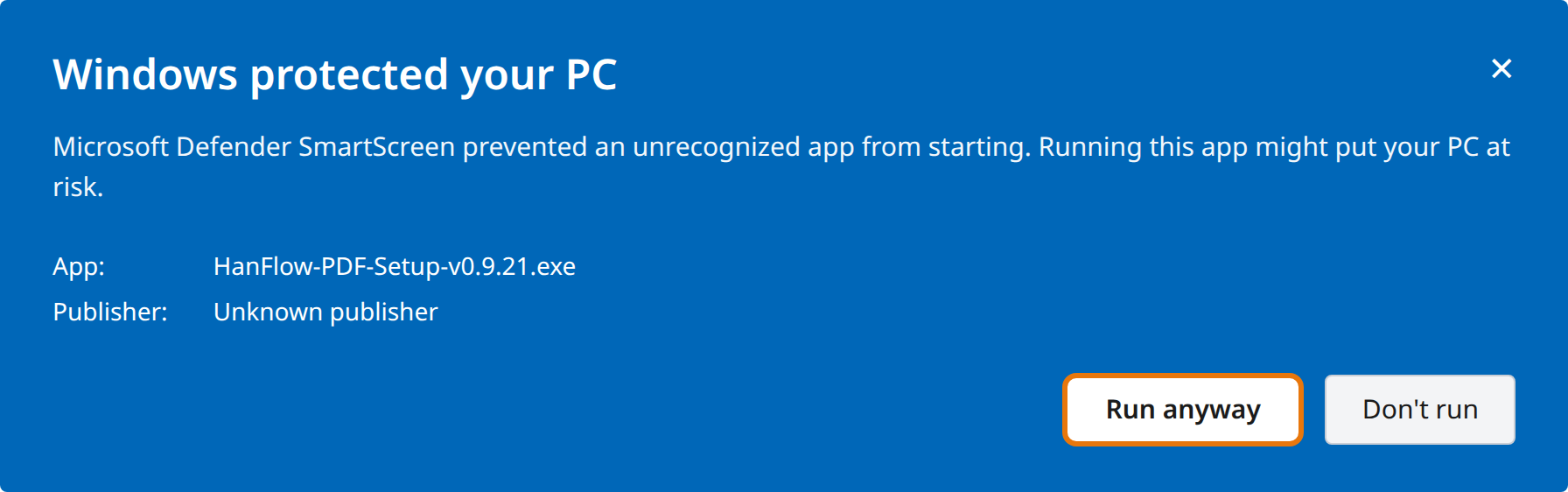
2Click the "Run anyway" button that appears.
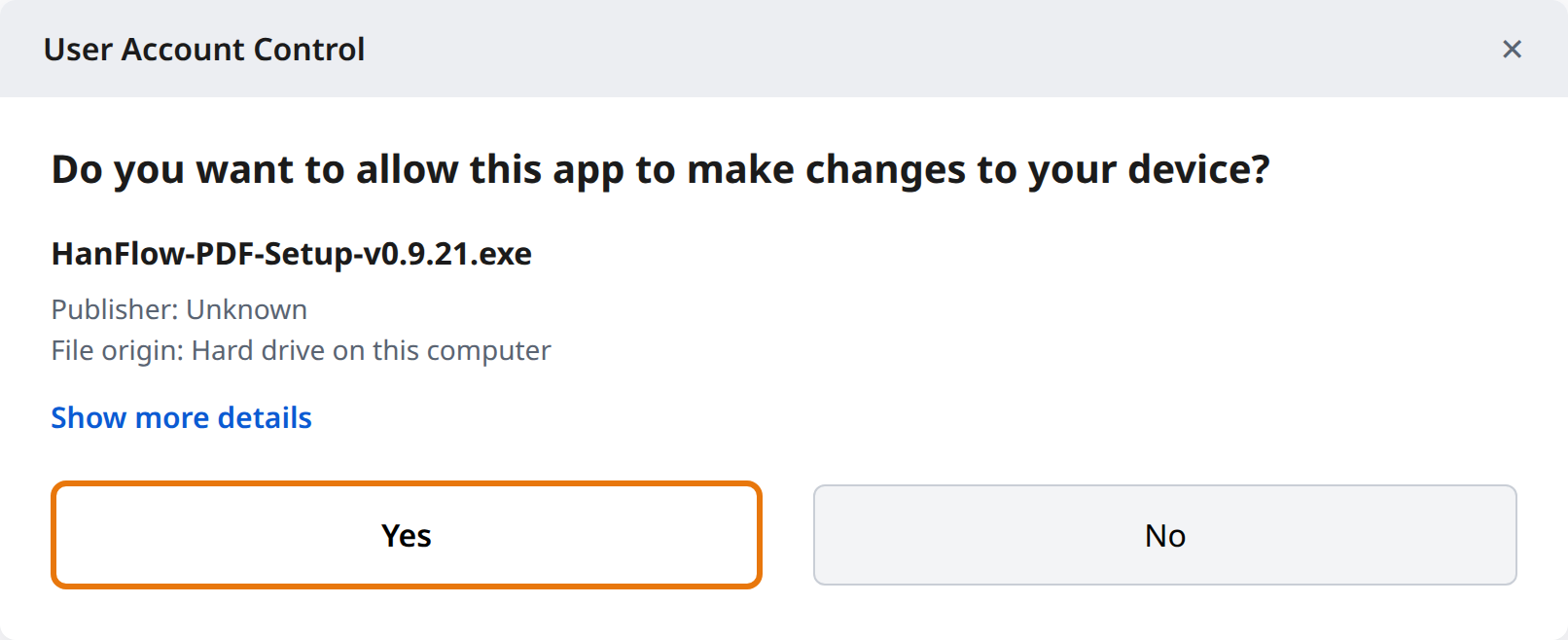
3Click "Yes" in the User Account Control prompt.
Edge Downloading with Microsoft Edge — 4 steps
Follow ①②③ when saving the file, then ④ the first time you run it. (If "Windows protected your PC" appears when running, follow the guide above first.)
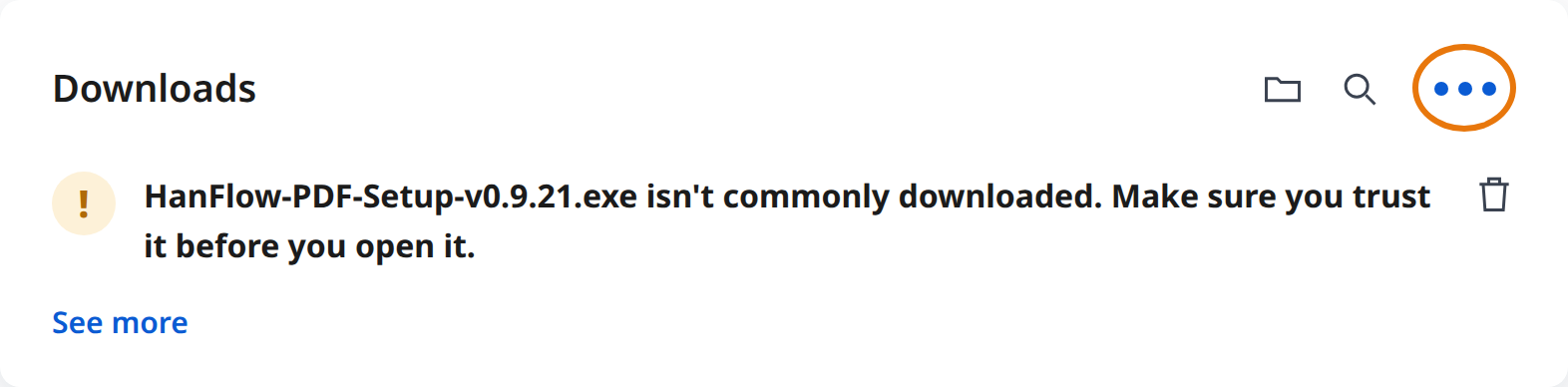
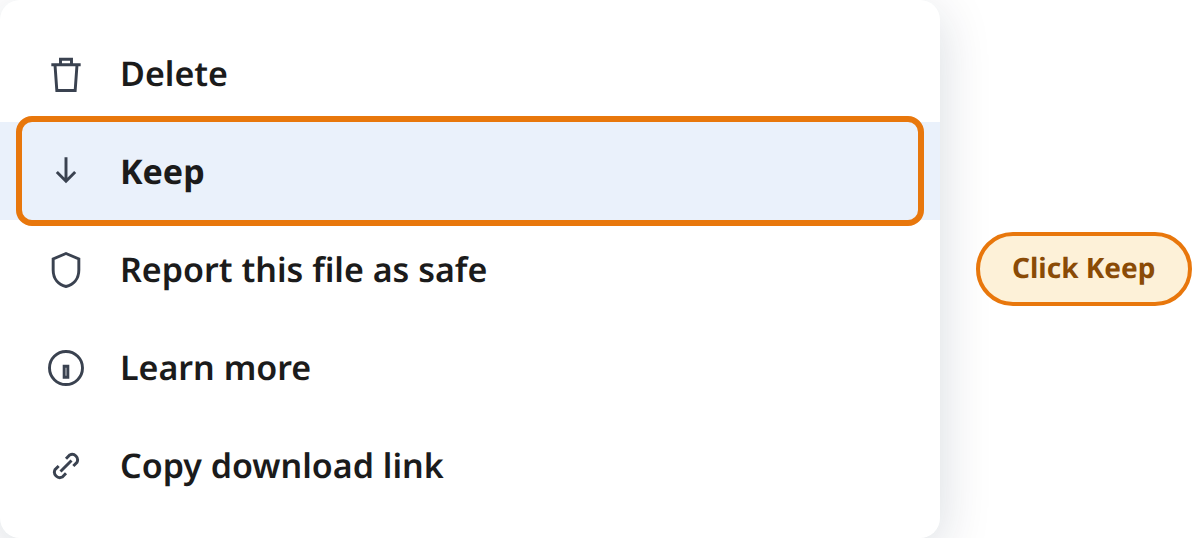
1In the download notice, click ⋯ (More actions) next to the file.
2Click "Keep" in the menu.
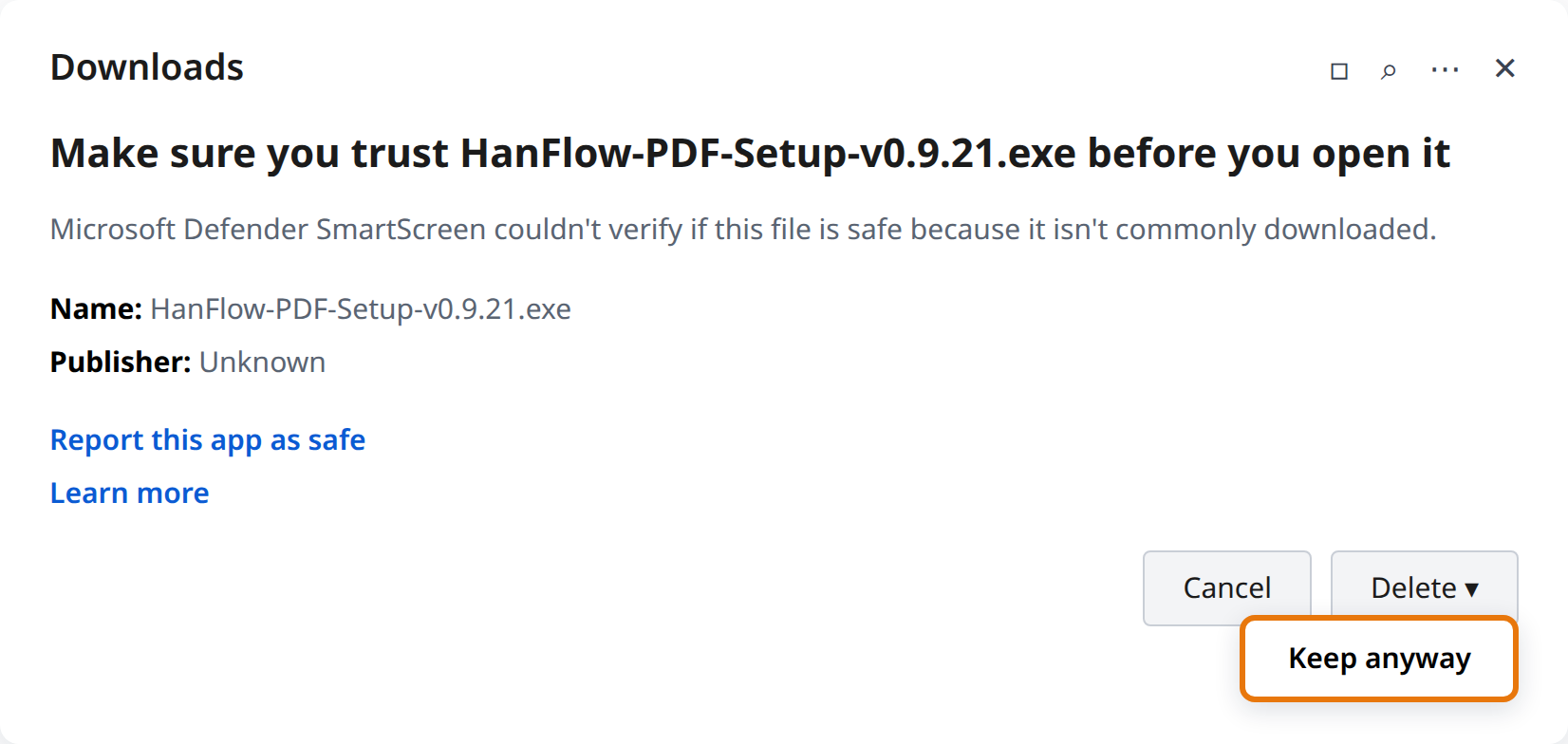
3In the confirmation window, click ▾ next to [Delete], then click "Keep anyway".
4When you run the file, click "Yes" in the User Account Control prompt.
🌐 Chrome users: Chrome usually downloads the file without blocking. If a download warning rarely appears, click "Keep" in the downloads list (Ctrl+J), then follow the guide at the top if "Windows protected your PC" appears when running.
✅ Why does this notice appear? HanFlow PDF is an official program made by Quantum Materials Inc., signed with a DigiCert code-signing certificate, and contains no viruses. Windows simply shows a protective notice for newly released software until download reputation builds up — it disappears naturally over time. It is safe to install following the steps above.
💡 After installation, launch HanFlow PDF from the desktop or the Start menu.