How to Edit Text in a PDF Without Printing or Rescanning
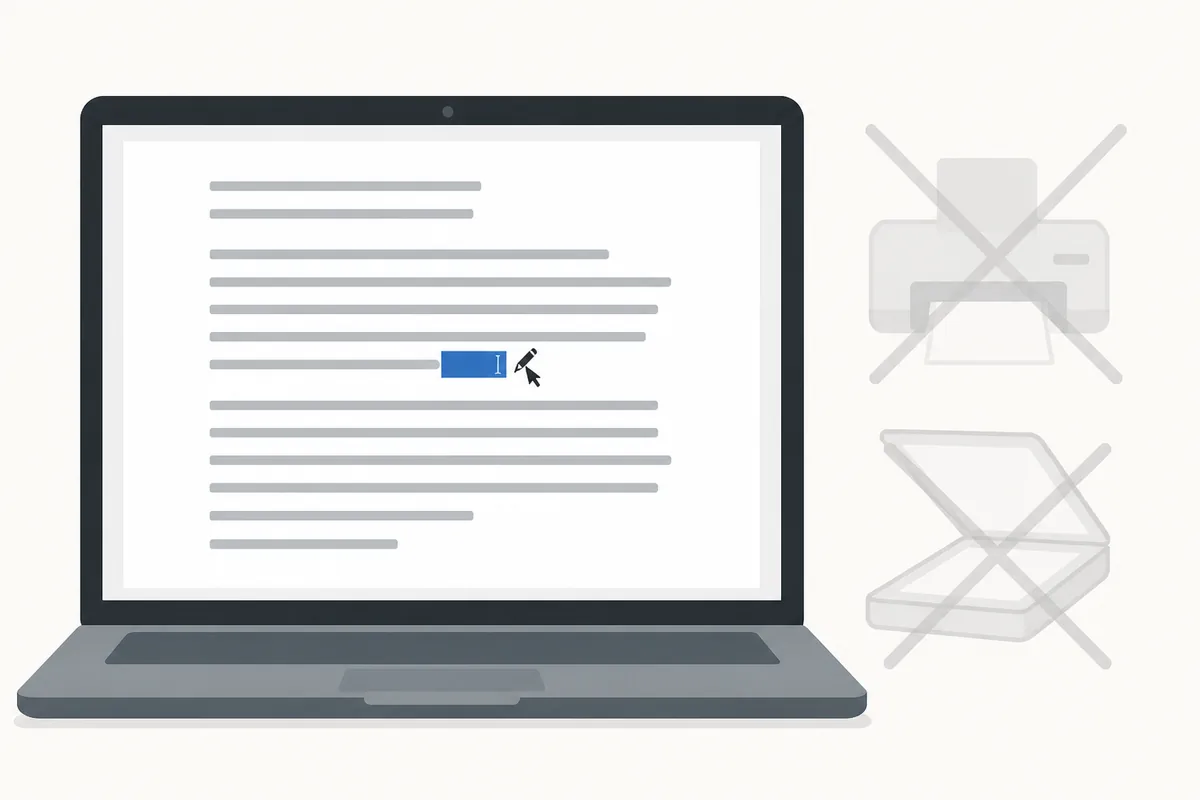
To edit text in a PDF, open the file in a PDF editor that supports direct text editing, click the word you need to change, and type the correction. There is no need to print the page, cross out the mistake with a pen, and scan the whole thing back in — the fix happens on the digital file itself.
Transcript
The contract's a PDF. And there's a typo. In my own name.
Fixed the text right in HanFlow PDF. No printing, no rescanning.
hanflowpdf dot com. Back to coffee.
Watch the fix in 30 seconds
Know what kind of edit you are making
Not every PDF edit is the same, and the approach depends on what you need to change.
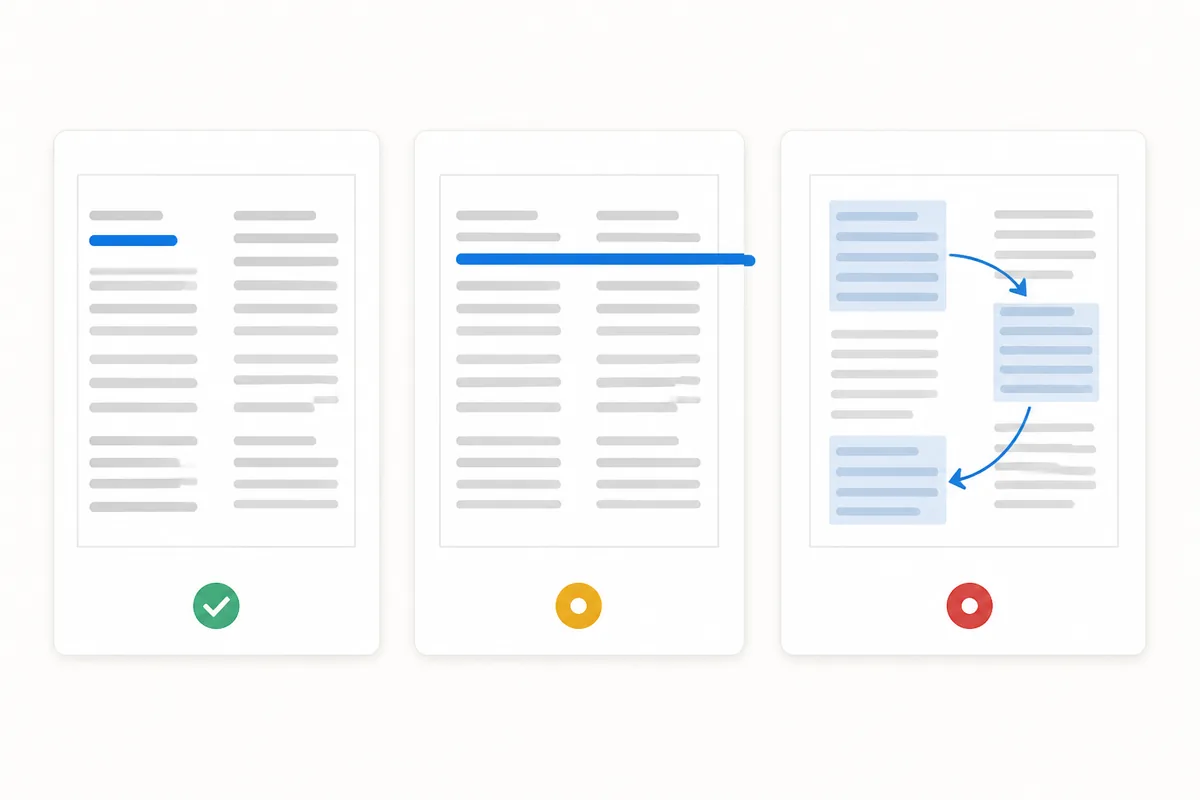
A typo fix is the simplest case. A misspelled name, a wrong date, a transposed digit in a phone number — you click the word, delete the error, and type the right letters. The font, size, and position stay the same.
A sentence rewrite is harder. PDF text sits inside fixed-width boxes. When you add words, the text may not reflow the way it would in a word processor. Short additions usually fit. Long insertions may push text outside its box or overlap with the next line.
A layout change — moving a paragraph, resizing a column, reflowing an entire page — is not what PDF text editing is built for. If you need that kind of rework, convert the PDF to an editable format first, edit there, and export back to PDF.
Start by asking: am I fixing a few words, or rewriting the document? That answer tells you whether direct editing is the right tool.
Select the text and make the change
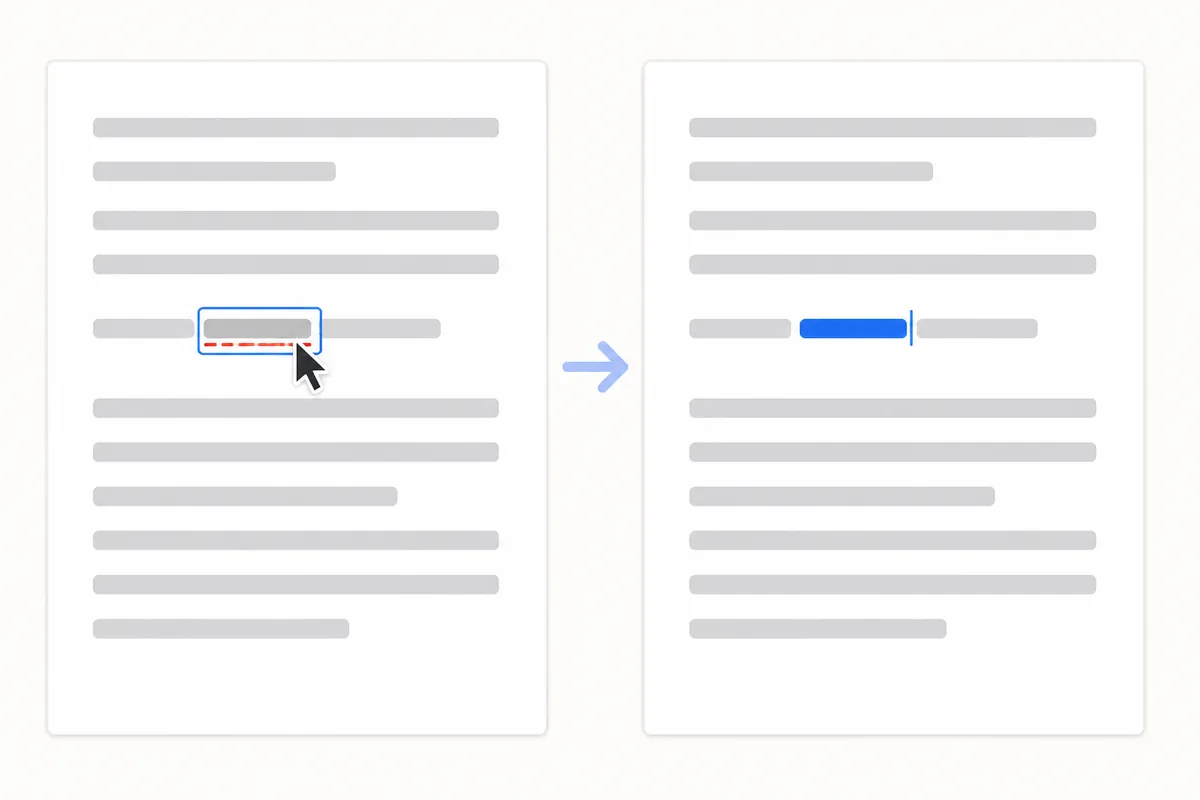
Open your PDF in an editor that lets you click directly on the text. Position your cursor on the word you want to fix. Click to place the insertion point, or double-click to select the whole word.
Delete the wrong characters and type the correct ones. The editor preserves the original font and size, so the corrected text matches the rest of the line. If the font is embedded in the PDF, the editor uses it. If it is not, the editor substitutes a close match — check the result to make sure the replacement looks right.
A few things to watch for:
- Character spacing. Some PDFs store each letter with a precise horizontal offset. Replacing a narrow letter with a wide one can push subsequent characters apart. Look at the line after editing.
- Embedded fonts. If the PDF embeds only a subset of the font — just the characters the document uses — and your correction introduces a new character, the editor needs the full font to display it. Missing characters show up as boxes or question marks.
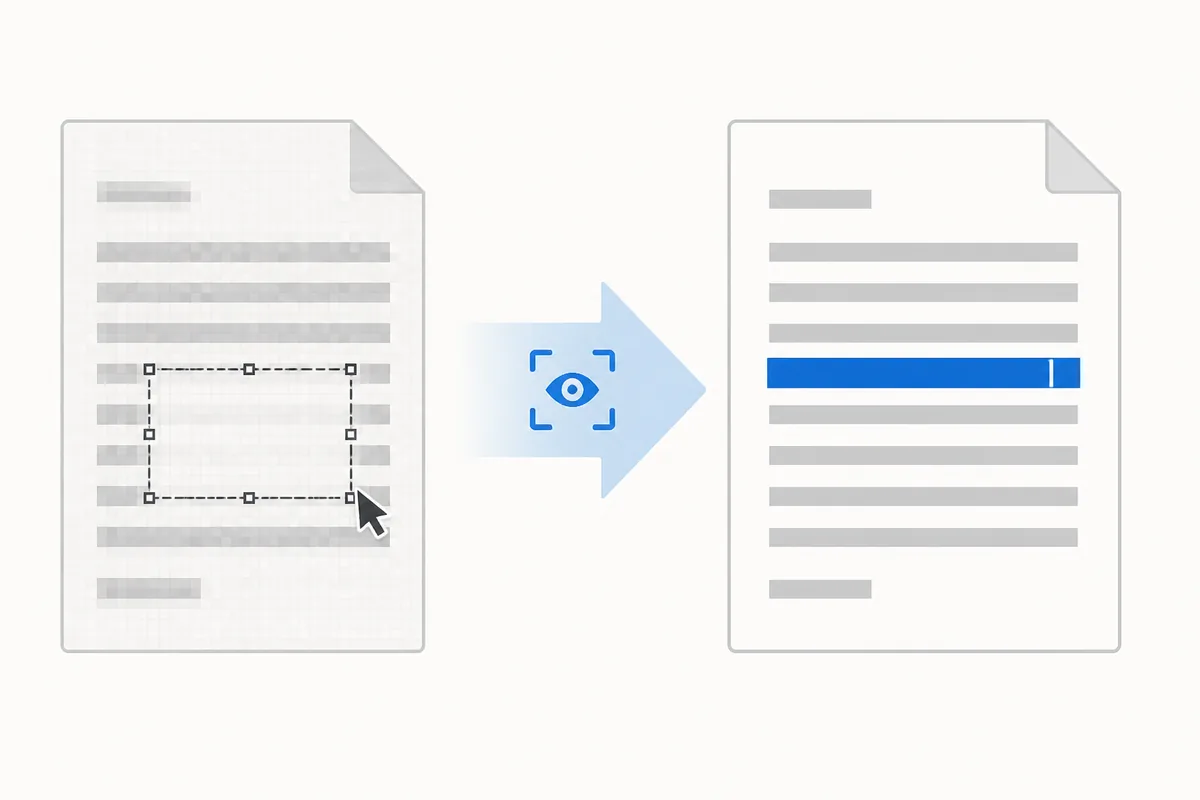
- Scanned documents. A PDF made from a scanned page is an image, not text. You cannot click on a word because there are no words — only a picture of words. Run text recognition (OCR) first to convert the image into editable text, then make your fix.
Check the result before you send it
After editing, scroll through the page to confirm three things.
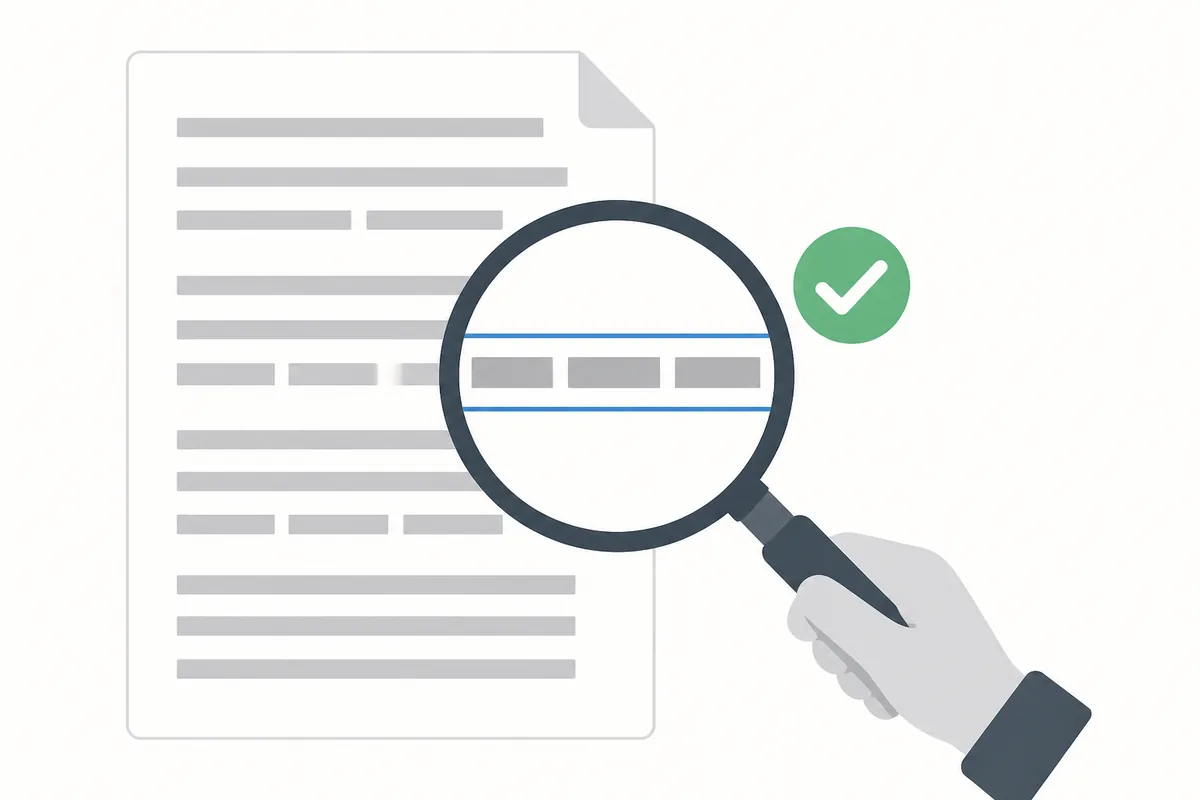
First, does the corrected text match the surrounding font? Zoom in. If the replacement characters look slightly different in weight or spacing, the font substitution did not match perfectly.
Second, does the line still fit its box? A longer correction may have pushed text past the right edge. If so, shorten the wording or adjust the text box width.
Third, save the file under a new name. Keep the original. If something went wrong — a character you did not notice shifted, a line broke in the wrong place — you still have the unedited version to go back to.
When direct editing is not enough
Some documents resist direct text editing. A PDF generated from a design tool may store each letter as a separate object with no logical text flow. A form with fillable fields may lock the body text. A scanned contract may need OCR before any text appears.
In these cases, convert the PDF to an editable format — Word or PowerPoint — make your changes there, and export back to PDF. A converter that keeps tables and formatting means you spend less time rebuilding the layout than you would starting from scratch.
For scanned pages, run text recognition first. Once the OCR layer is in place, you can search, copy, and edit the text the same way you would in any other PDF.
Editing text in HanFlow PDF
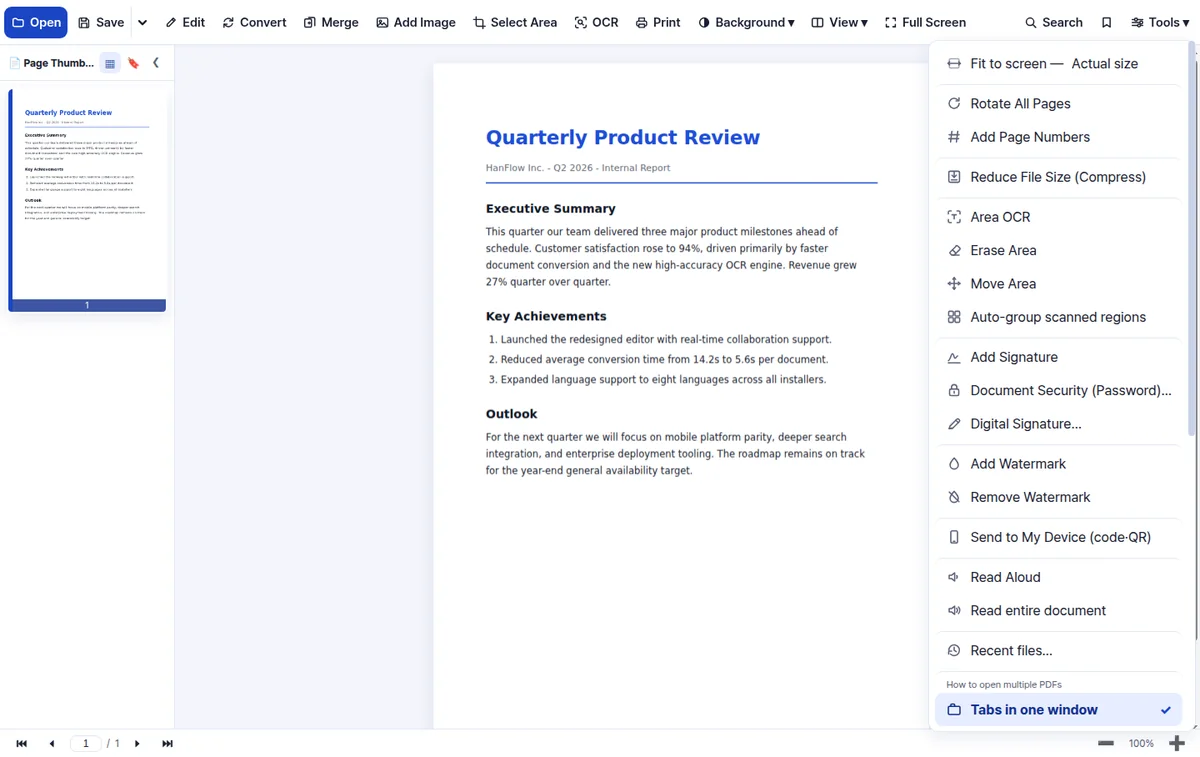
HanFlow PDF lets you click directly on any text in a PDF and type your correction. Select a word, delete it, type the replacement — the font and size carry over from the original.
For scanned documents, the optional OCR pack recognizes text in 26 languages so you can search and edit pages that started as images. Conversion to Word and PowerPoint is built in for cases where a full rewrite makes more sense than a spot fix.
HanFlow PDF runs on Windows and Mac, with dedicated apps for Android and iPhone. No ads.
FAQ
How do I fix a typo in a PDF?
Open the PDF in an editor that supports direct text editing. Click on the misspelled word, delete the wrong characters, and type the correct ones. The font and size stay the same. Save under a new name so you keep the original as a backup.
Can I edit text in a scanned PDF?
Not directly. A scanned PDF stores each page as an image, not as text. Run text recognition (OCR) first to create an editable text layer, then click and edit the recognized text the same way you would in any other PDF.
Will editing a PDF change the formatting?
Small edits — fixing a name, correcting a date — usually leave the formatting intact. Longer changes can push text outside its box or cause line breaks to shift. After editing, zoom in and check that the corrected line still fits and matches the surrounding font.
Video transcript
- The contract's a PDF. And there's a typo. In my own name.
- Fixed the text right in HanFlow PDF. No printing, no rescanning.
- hanflowpdf dot com. Back to coffee.