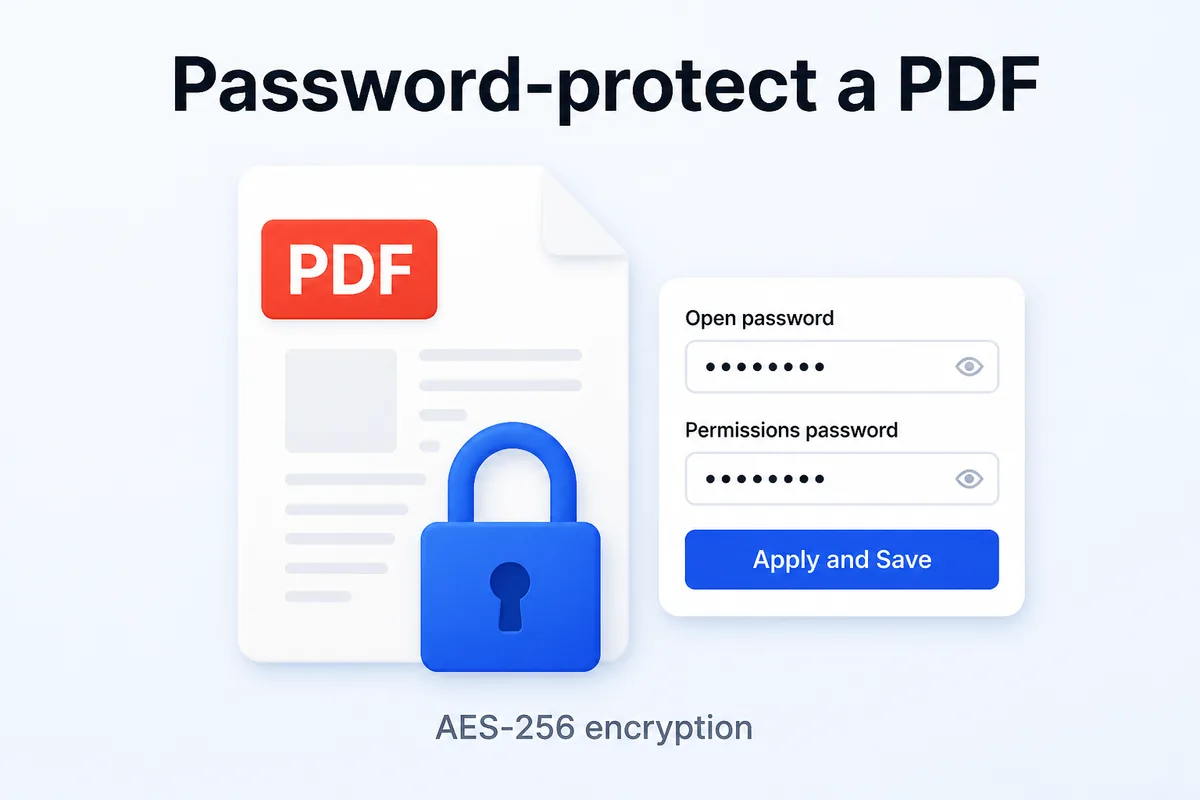
How to Password Protect a PDF (and Block Printing or Copying)
Set an open password on your PDF so only people who know it can read the file. You can also add a separate permissions password to block printing, copying or editing.
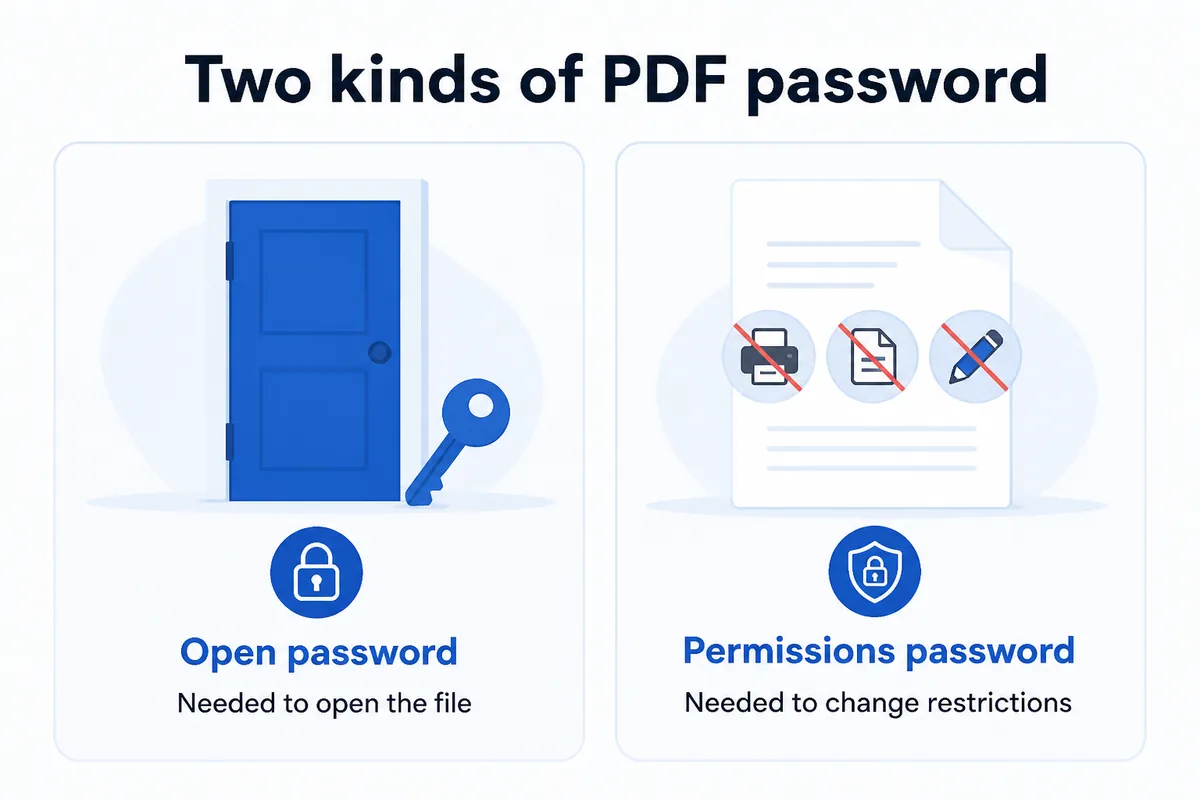
Two kinds of PDF password
PDFs support two distinct passwords, and each one serves a different purpose.
The open password locks the door. Anyone who tries to view the file must type this password first. Without it, the contents stay hidden.
The permissions password controls what a reader can do once inside. It lets you restrict printing, copying or editing. You can set a permissions password that differs from the open password — and in most cases you should, so you can hand out the open password without giving away the ability to lift restrictions.
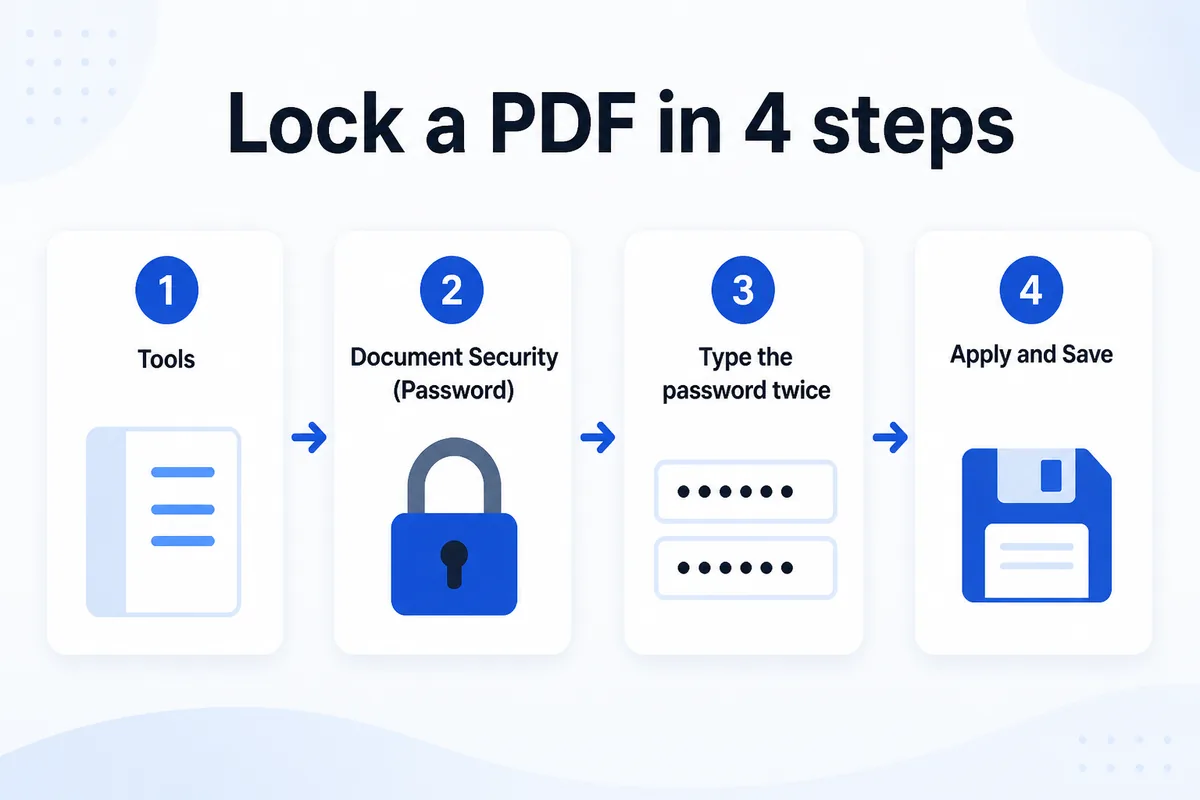
How to password protect a PDF step by step
- With the PDF open, click Tools ▾.
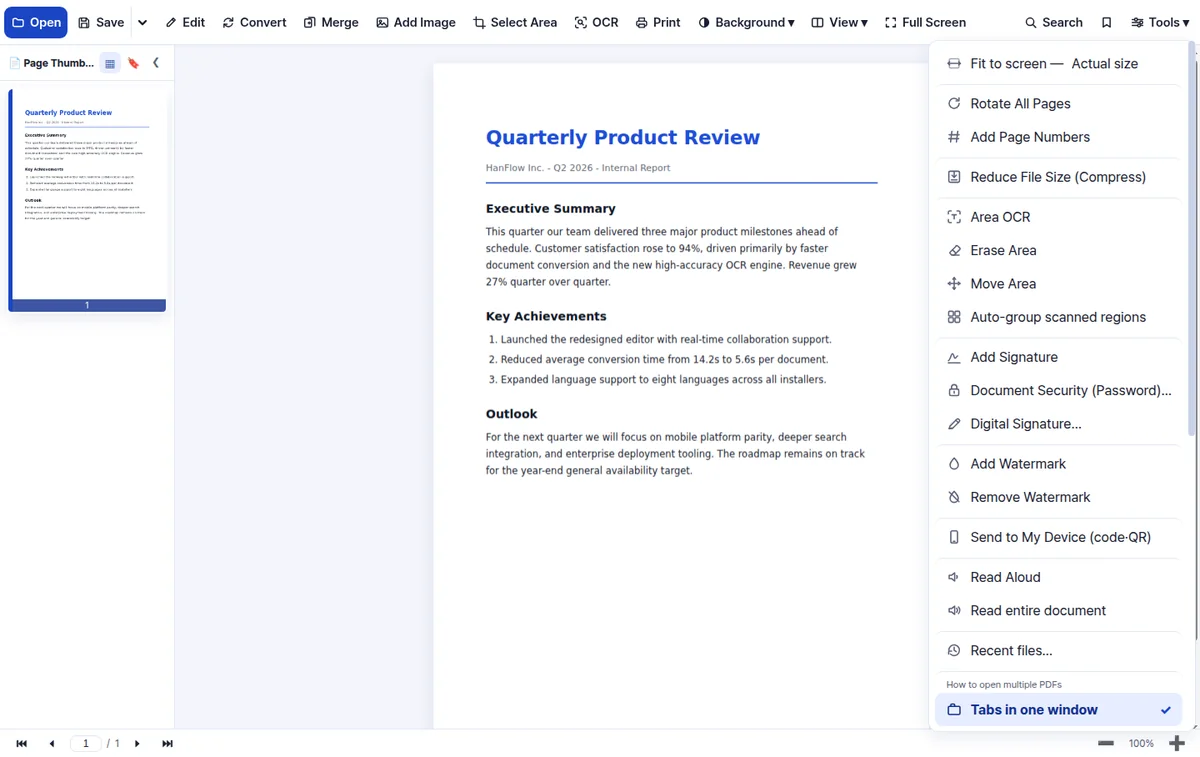
- Choose Document Security (Password)….
- Type the open password twice. To add restrictions, tick Disallow printing, Disallow copying or Disallow editing and enter a permissions password.
- Click 🔒 Apply and Save. The file is encrypted with AES-256 and saved right away.
You'll find Document Security (Password) in the Tools menu, alongside other features like Add Signature and Add Watermark.
Block printing, copying or editing
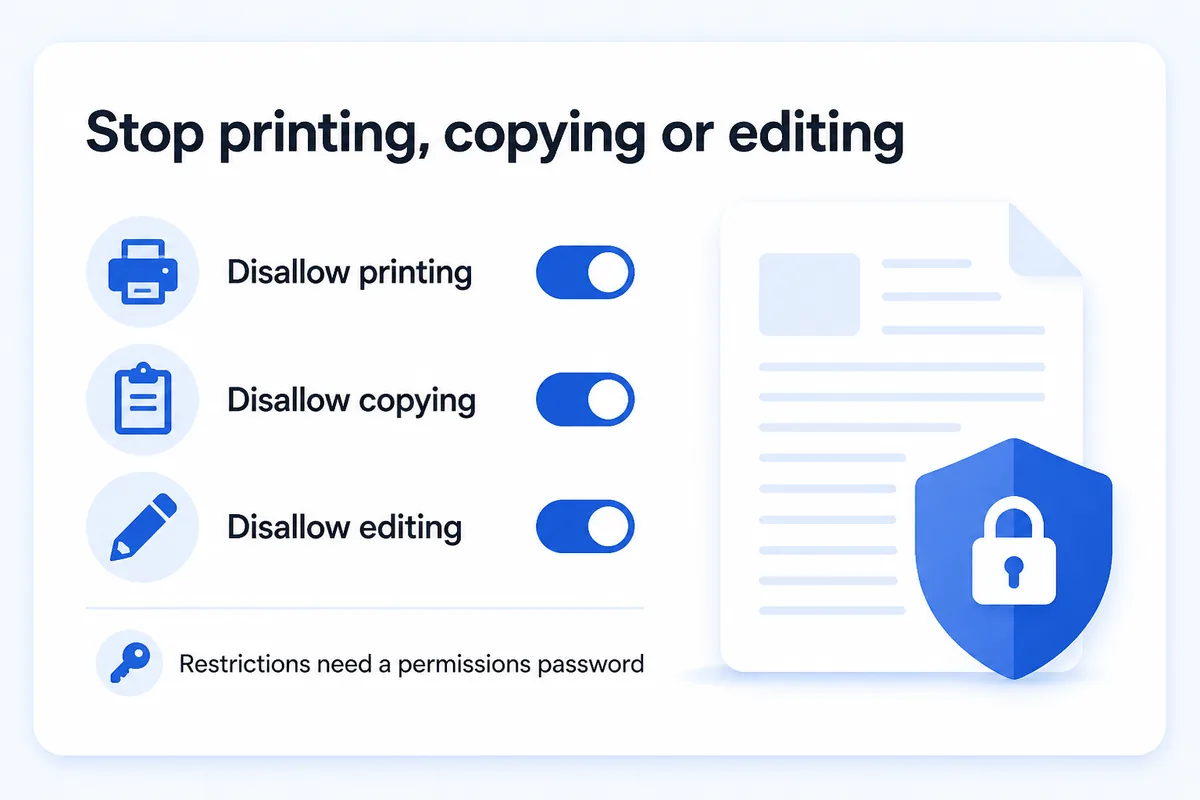
Need to share a report people can read but not print? Or a contract they can view but not copy text from? Check the restriction boxes in the security dialog: Disallow printing, Disallow copying, Disallow editing. Applying any of these requires a permissions password.
One thing to know: these restrictions depend on the PDF reader honouring them. A reader that ignores permission flags can bypass the restrictions. The open password is the real barrier — it prevents anyone without the password from opening the file at all. If confidentiality matters, always set an open password rather than relying on restrictions alone.
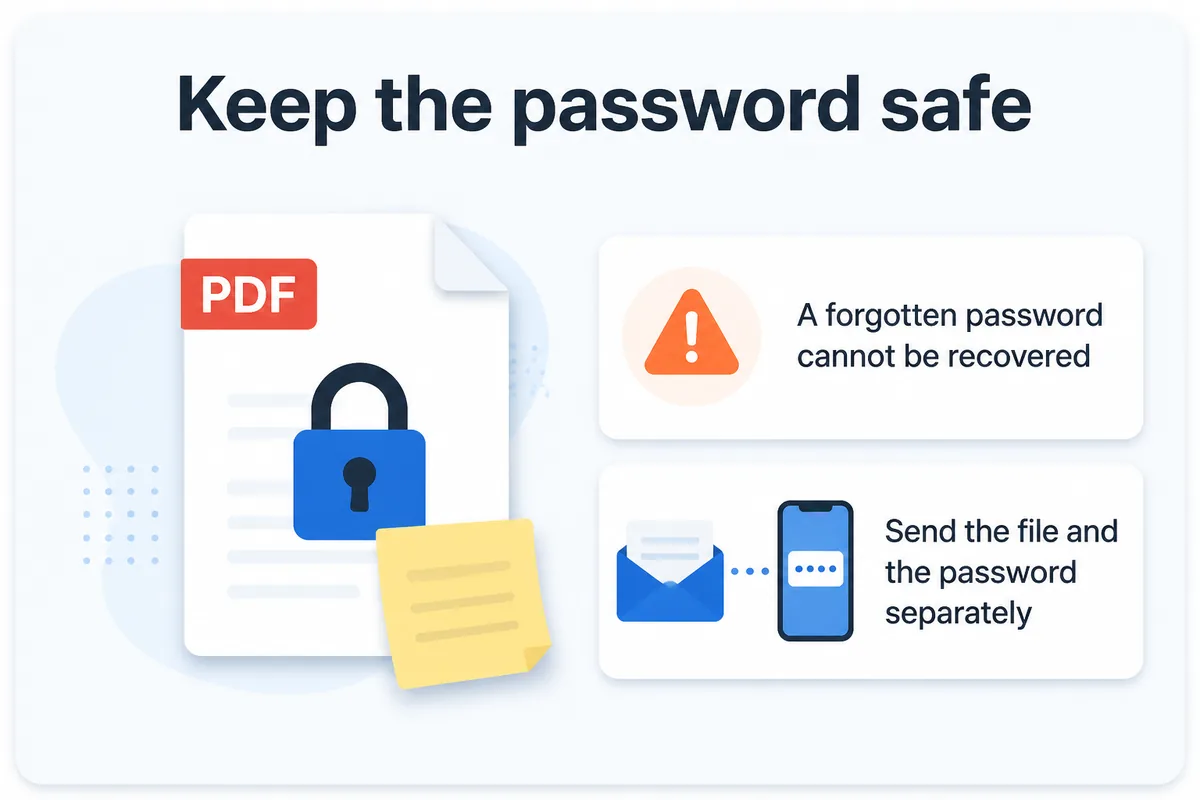
Keep the password safe
Passwords on a PDF cannot be recovered if forgotten. There is no reset link, no master key. Before you lock a file, store the password somewhere you won't lose it.
When you send the protected PDF by email, send the password through a different channel — a messaging app, a phone call, a separate message. If the file and the password travel together and the email is intercepted, the protection is meaningless.
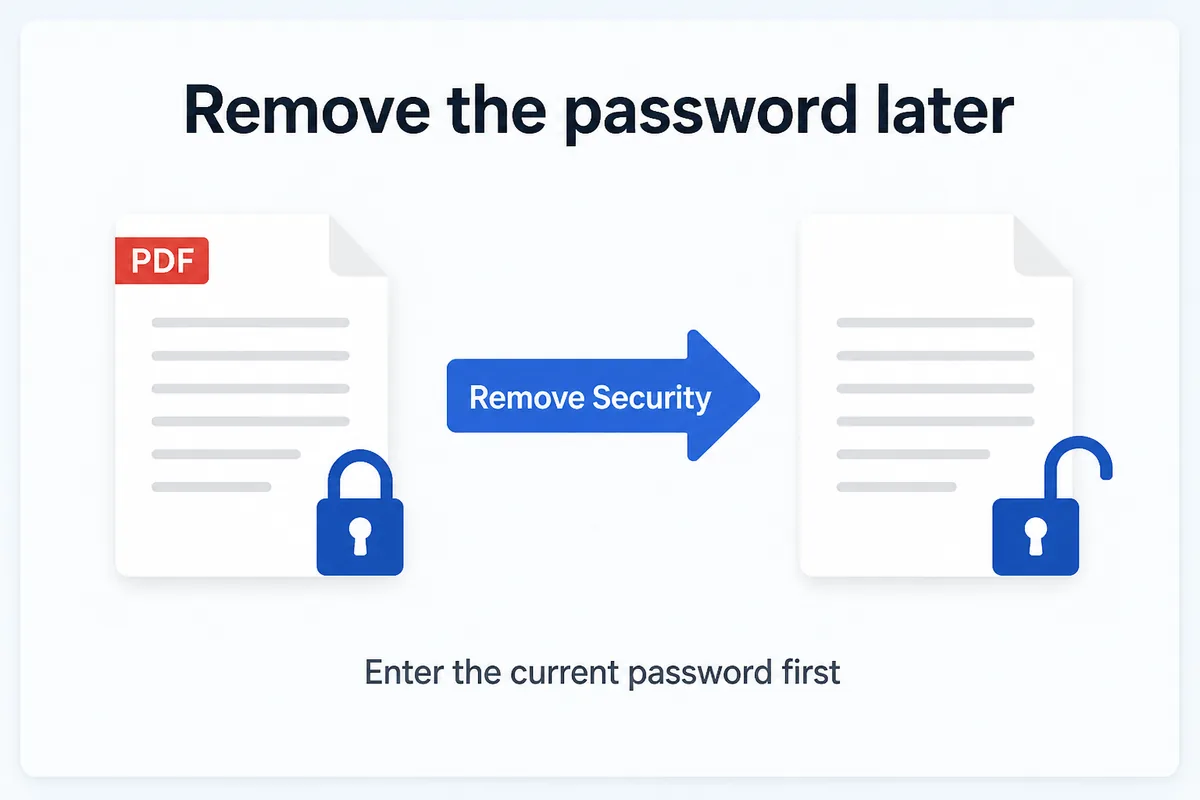
How to remove a password from a PDF
Open the protected file and go back to Tools ▾ → "Document Security (Password)…". Click 🔓 Remove Security. If the file has editing restrictions, you will need to confirm the permissions password first. The file is then saved without any password or restrictions.
HanFlow PDF handles password protection, restrictions, signatures and more on Windows and Mac. If you also need to collect signatures on your documents, see how to work with PDF forms and signatures.
FAQ
Can I password protect a PDF without Adobe?
Yes. Many PDF applications can add AES-256 password protection. The resulting file is a standard encrypted PDF that any compliant reader can open — as long as the recipient has the correct password.
How strong is AES-256 encryption?
AES-256 is a widely used encryption standard. In practice the weak point is the password, not the encryption — a long password that is not reused elsewhere matters more than anything else.
Can someone still print a restricted PDF?
Permission restrictions are a request, not a hard lock. They rely on the PDF reader respecting the flags. Most mainstream readers do, but a non-compliant tool may ignore them. For true confidentiality, set an open password so the file cannot be viewed at all without it.
What if I forget the password?
The password cannot be recovered. If you lose it, the file stays locked permanently. Store your passwords in a secure place — a password manager, for example — before you apply encryption.