How to Extract Pages From a PDF (and Split It Into Parts)
Open your PDF in HanFlow PDF, right-click a page thumbnail on the left, choose Extract Pages, type the range you need, and save. The selected pages land in a brand-new PDF while your original stays untouched.
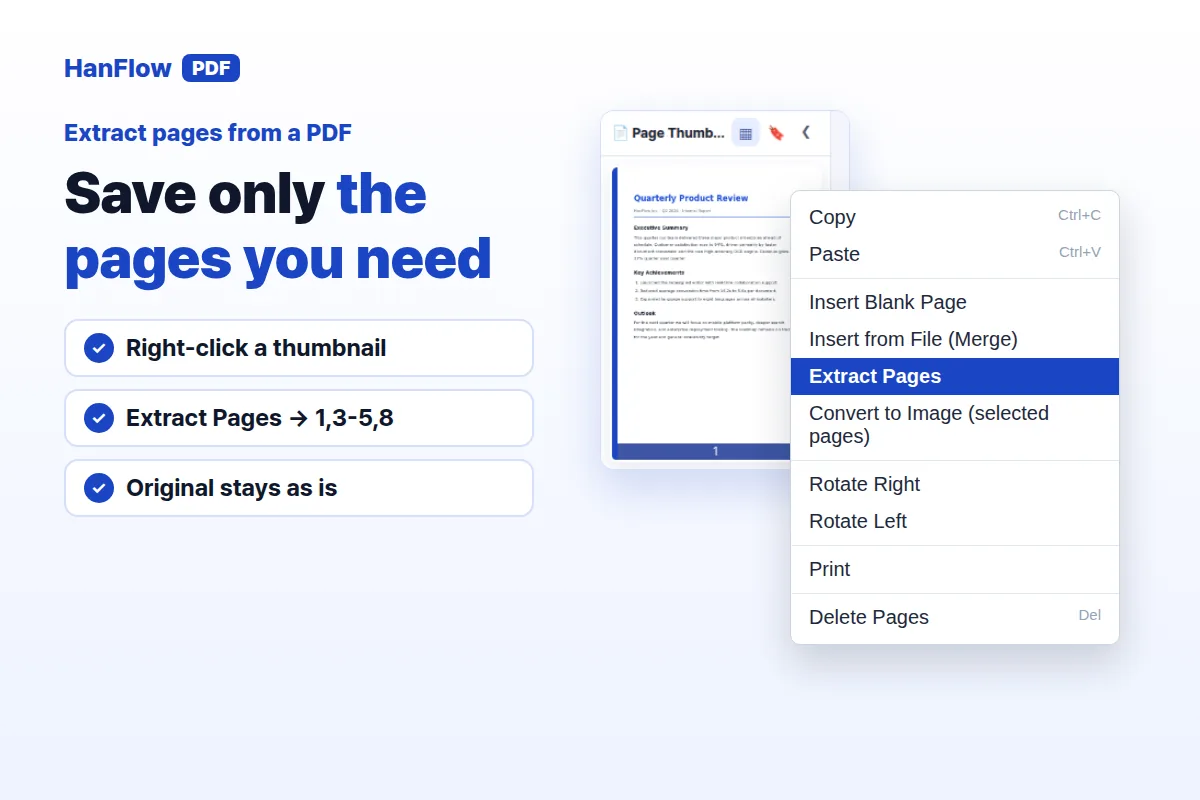
Extract pages in four steps
- Open the PDF in HanFlow PDF. The Page Thumbnails panel on the left shows every page.
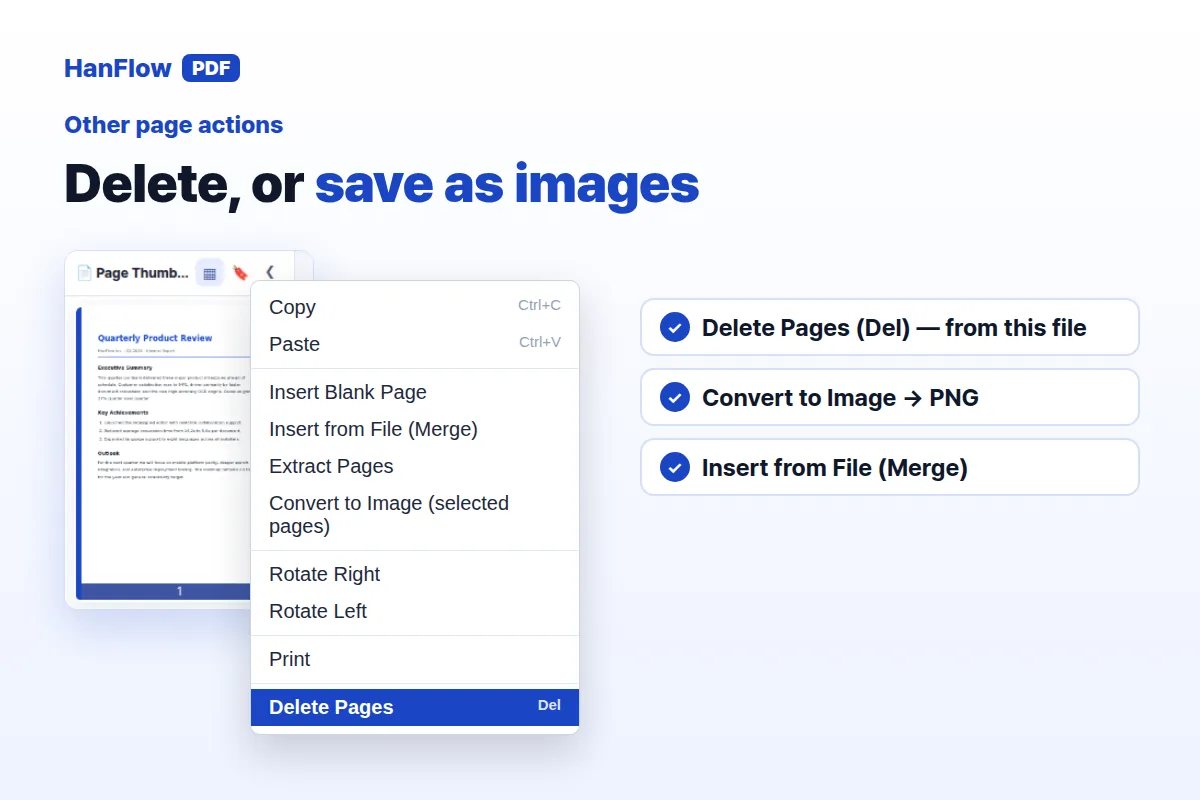
- Right-click a thumbnail and choose Extract Pages from the menu.
- In the Extract Pages box, type the pages you want — for example
1,3-5,8. The field already shows a default range based on your selection, or all pages if nothing is selected. - Pick a location in the save dialog and confirm. A toast says Extracted pages saved and the folder containing the new file opens automatically.
Annotations and other edits you made carry over into the extracted file.
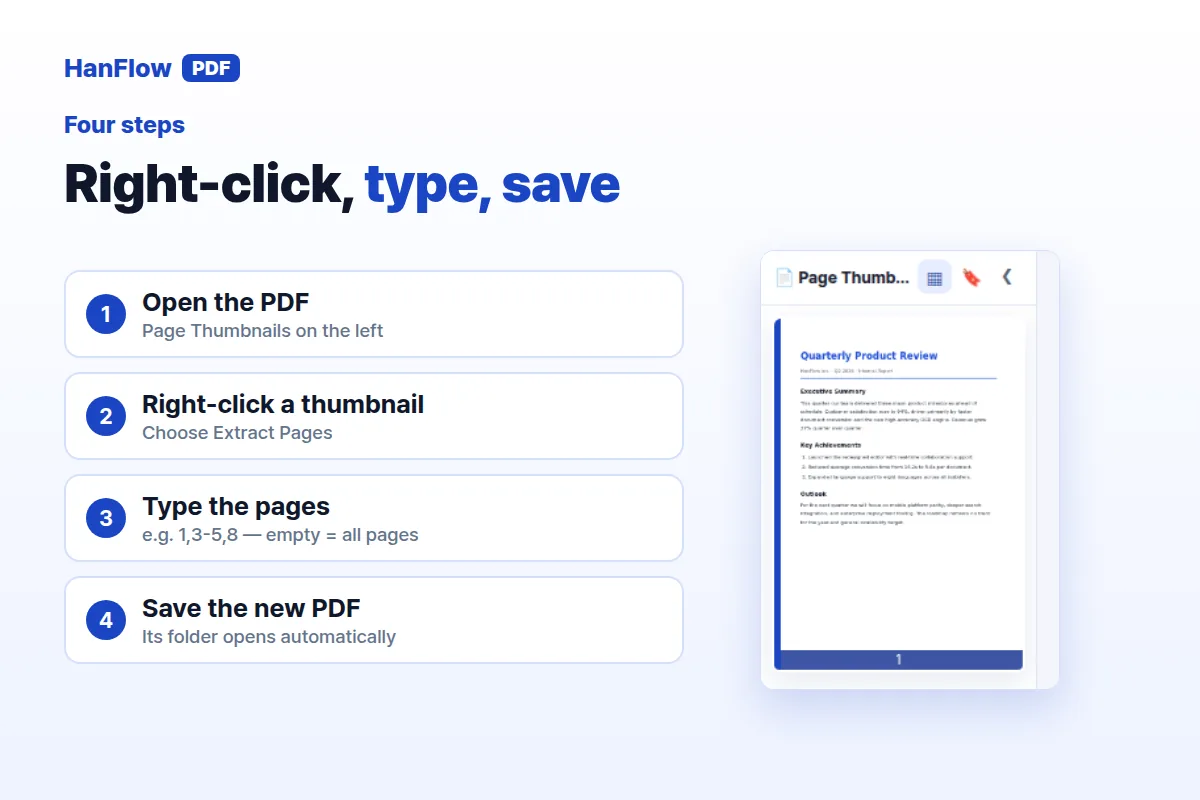
Type the page range: 1,3-5,8
The Page field in the Extract Pages box accepts individual numbers and ranges separated by commas. 1,3-5,8 pulls out pages 1, 3, 4, 5, and 8. The new file keeps them in page order, whatever order you type them in.
If you selected thumbnails before opening the dialog, those pages appear in the field automatically. Leave the field empty to extract every page. Numbers past the last page are skipped. Type something that is not a page number — a word, for example — and you get a message: "Please check the page range — example: 1,3-5,8".
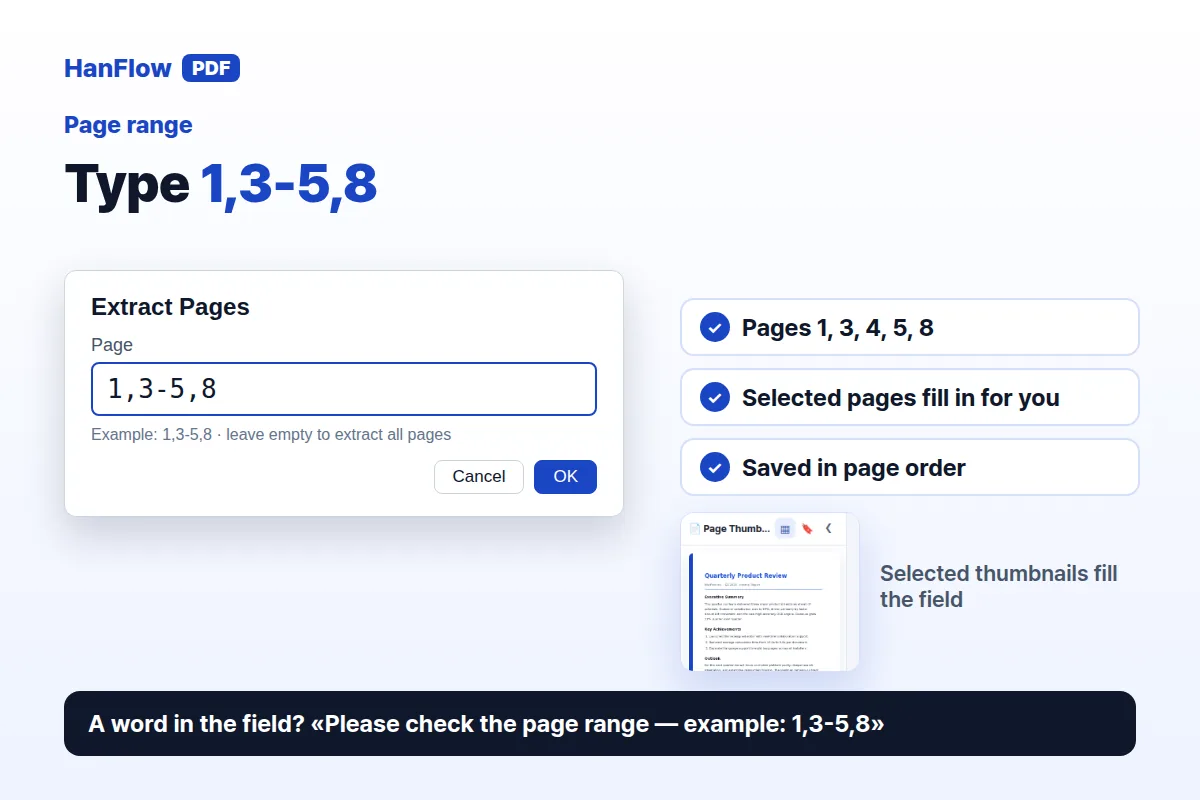
Split a PDF into parts
There is no one-click split button, but Extract Pages does the job. Run it once for each part you need.
Say you have a 20-page document and want two halves. Extract pages 1-10 and save, then extract 11-20 and save to a different file. Each run creates its own PDF. The original document stays intact — nothing is removed or rearranged — so you can repeat the process as many times as you like.
Remove pages instead
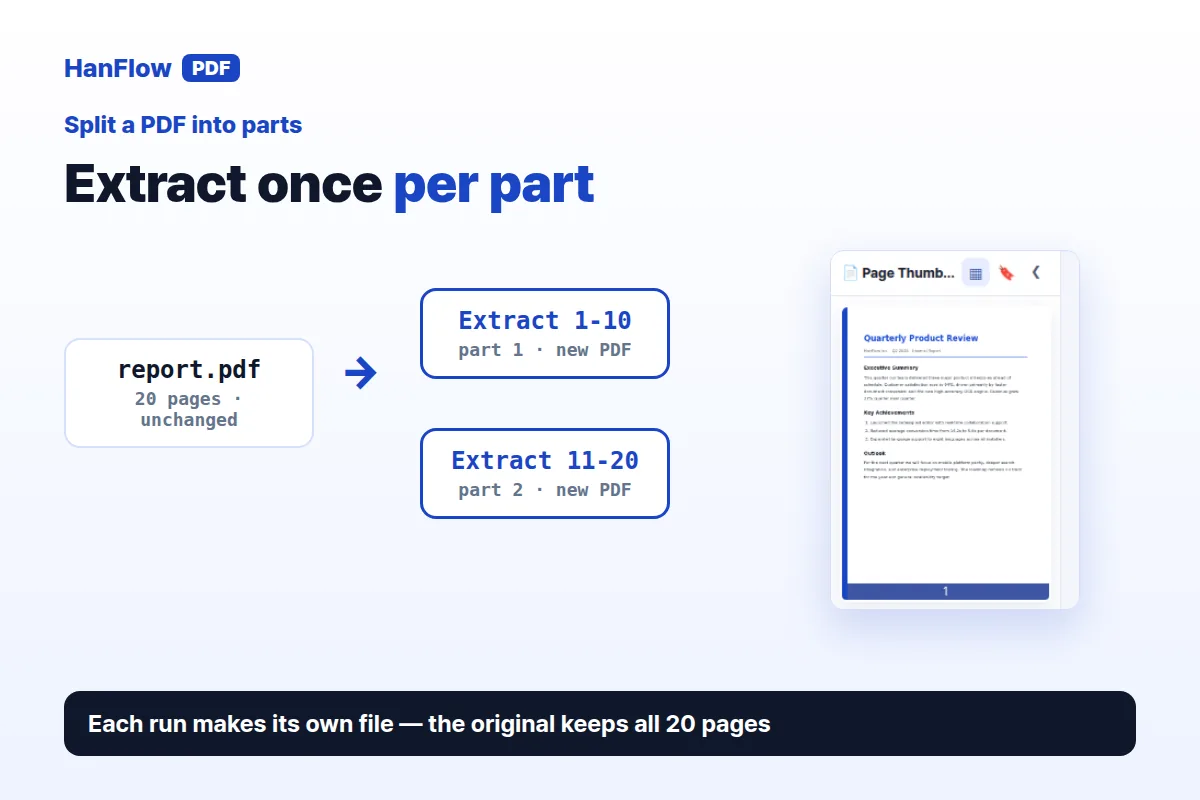
Extracting copies pages out. If you want to delete pages from the document itself, right-click a thumbnail and choose Delete Pages (or press Del). The pages disappear from the open file. Save to make the change permanent.
Need images instead of a PDF? Right-click the thumbnails you want and choose Convert to Image (selected pages). The image export opens with those pages set, and saves them as PNG files.
Frequently asked questions
Does extracting pages change the original file?
No. Extract Pages copies the selected pages into a new PDF. The original document remains exactly as it was.
Are my annotations included in the extracted file?
Yes. Annotations and other edits you made in HanFlow PDF are included in the new PDF.
What happens if I type an invalid page range?
If the field contains something that is not a page number, the app shows "Please check the page range — example: 1,3-5,8". Page numbers beyond the end of the document are simply left out.
Can I merge pages from several files into one?
Yes. Right-click a thumbnail and choose Insert from File (Merge) to add pages from another PDF. For continuous page numbering after merging, see how to add page numbers to a PDF.
HanFlow PDF is a desktop PDF program for Windows with a one-month trial, then a licence.