How to Merge PDF Files Into One Document
To merge PDF files, add the documents to a merge tool, drag them into the right order, and combine them into a single file. Once merged, scroll through the result to make sure every page landed where it should.
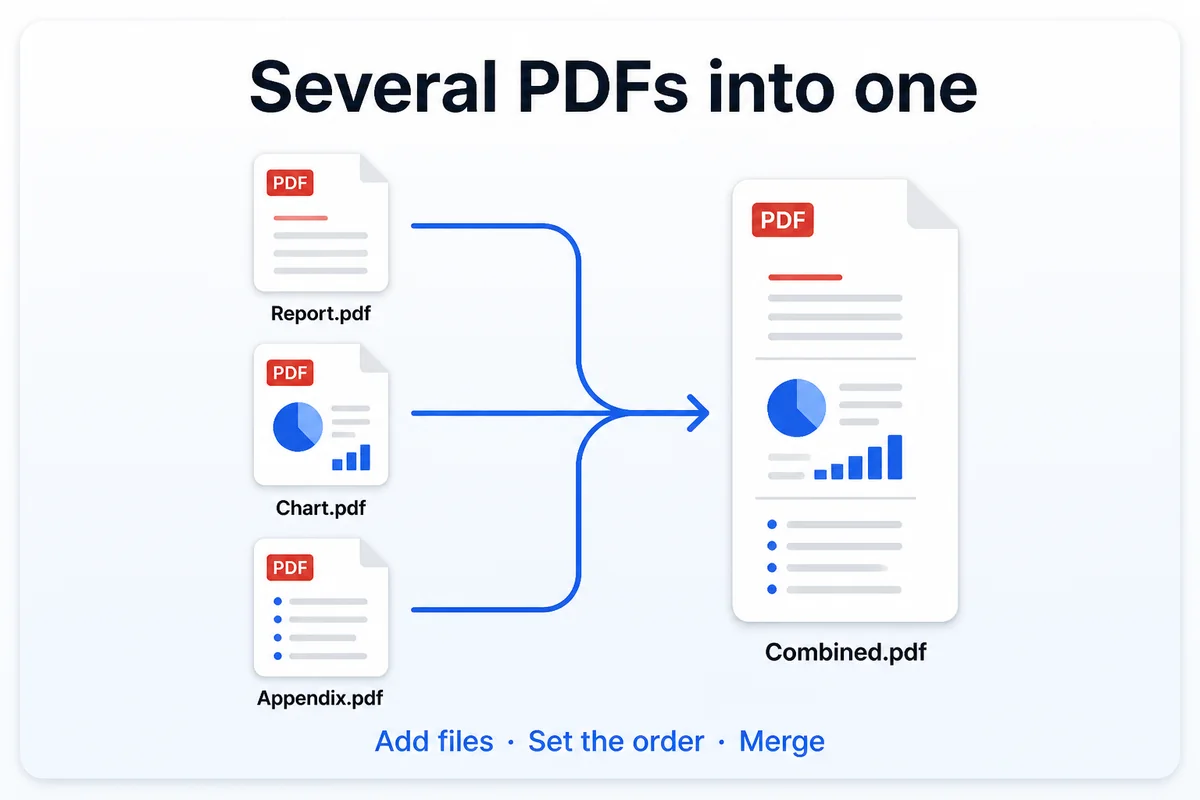
The steps sound simple, but most problems show up before or after the merge itself — a chapter out of sequence, a blank page nobody noticed, or a file too large to email. The sections below cover each stage.
Decide the order before you merge
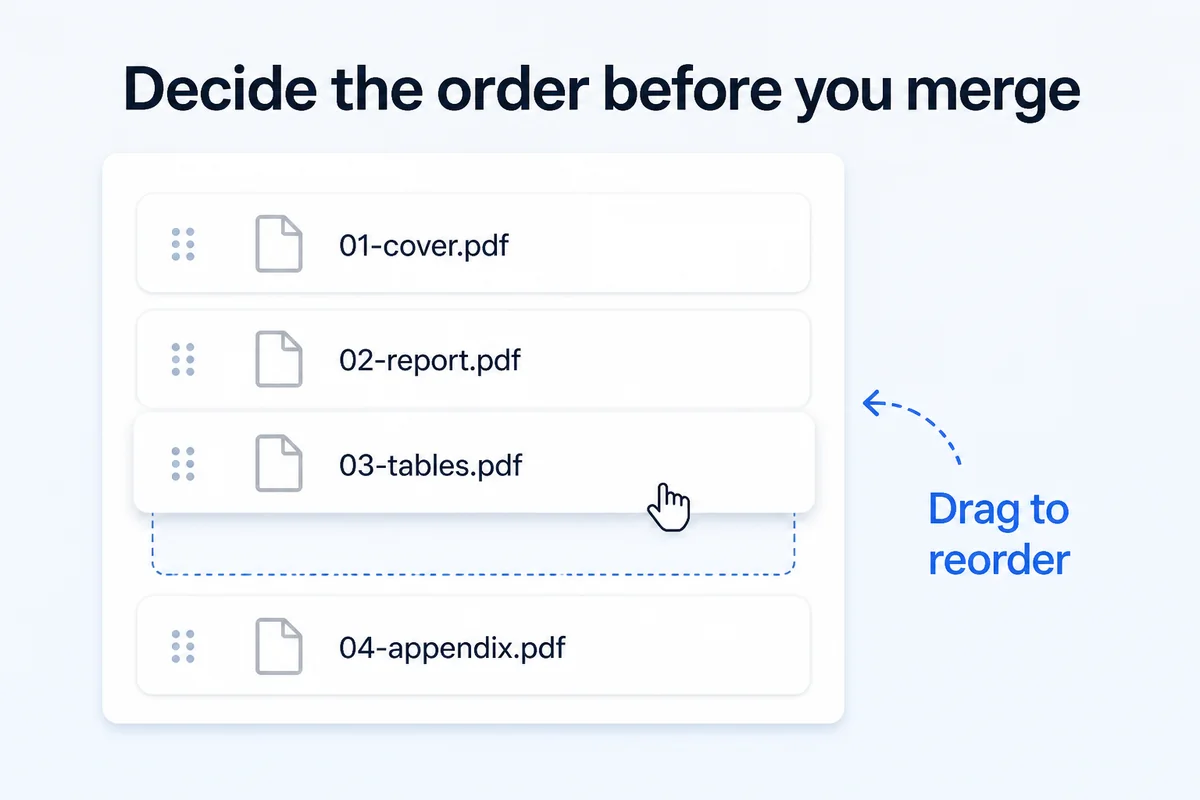
The merge tool will combine your files in the order they appear in the list. Getting that order right before you click the button saves you from rearranging pages afterward.
Name your files with leading numbers — 01-cover.pdf, 02-report.pdf, 03-appendix.pdf — so they sort correctly when you add them. If the files come from different people, rename them first. "Final_v2" and "scan (3)" tell you nothing about sequence.
Group files by role: cover page, body, supporting tables, appendix. When different sections arrive in different page sizes or orientations — letter-size body pages mixed with landscape spreadsheets — the merge preserves each page's original dimensions. That is normal. You can rotate individual pages later if you need a uniform look.
How to merge PDF files step by step
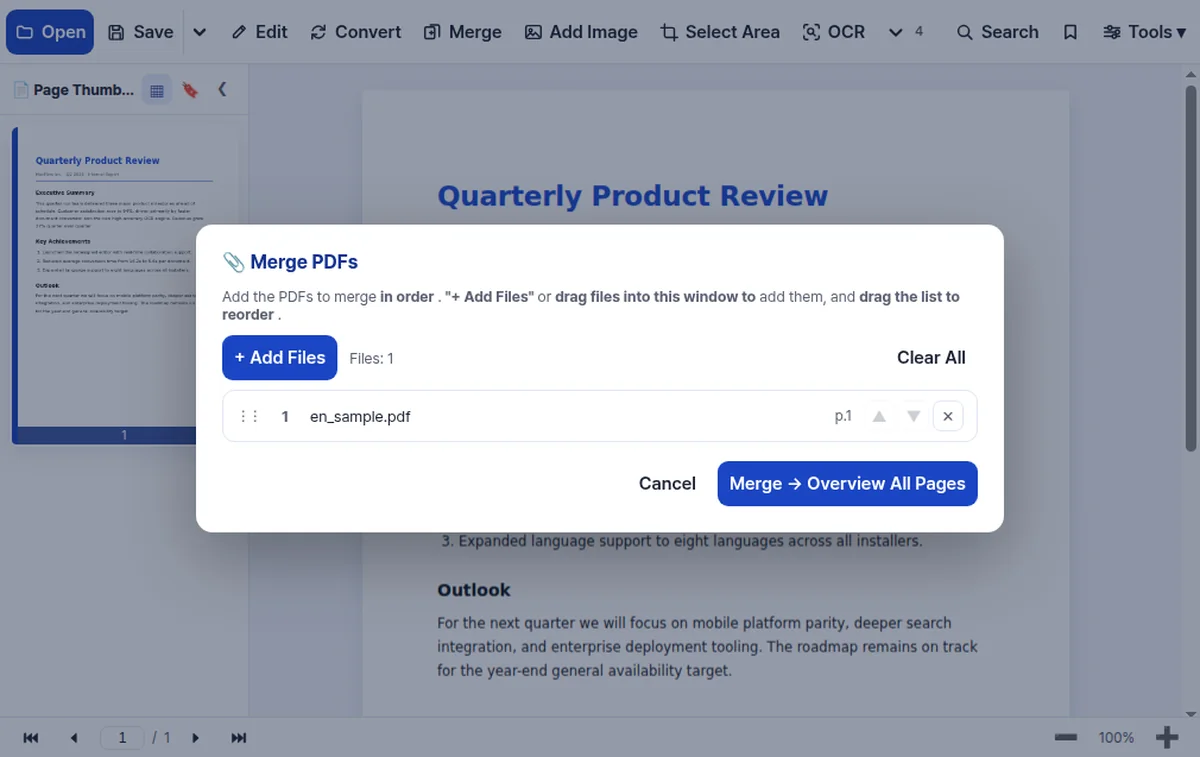
Click Merge in the top toolbar to open the Merge PDFs window. Click the + Add Files button or drag your files straight into the window. The files appear in a list you can reorder by dragging.
Arrange the list so the first file sits at the top and the last at the bottom. If you added something in the wrong spot, grab it and drag it up or down. When the order looks right, click Merge → Overview All Pages. The tool combines the files and then displays every page of the new document so you can scroll through and confirm the sequence before saving.
Fix pages after merging
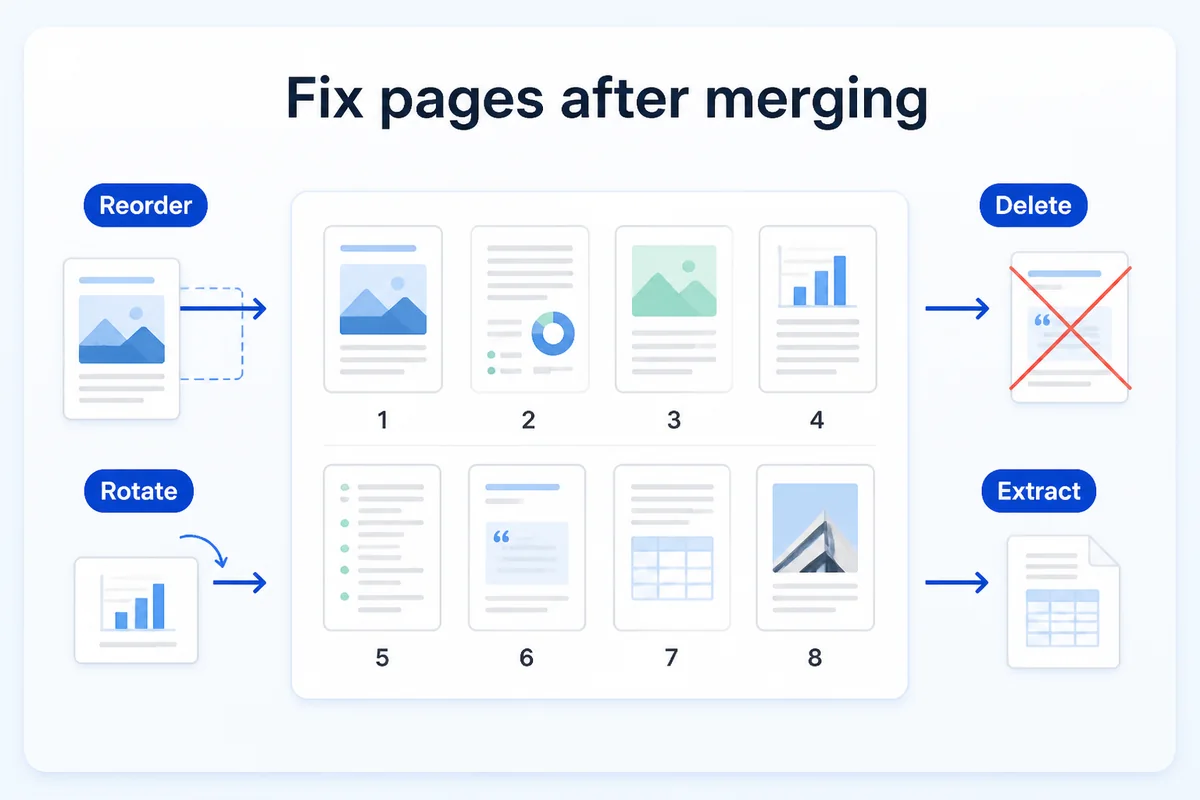
A merged file sometimes needs cleanup. A scanned document may carry a blank page at the end. A landscape chart may need rotating. A section that looked fine in isolation may need to move once you see it in context.
After merging, you can reorder pages by dragging their thumbnails, delete pages you do not need, rotate individual pages, and extract a range into a separate file. Select the thumbnails, move them where they belong, and save.
Watch for blank pages that sneak in at section boundaries. They are easy to miss in a long document and waste paper when someone prints the file. A quick scroll through the page thumbnails catches them.
Keep the merged file easy to send
Combining several documents into one often produces a large file. Scanned pages are the usual cause — each page is stored as a full-resolution image. If the merged PDF needs to go by email, it may exceed attachment limits.
The Tools menu has three items that help. Reduce File Size compresses the images inside the PDF while keeping text readable. Add Page Numbers stamps a running number on every page so readers can navigate a long document. Add Watermark places a mark on each page — useful for marking a draft or labelling a confidential report.
If you regularly run into email size limits, compress the file before attaching it.
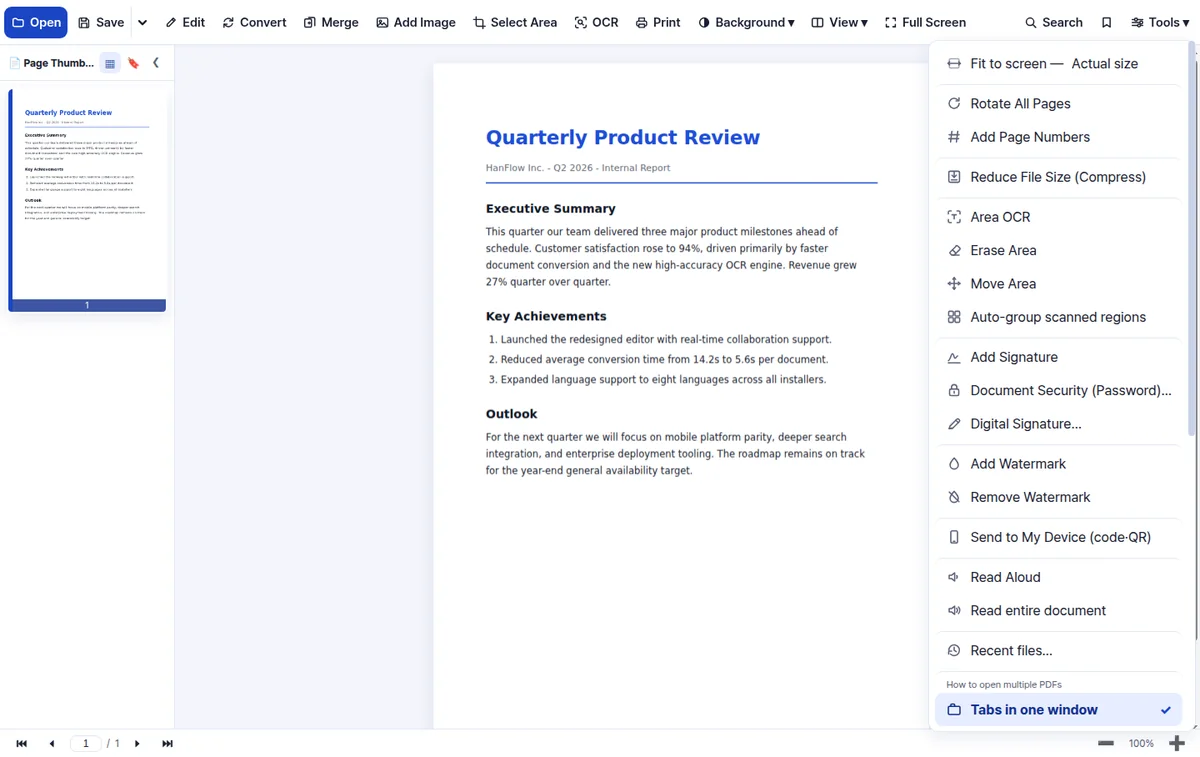
Merging PDFs with HanFlow PDF
HanFlow PDF is a desktop app for Windows and Mac built around everyday PDF tasks. Its homepage puts it plainly: "Several PDFs into one — Add the files, drag to set the order, then combine them into a single document."
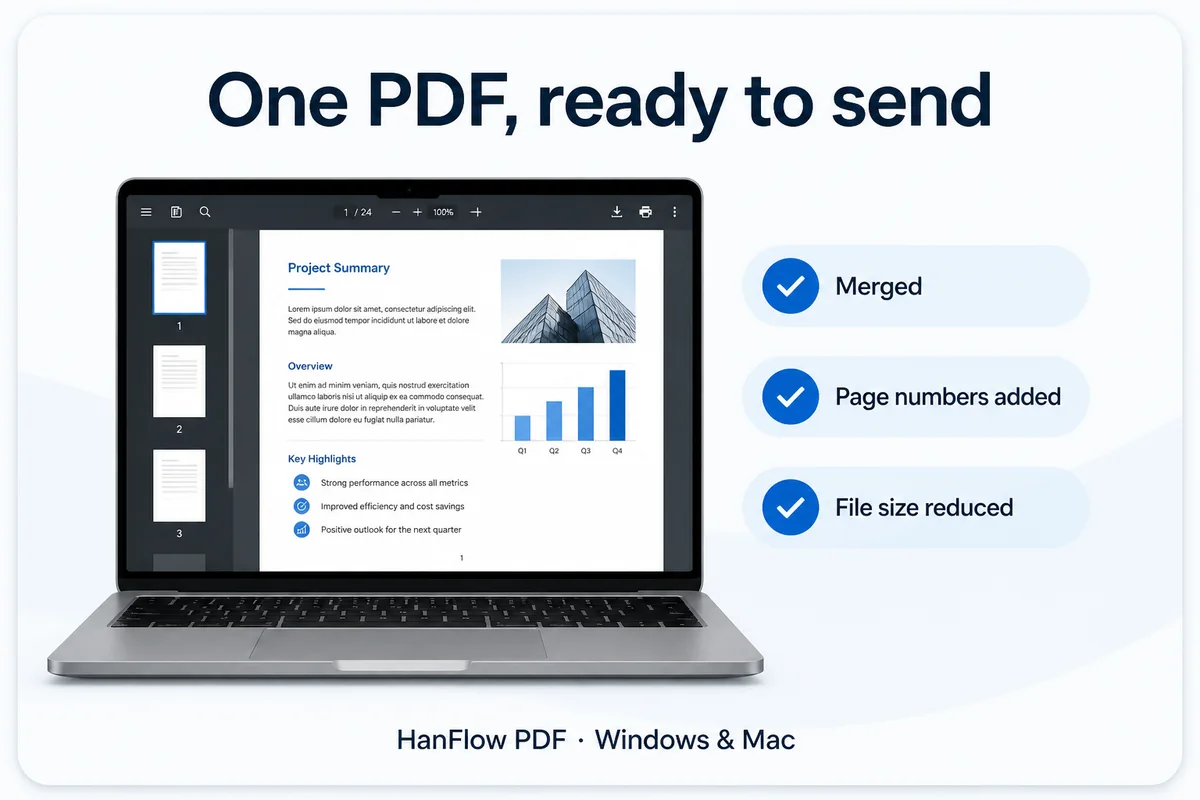
Beyond merging, the app lets you split a PDF into single pages, insert pages from another file, delete, rotate, extract, and reorder pages with drag and drop. Everything described in the sections above — merging, reordering, compressing, adding page numbers — happens inside one program.
FAQ
How do I combine multiple PDFs into one?
Add your files to a merge tool, arrange them in the order you want, and combine. After merging, scroll through the result to check that every page is in the right place and no blank pages slipped in.
Can I change the page order after merging?
Yes. Open the merged file and drag page thumbnails into a new sequence. You can also delete unwanted pages, rotate landscape pages to portrait, or extract a section into its own file.
Why is my merged PDF so large?
Scanned pages are the most common cause. Each scan is stored as a high-resolution image, so combining many of them produces a heavy file. Use a compression tool to reduce those image sizes while keeping the text legible.
Is it safe to merge PDFs with an online tool?
Online merge tools require you to upload your files to someone else's server. For everyday documents that may be fine. For confidential material, consider a desktop app that works on the files already on your computer.