How to Delete Pages From a PDF
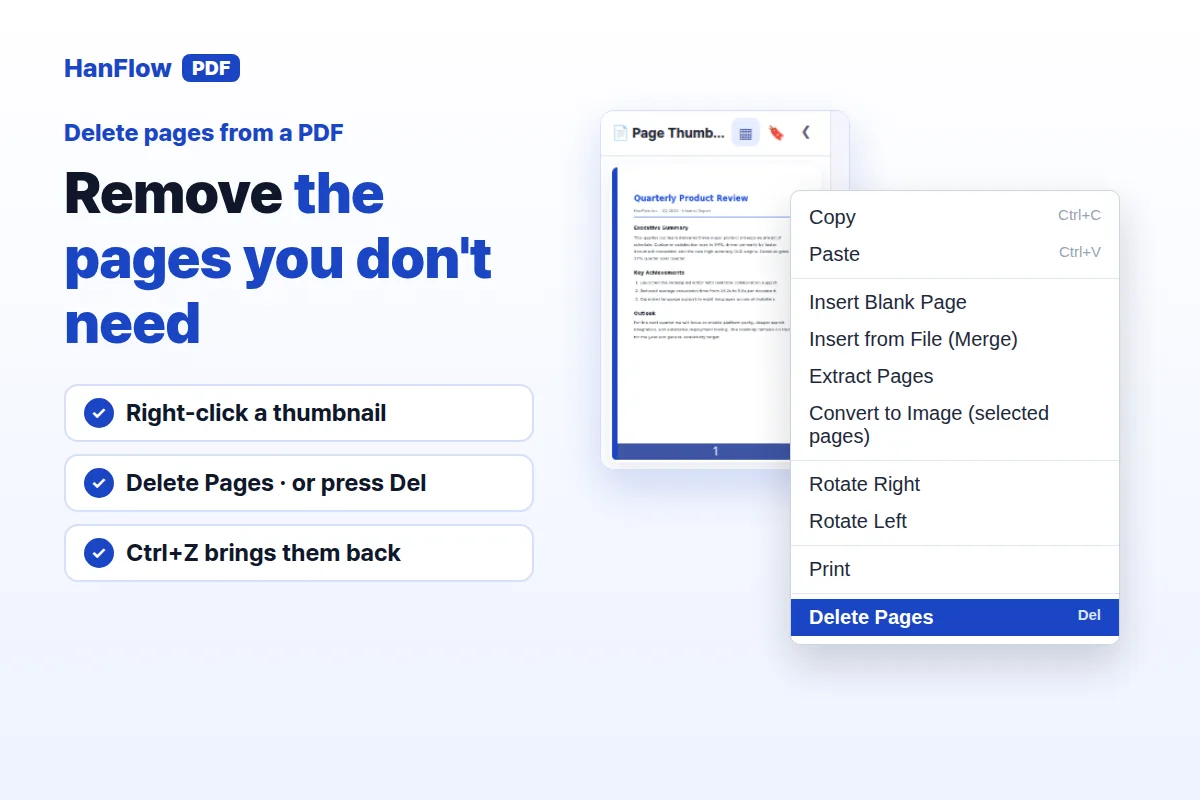
Open your PDF in HanFlow PDF, right-click a page thumbnail on the left, and choose Delete Pages. The pages disappear immediately — no confirmation dialog. Press Ctrl+S to save the change to the file.
Delete one page
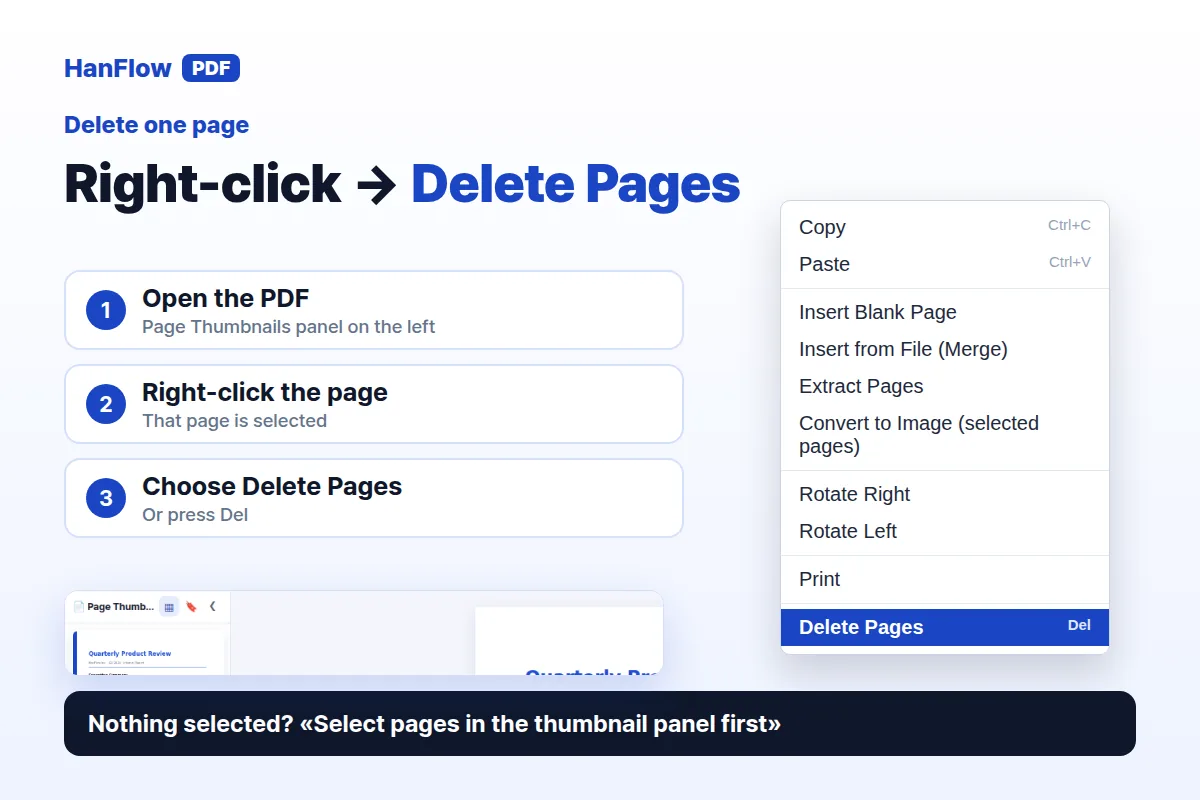
- Open the PDF in HanFlow PDF. The Page Thumbnails panel on the left shows every page.
- Click the thumbnail of the page you want to remove.
- Right-click it and choose Delete Pages from the context menu, or press Del while the thumbnail is selected.
The page is gone and the document reloads without it. If you haven't selected anything yet, the app tells you: "Select pages in the thumbnail panel first".
The thumbnail right-click menu holds the other page commands too — copy, paste, insert, extract, rotate and print.
Delete several pages at once
Select the pages first, then delete them all in one go.
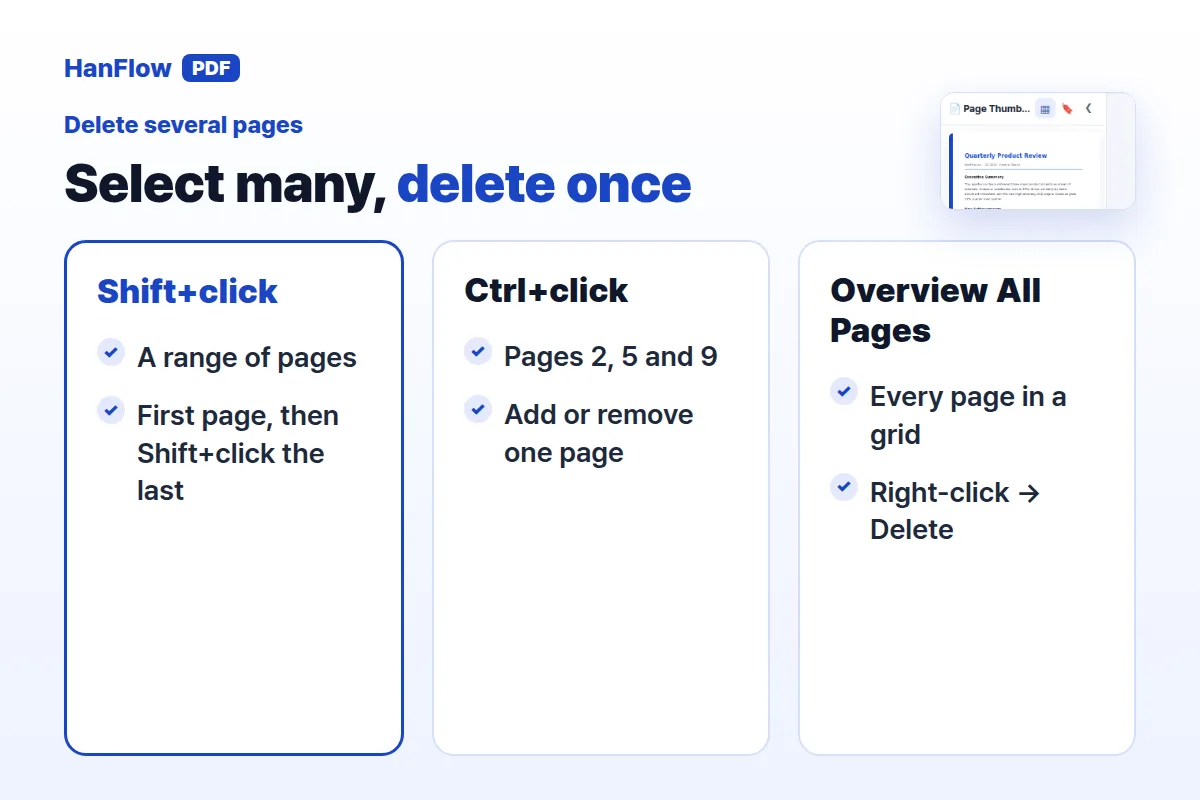
- Shift+click selects a range. Click the first page, then Shift+click the last page in the range.
- Ctrl+click adds or removes individual pages. Use it to pick non-consecutive pages — say pages 2, 5, and 9.
- Combine both: Shift+click a range, then Ctrl+click to add a few extras or remove one you don't need.
Once your selection is highlighted, right-click any selected thumbnail and choose Delete Pages, or press Del. (If a text box or shape on the page is selected, Del removes that object instead — click a thumbnail first.) Every selected page is removed at once.
For long documents, open the View ▾ menu and choose Overview All Pages. It lays out every page in a grid so you can see them all, select the ones you don't want, right-click, and choose Delete.
Undo and saving
Deleting pages is not permanent until you save. Two things protect you.
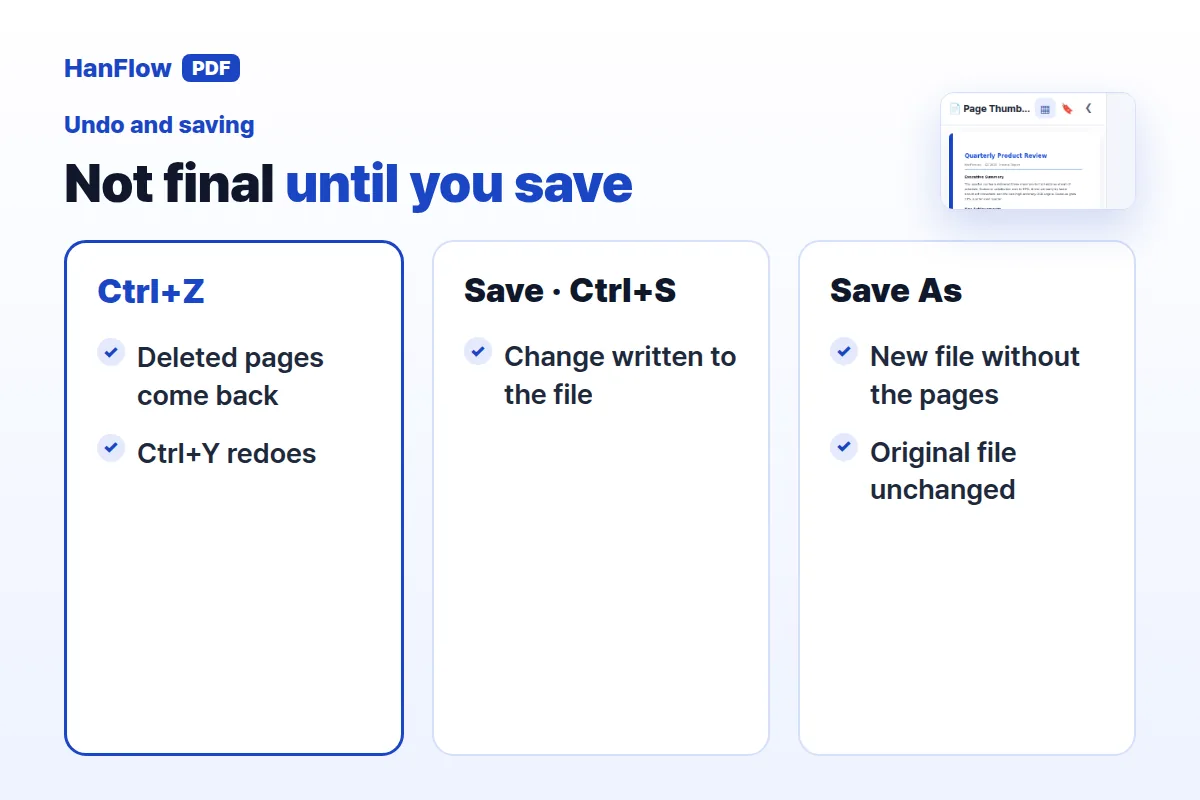
Undo. Press Ctrl+Z to bring deleted pages back. Ctrl+Y or Ctrl+Shift+Z redoes the deletion if you change your mind again.
Save vs Save As. Save (Ctrl+S) writes the change into the open file, so the saved file no longer contains those pages. Save As writes a new file instead and leaves the original untouched. If you want to keep the full document, use Save As after deleting.
Keep pages instead of deleting them
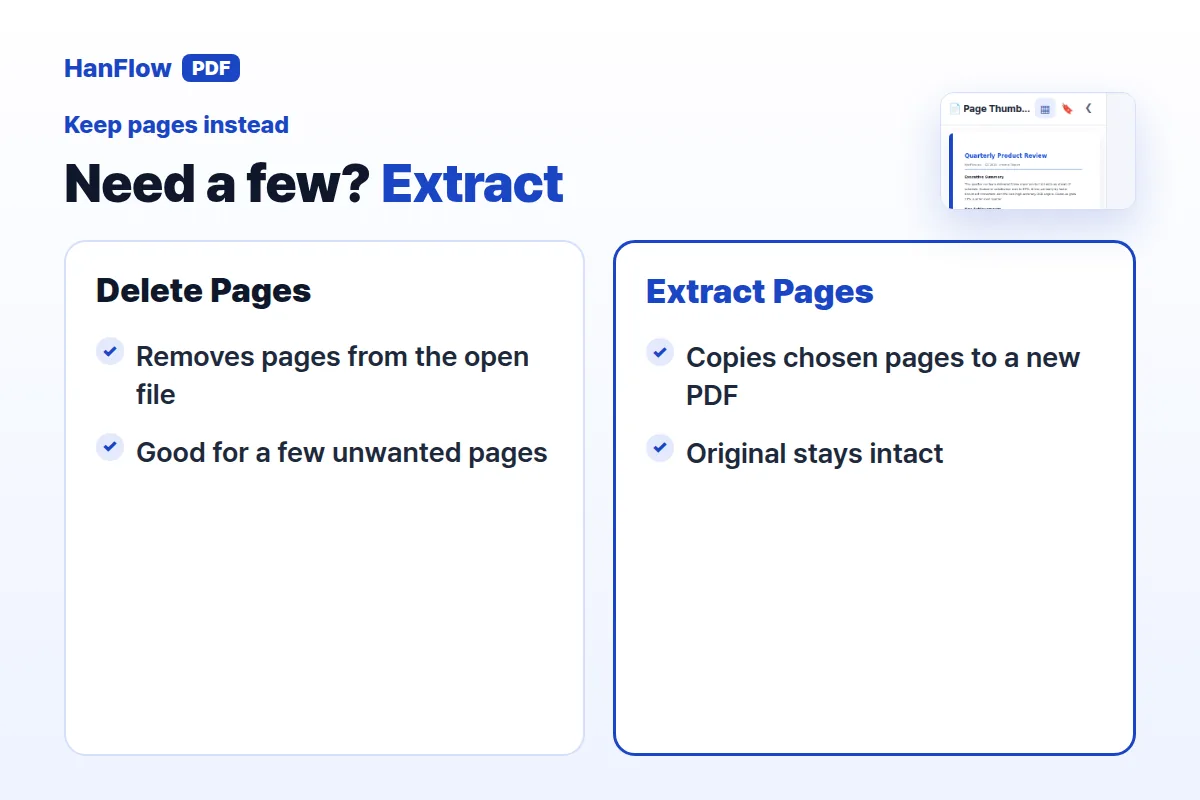
Sometimes it is easier to keep the pages you want than to delete the ones you don't. If you have a 30-page report and only need pages 4–6, you can extract those three pages instead of deleting the other 27.
Right-click a thumbnail and choose Extract Pages. Type a page range, save, and a new PDF appears with just those pages. The original document stays exactly as it was — nothing is removed or rearranged. See how to extract pages from a PDF for a full walkthrough.
To go the other direction — adding pages from another file — right-click a thumbnail and choose Insert from File (Merge).
Frequently asked questions
Can I undo a deleted page?
Yes. Press Ctrl+Z right after deleting. The pages come back in their original position.
Does deleting change my original file?
Not until you save. The deletion is applied to the open document only. If you choose Save As instead of Save, the original file stays unchanged and a new file is created without the deleted pages.
Can I delete all pages?
No. At least one page must remain. If you try to delete every page, the app shows "You cannot delete every page".
How do I delete many pages at once?
Select multiple pages in the Page Thumbnails panel — Shift+click for a range, Ctrl+click for individual pages — then press Del or right-click and choose Delete Pages. For long documents, open View ▾ → Overview All Pages to see every page in a grid and select across the entire document.
HanFlow PDF is a PDF program for Windows with a one-month trial, then a licence.