How to Rotate a PDF and Save It (One Page, Several, or All)
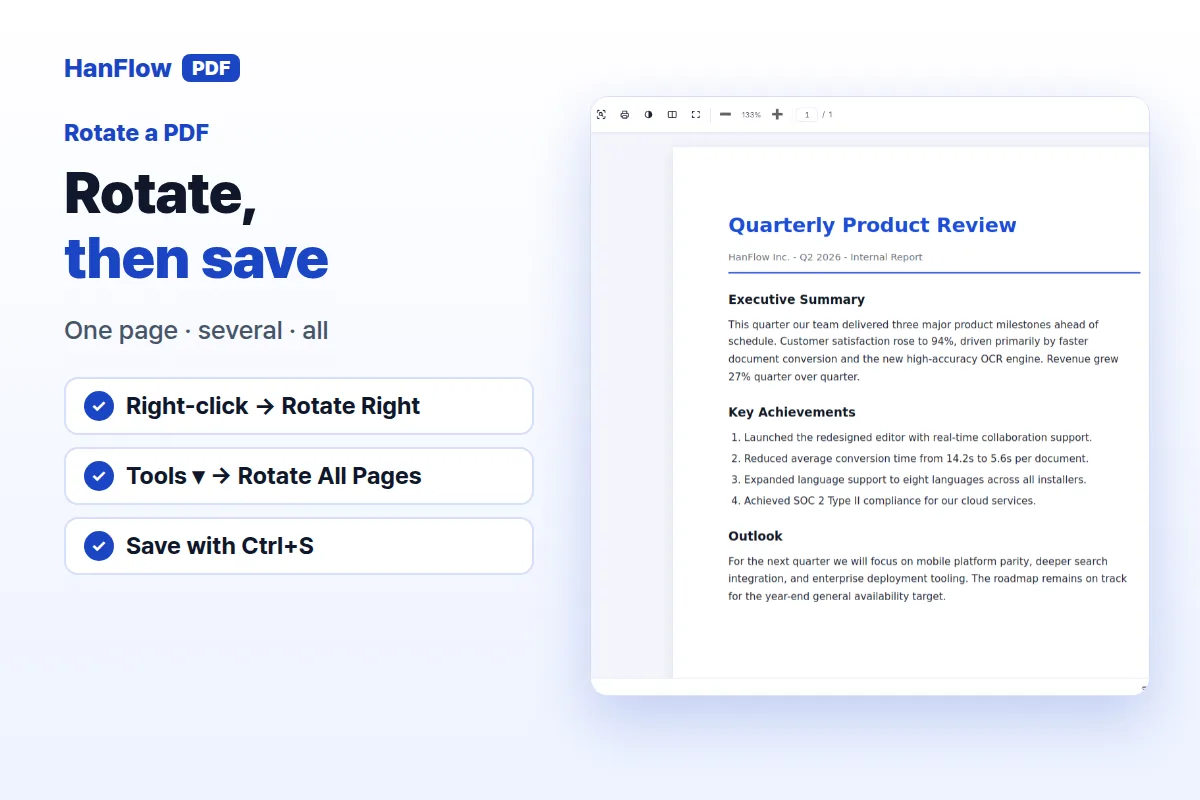
Right-click anywhere on the page and choose Rotate Right or Rotate Left to turn it 90°. The same menu appears when you right-click in the Page Thumbnails panel on the left, or in the grid view. To turn every page at once, choose Tools ▾ → Rotate All Pages. Rotation changes the page itself, not just the view — save the file and the orientation stays.
Rotate one page
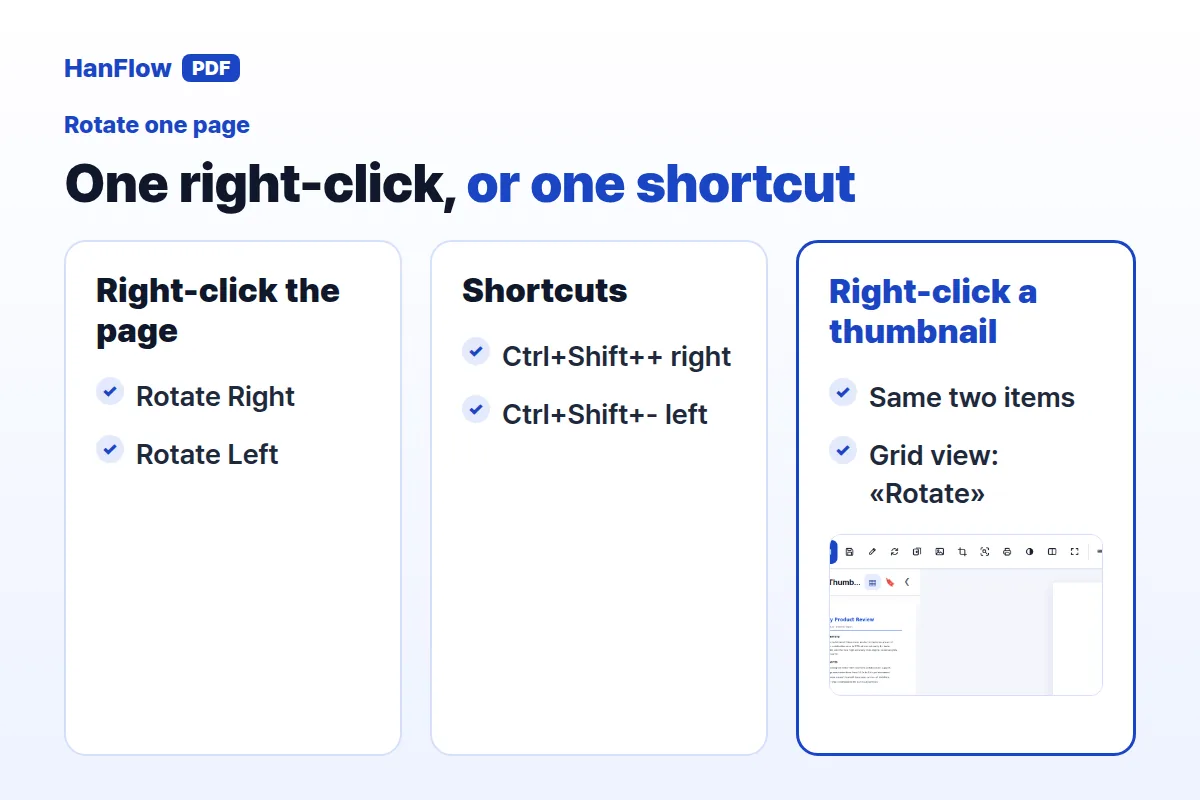
- Navigate to the page you want to turn.
- Right-click on the page.
- Choose Rotate Right (clockwise 90°) or Rotate Left (counter-clockwise 90°).
Keyboard shortcuts work too: Ctrl+Shift++ rotates right, Ctrl+Shift+- rotates left.
You can also right-click a thumbnail in the Page Thumbnails panel and choose Rotate Right or Rotate Left. In the grid view, right-click and choose Rotate.
Rotate several pages or all pages
Select multiple thumbnails in the Page Thumbnails panel, right-click, and choose Rotate Right or Rotate Left. Only the selected pages turn. In the grid view, select several pages, right-click, and choose Rotate.
To turn every page at once, choose Tools ▾ → Rotate All Pages. All pages rotate 90°.

Save the rotation to the file
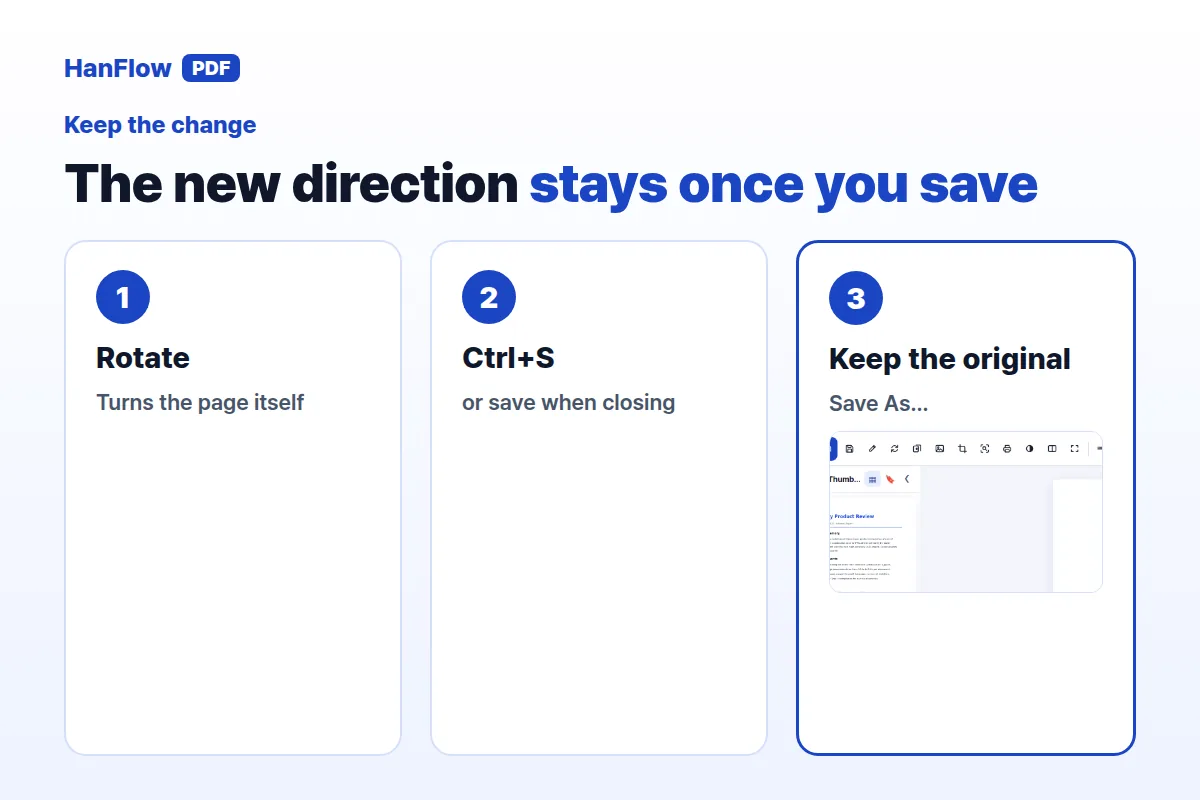
Rotation changes the page itself, not just the on-screen view. Press Ctrl+S to save the file, or save when the app asks at close. The original file is not overwritten silently.
To keep the original intact, use Save As… (Ctrl+Shift+S). A separate copy with the new orientation is created.
Sideways scanned pages
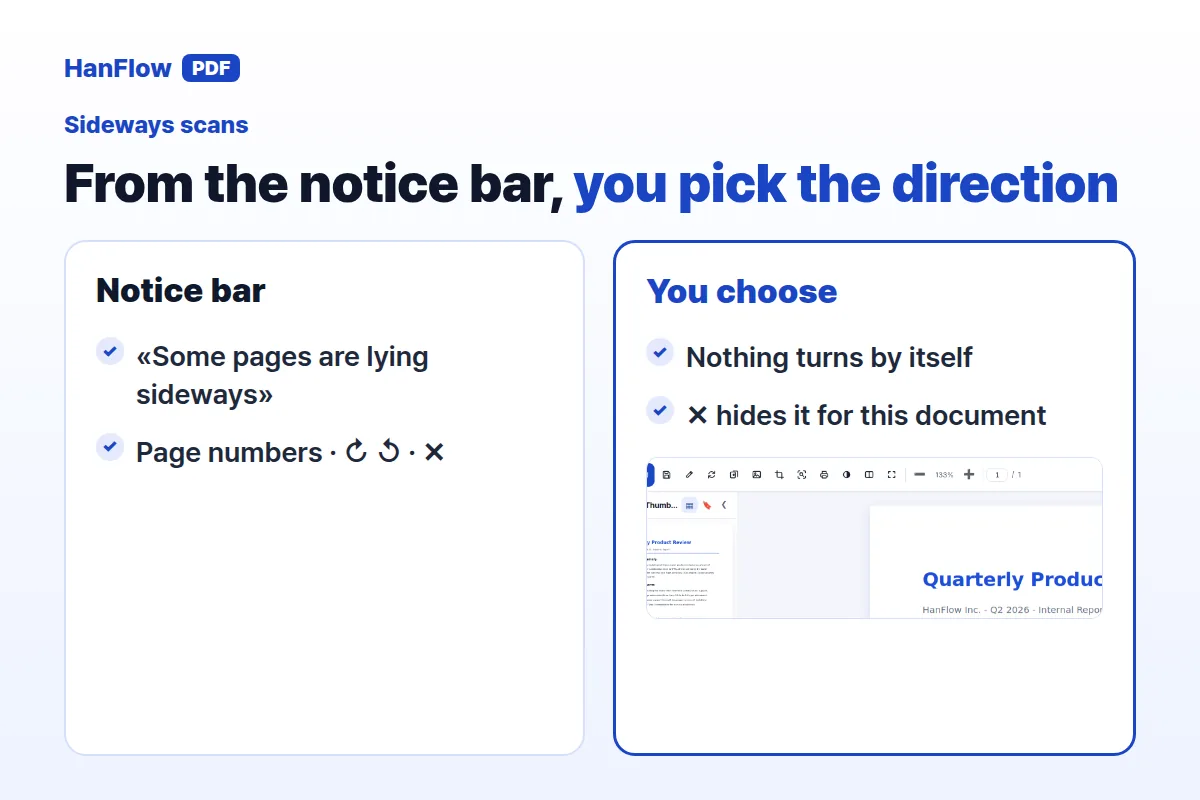
When a scanned page is lying on its side, a notice bar appears at the top of the screen: "Some pages are lying sideways", along with page numbers, ↻ ↺ buttons, and a ✕ close button.
Pick the direction yourself by pressing ↻ or ↺. Press ✕ to dismiss the notice — it will not appear again until you reopen the document.
When rotation is blocked
Rotation may be restricted in certain situations. The messages you will see:
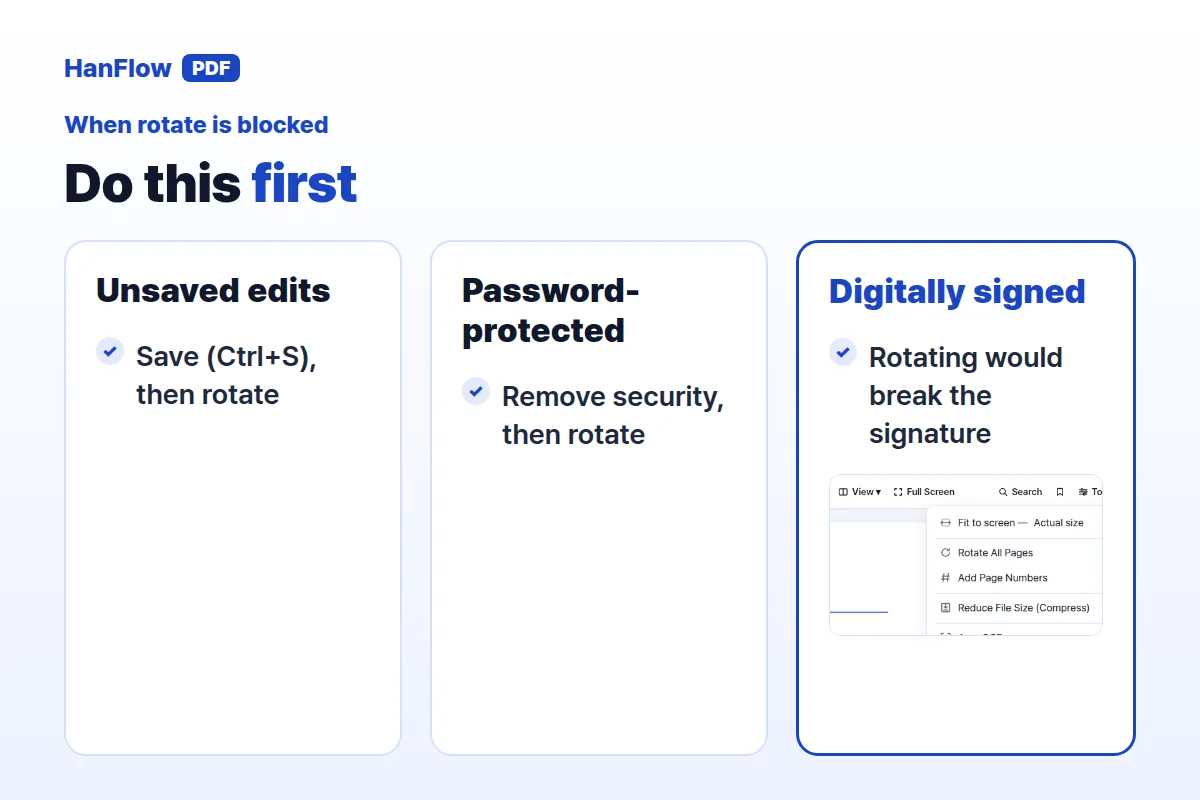
- Unsaved edits — "Please save your edits first (Ctrl+S), then rotate"
- Password-protected document — "A password-protected document cannot be rotated and saved — remove the security first, then rotate"
- Digitally signed document — "This document is digitally signed — rotating it would break the signature, so it cannot be rotated"
A reliable order of operations avoids most of these: rotate first, then annotate or sign, and set a password last. For password setup see how to password-protect a PDF; for signatures see PDF forms and signatures.
Frequently asked questions
Does rotating a page change the original file immediately?
No. After rotating, press Ctrl+S to save, or choose to save when closing the app. To preserve the original, use Save As… (Ctrl+Shift+S).
Can I rotate several pages at once?
Yes. Select multiple thumbnails in the Page Thumbnails panel, right-click, and choose Rotate Right or Rotate Left. To rotate every page, choose Tools ▾ → Rotate All Pages.
Does the app auto-correct sideways scanned pages?
It detects them and shows a notice with ↻ ↺ buttons, but you choose the direction yourself.
Can I rotate a password-protected PDF?
No. A password-protected document cannot be rotated and saved. Remove the security first, then rotate. Digitally signed documents are also restricted because rotation would break the signature.
HanFlow PDF is a desktop PDF program with a one-month trial, then a licence.