How to Scan a Book to PDF With Your Phone
When you photograph an open book with your phone, the result is rarely what you hoped for. Lines of text bend toward the spine, a single shot captures two facing pages jammed together, and the resulting PDF is just a stack of pictures — you cannot search or copy a word.

To scan a book to PDF properly, each photo needs four things done to it: the two facing pages must be split apart, the curved text must be flattened, crooked lines must be straightened, and text recognition must write actual letters into the file. Before any of that, though, the photo itself has to be clean — and that starts with how you set up the shot.
Set up the shot before you press the shutter
A good scan starts before the camera fires. Most of the problems people blame on software — dark gutters, unreadable lines, patchy text recognition — come from the moment the photo was taken.
- Use even, indirect light. A single lamp aimed straight down creates a bright strip of glare and a dark shadow in the centre gutter. Two lights from either side, or diffused daylight from a window, work better.
- Hold the phone parallel to the pages and fill the frame with the book. Tilting the phone makes one side of the text smaller than the other, and empty space around the book is wasted resolution.
- Press the pages open gently so they lie as flat as possible. The flatter the pages are in real life, the less correction the software has to do later.
- Keep the book still while you shoot. Even a small shift between frames makes pages inconsistent.
One photo, two pages: split them
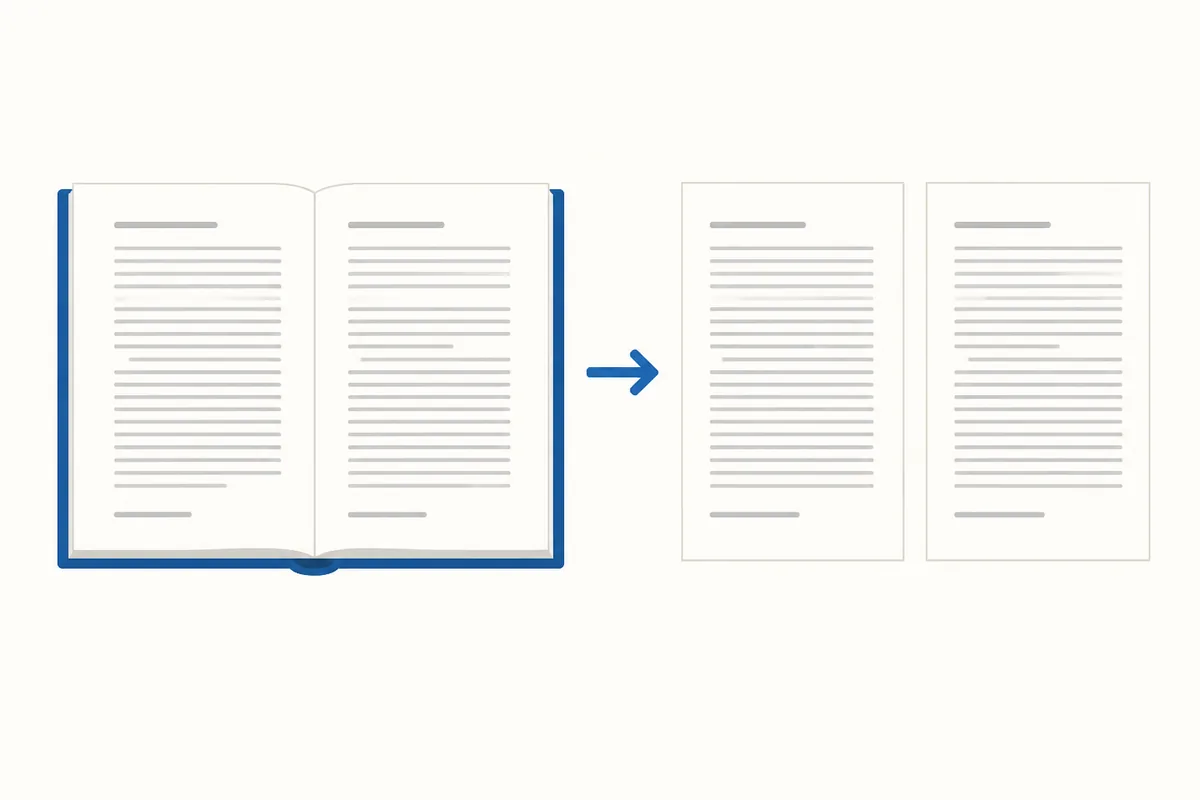
One photo of an open book contains two facing pages. If you leave them together, your PDF has landscape images that are awkward to read on a phone and wasteful to print. Splitting the shot into a left page and a right page gives you a document that behaves like an actual book — one page per screen, one page per printed sheet.
Doing this by hand in an image editor for every shot of a whole book is not realistic. You want software that detects the spine and divides the image automatically.
Flatten the curve and straighten the lines
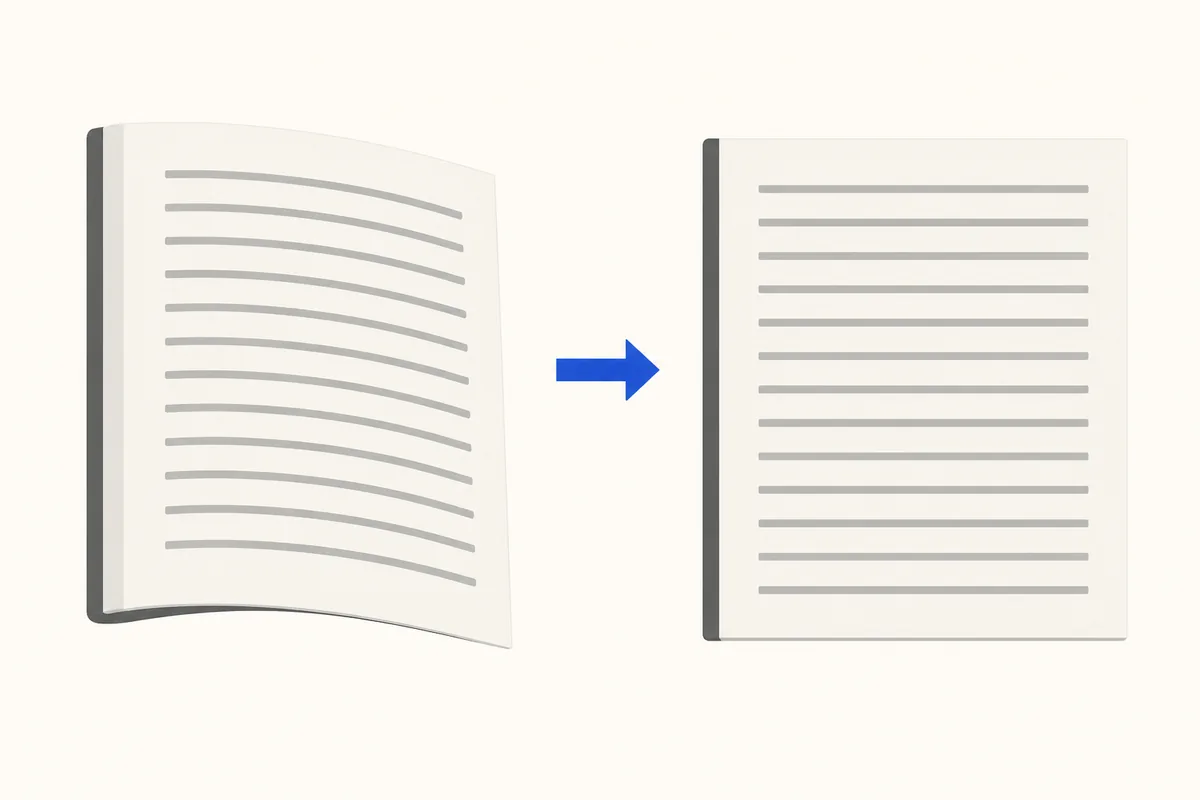
When a book is open, the pages curve upward toward the spine. The camera faithfully records that curve, so letters near the gutter look compressed and lines of text bow inward. On top of that, if the phone was even slightly angled, every line tilts.
Flattening reverses the curve so the text sits on a level plane. Straightening measures the direction of each line and rotates it until it is horizontal. Together they turn a warped photo into something that looks like a clean, flat page.
Turn the pictures into searchable text
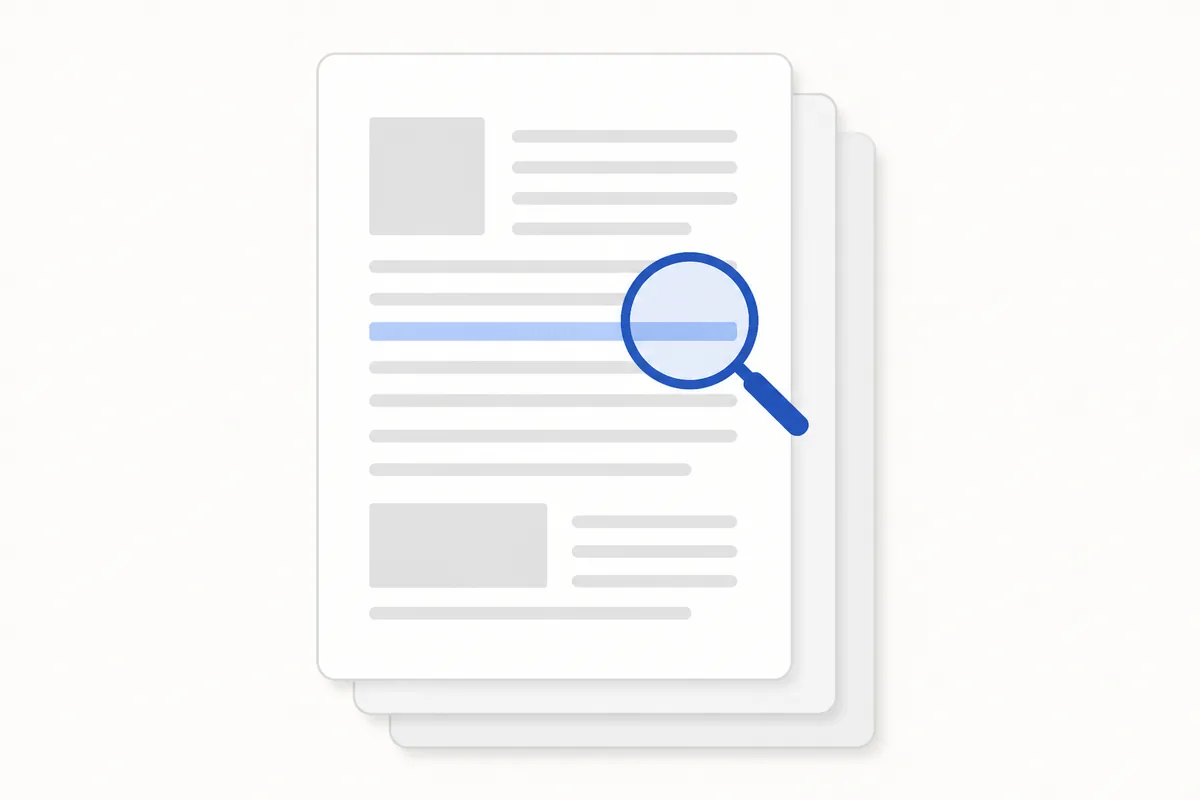
A photo-based PDF holds pictures of letters, not letters themselves. That is why you cannot highlight a word, copy a sentence, or use your PDF reader's search. Text recognition — usually called OCR — reads the image and writes the actual characters into the file.
Two things matter here. First, choose the correct language for the book. Recognition depends on that setting, and the wrong one produces garbled output. Second, understand that OCR reads the photo as it is. It does not sharpen a blurry image or brighten a dark one. A bad photo gives bad recognition, so the lighting and framing advice above pays off at this stage too.
Only scan books you have the right to copy — copyright rules on reproducing books differ by country.
Scanning a book with HanFlow PDF
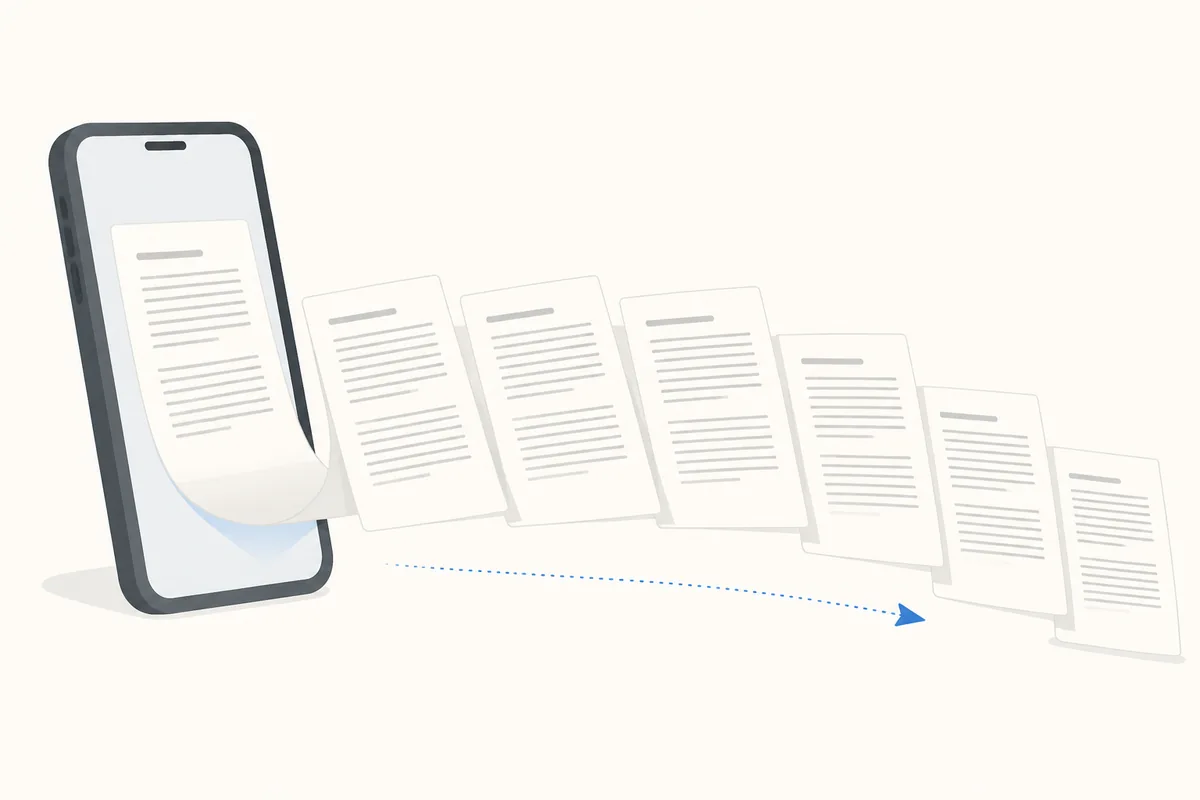
The HanFlow PDF apps for Android and iPhone are built around the workflow above. You photograph an open book and the app splits the two facing pages automatically, flattens the curve near the spine, and straightens crooked lines of text. It supports continuous capture, so you can keep shooting page after page. Text recognition covers 26 languages.
Scanning is unlimited. Making a PDF and text recognition require a purchase.
FAQ
How do I scan a book to PDF with my phone?
Set the book under even, indirect light. Hold your phone parallel to the pages, fill the frame, and photograph each opening. Then use an app that splits the two facing pages, flattens the curve, straightens the lines, and runs text recognition so the PDF is searchable.
How do I split a scanned book into single pages?
You need software that detects the spine in a photo of two facing pages and divides the image into a left page and a right page. HanFlow PDF does this automatically each time you photograph an open book.
Why can't I search the text in my scanned book PDF?
Your PDF contains pictures of text, not actual characters. Until you run text recognition (OCR), there are no letters for the search function to find. Make sure you select the correct language before running OCR, and start with a well-lit, sharp photo.
How do I stop the pages from looking curved?
The curve comes from the pages bending toward the spine. Press the book open gently so the pages lie flatter, and use software that measures and reverses the remaining curve digitally. Good lighting also helps, because shadows in the gutter make the curve look worse than it is.