Why Won't My PDF Print? Six Causes, and the Fix for Each
You hit Print, and nothing comes out. Or the pages are blank. Or the print button is greyed out entirely. These look like the same problem, but they are not. Each symptom points to a different cause, and each cause has its own fix. Work through the list below — most readers find theirs in the first two sections.
The document forbids printing
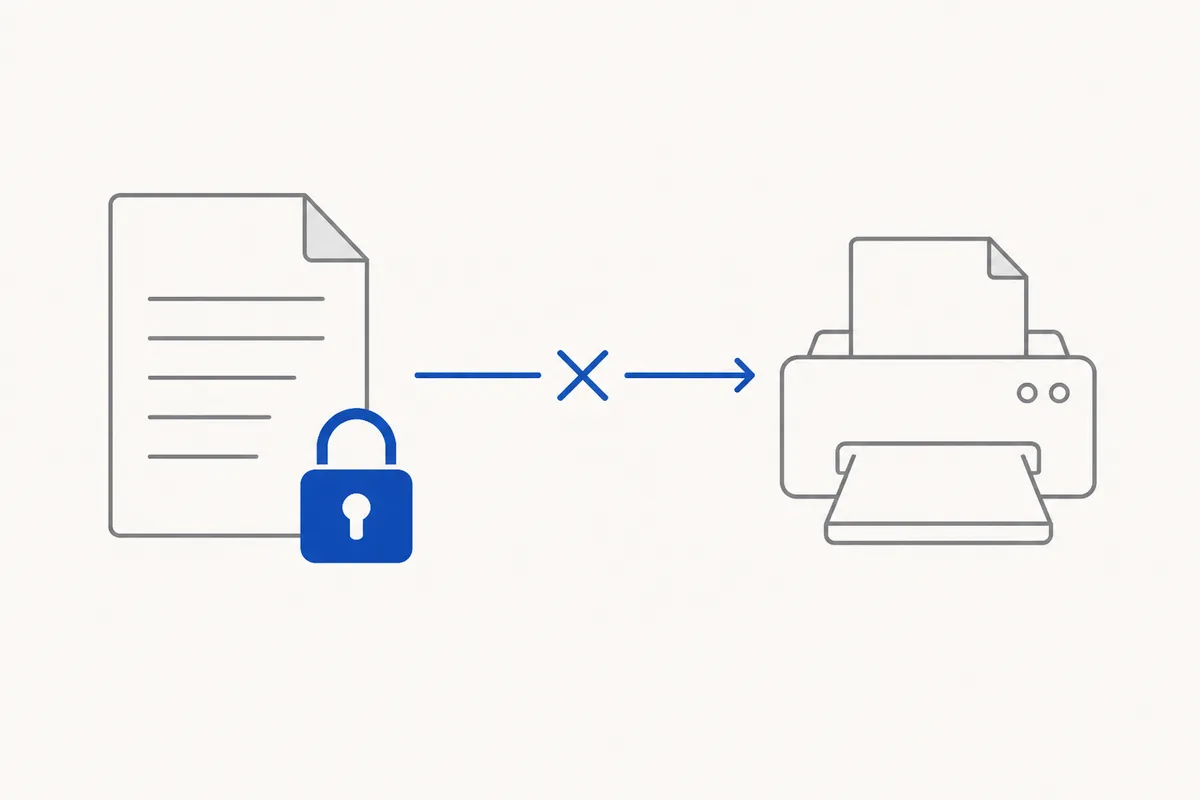
A PDF can carry an owner password that lets anyone open and read the file but blocks printing, copying, or editing. The person who created the document chose those restrictions. When you open a file like this, the print button may be greyed out, or the print job may vanish from the queue without producing a page.
This is the cause people most often mistake for a broken printer. Check the document properties in your PDF reader — look for a "Security" or "Permissions" tab. If printing is listed as "Not Allowed," the restriction is in the file, not your hardware.
If the file is yours and you know the owner password, you can unlock it and print normally. HanFlow PDF can produce an unlocked copy for printing while leaving the original file untouched; if the password cannot be removed, it tells you so rather than failing silently. Never attempt to bypass protection on a document you do not own.
The page shows on screen but not on paper
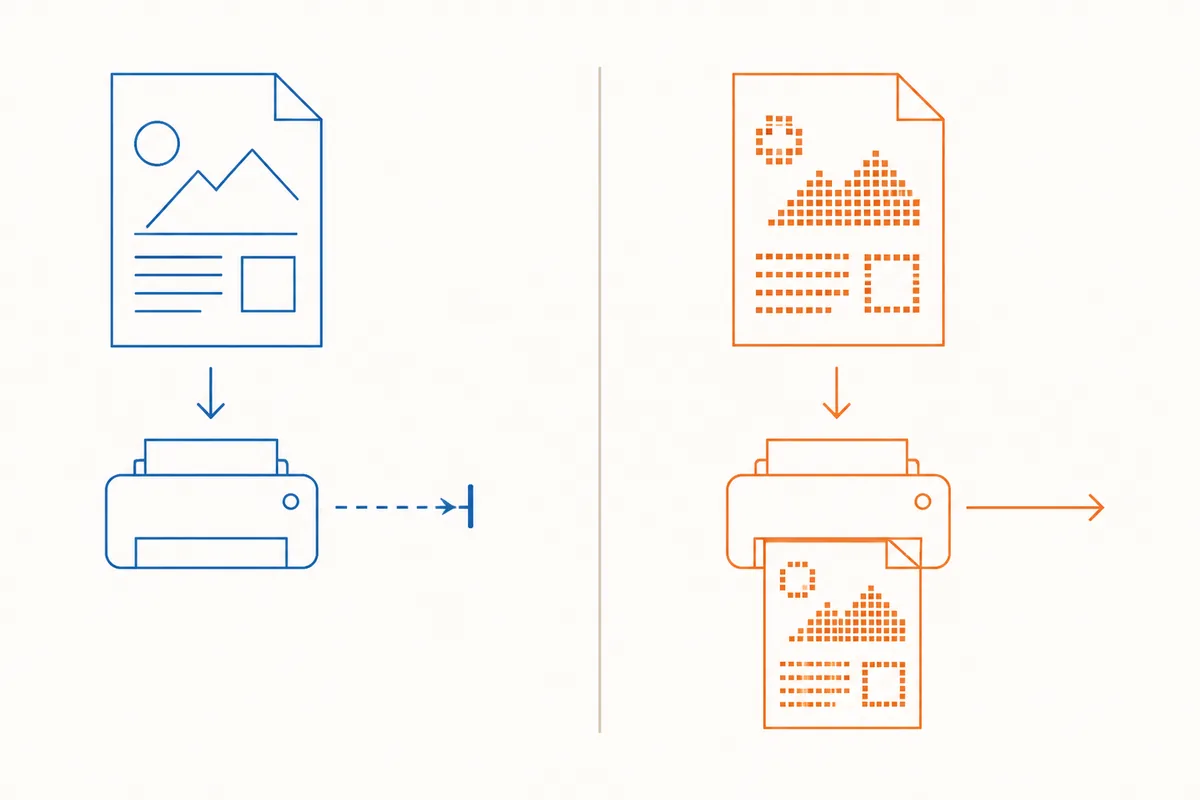
The page looks fine in your reader, yet the printer produces blank or garbled output. This usually means the file contains something the printer driver cannot rasterise: heavy transparency layers, an unusual font that was never embedded in the file, or a very complex vector drawing.
The fix is to print the page as an image. Most PDF readers offer this as a checkbox in the print dialog, sometimes labelled "Print as Image" or "Advanced." When you enable it, the application converts the page to pixels before sending it to the printer, so the driver receives a bitmap rather than instructions it cannot interpret. The trade-off is speed — image printing is slower — but the output is reliable.
Blank pages come out
Three things produce blank sheets, and they feel identical at the printer tray.
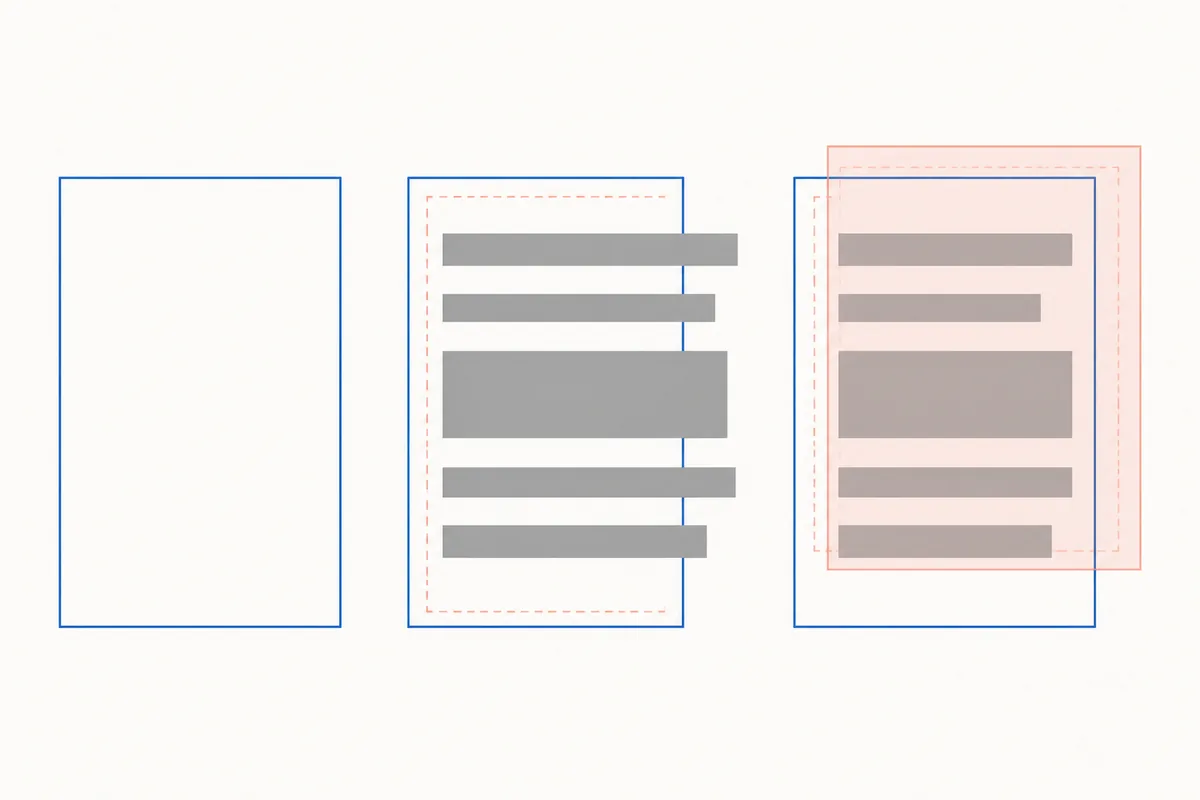
The page really is blank. Scroll through the file on screen. If a page is empty there, it will be empty on paper. Authors sometimes leave placeholder pages in drafts.
Content sits outside the printable area. A page may hold text or graphics positioned beyond the margins your printer can reach. The content exists, but the printer physically cannot place ink there. Try enabling "Fit to Printable Area" or "Shrink Oversized Pages" in the print dialog.
Form fields were never flattened. You filled in a PDF form, but the values exist as a layer on top of the page. Some print paths skip that layer. Flatten the form — save a copy that bakes the filled values into the page — and print the flattened version.
It "prints" but produces a file instead of paper
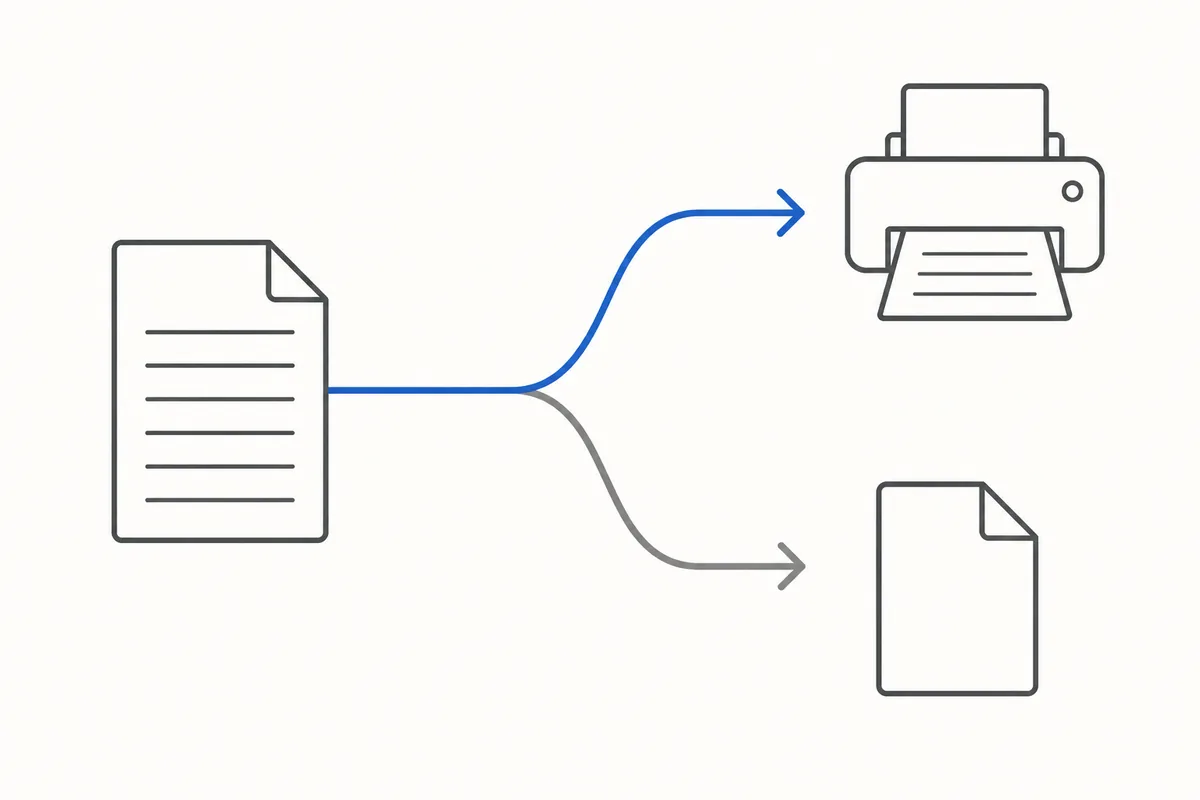
If a new PDF or XPS file appears after you hit Print, your selected printer is not physical hardware. It is a virtual printer — a software driver that converts the output to a file. Check the printer name in your print dialog. Names like "Microsoft Print to PDF," "Save as PDF," or any entry you do not recognise as a real device will write a file, not send a job to paper.
Select your actual printer from the list and try again. One thing worth knowing: saving through a print-to-PDF path rasterises the page, so the result behaves like a scan and is no longer editable text.
Colour comes out grey, or greyscale prints washed out
Two settings compete here: the one in your printer driver and the one in the PDF itself.
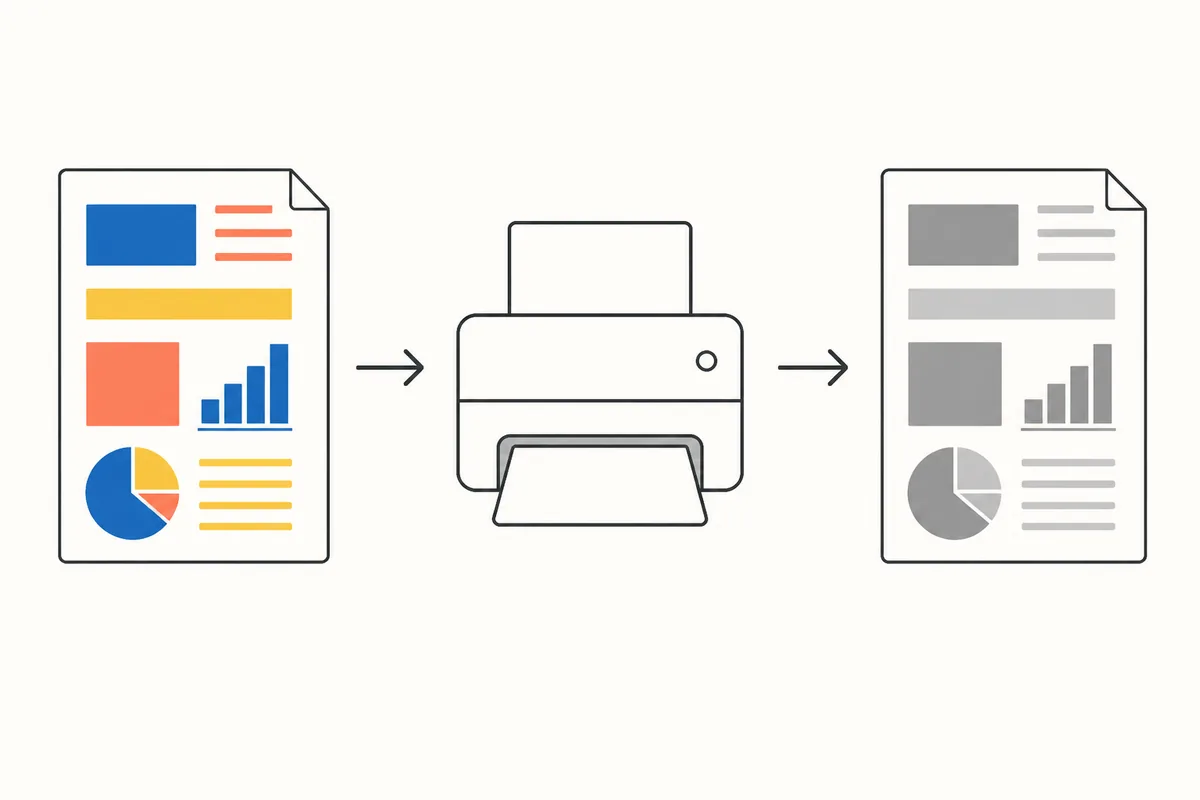
If your colour document prints in greyscale, open your printer's preferences (not the PDF reader's dialog — the driver's own properties window) and confirm that colour output is enabled. Some drivers default to black-and-white to save toner.
The reverse also happens. A document designed in greyscale can look faded when printed on a colour printer that tries to reproduce the grey using coloured inks. Forcing the output to pure black-and-white in the print dialog often sharpens these pages. HanFlow PDF includes a black-and-white print option for exactly this situation.
Only some pages print
Two traps cause partial output. First, check the page range field. If it says something other than "All," you may have leftover values from a previous job. Second, some readers have a "Print Current View" option that sends only the portion of the page visible on screen, not the full page. Make sure "All Pages" and the full page — not the current view — are selected.
Common questions
Why does my PDF print blank pages even though I can see the content? The content is most likely outside the printable margins, or form-field values have not been flattened into the page. Enable "Fit to Printable Area" in the print dialog, or flatten the form and print the new copy.
Why is the print button greyed out on my PDF? The file's creator set an owner password that forbids printing. Check the document's security properties. If you own the file and have the password, remove the restriction and print again.
Why does my PDF print in black and white instead of colour? Your printer driver is likely set to greyscale. Open the driver's own preferences — not the PDF reader's print dialog — and switch output mode to colour.
My PDF "printed" but I only got another file. What happened? You sent the job to a virtual printer instead of your physical one. Look at the printer name in the dialog and choose the hardware device.
In short
- Grey print button → the file forbids printing. Check document permissions.
- Visible on screen, blank on paper → print as image to bypass driver limitations.
- Blank pages → content may be outside margins, or form fields need flattening.
- Output is a file, not paper → wrong printer selected.
- Wrong colours → check the driver setting, not just the PDF reader setting.
- Missing pages → clear old page-range values and disable "current view" mode.
If you want the whole toolset in one desktop program, see the HanFlow PDF feature overview.