Scan a Book to PDF — Capture and Split Open Spreads
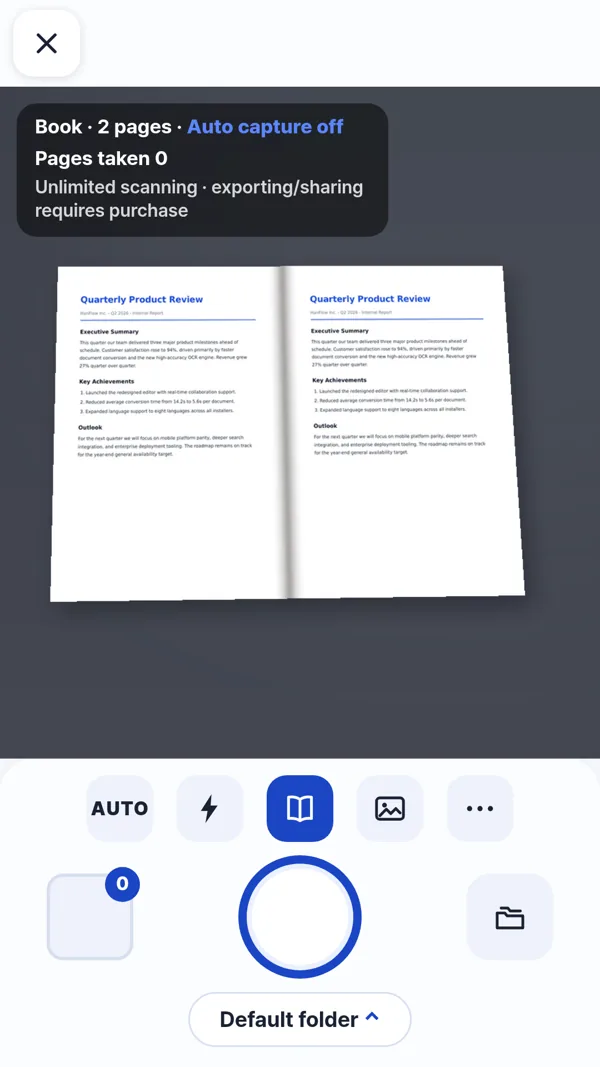
Scan an open book and get a clean PDF where each spread becomes two separate, flat pages. Book mode splits the two-page view and straightens the curve near the spine automatically.
Where it works
| Where to find it | Plan | ||
|---|---|---|---|
| Windows app | Not available | Book scanning is only in the phone and web app. | |
| Mac app | Not available | Book scanning is only in the phone and web app. | |
| Phone & web app | Tools › Scan document › Book mode | Scanning is free · making the PDF needs Pro | Book mode splits an open spread into two pages and flattens the curve. |
Steps
- Open Tools › Scan document › Book mode.
- Place the book flat and open. The app detects the spread and suggests splitting it into two pages — accept, or tap the 📖 button to turn on book mode manually.
- Capture the page. You can also let AUTO capture take the shot.
- Repeat for each spread, then review the scanned pages in order.
- Tap Make PDF to save. Scanning is free · making the PDF needs Pro.
FAQ
How does the curve near the spine get fixed?
Book mode flattens the curve automatically when it splits the spread. If the app cannot detect the page edges clearly, it keeps the image as-is rather than distorting it.
How many pages can I scan in one session?
Up to 50 pages per session. Each captured page is kept at roughly 2400 pixels on its long side.
Can I undo the two-page split after capturing?
Yes. After the spread is split, an undo strip appears so you can merge the two halves back into a single image.