How to Convert a PDF to Excel (and Keep Tables as Real Cells)
Open the PDF in HanFlow PDF, click Convert, and choose PDF → Excel (.xlsx). Pick a save location, and the app builds a workbook where detected tables become real cells — merged cells, borders, shading, and fonts included.
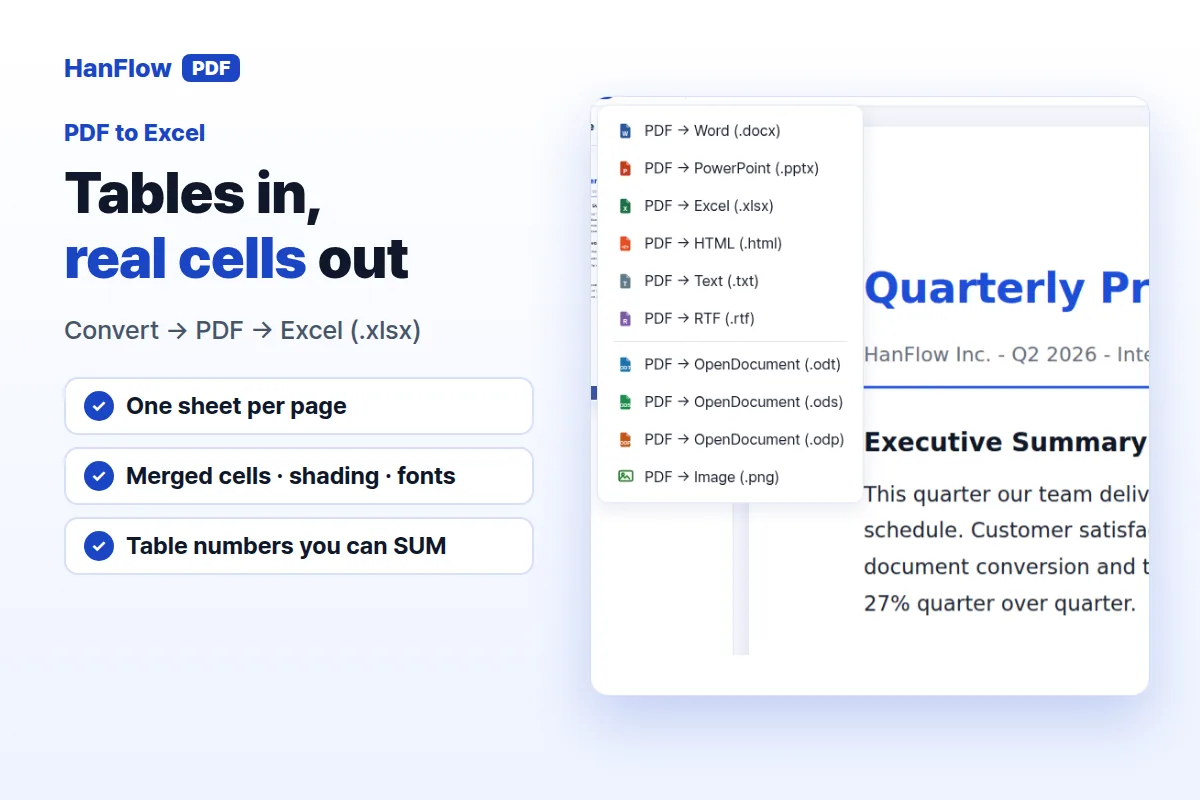
Convert a PDF to Excel step by step
- Open the PDF in HanFlow PDF.
- Click the Convert button on the toolbar.
- Choose PDF → Excel (.xlsx) from the menu.
- In the save dialog, pick a folder and file name (the default is the PDF's name with an .xlsx extension).
- Wait for the conversion to finish.
The completed .xlsx file opens automatically. You can also open it in WPS Office.
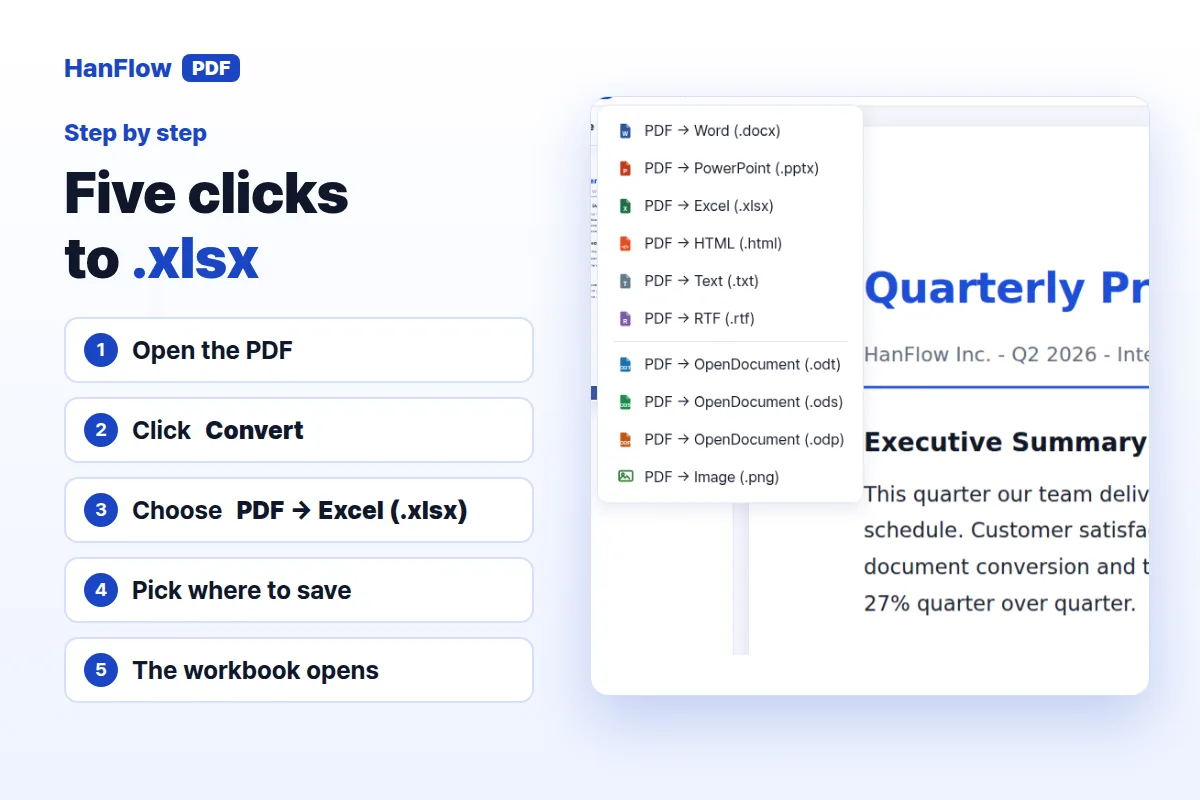
What you get: one sheet per page, tables as real cells
Each PDF page becomes its own worksheet — Page1, Page2, and so on. A one-page PDF produces a single sheet named Sheet1. Every sheet is set to print on one page.
Tables detected in the PDF become genuine spreadsheet cells, with cell borders. Column widths, row heights, merged cells, grey or colour cell shading, bold text, font size, and the original font are all carried over. You can click into any cell, edit it, or add formulas.
Text that sits outside a table is placed in rows along the same column grid, keeping its original top-to-bottom order. Images land over the cells at their original position and size.
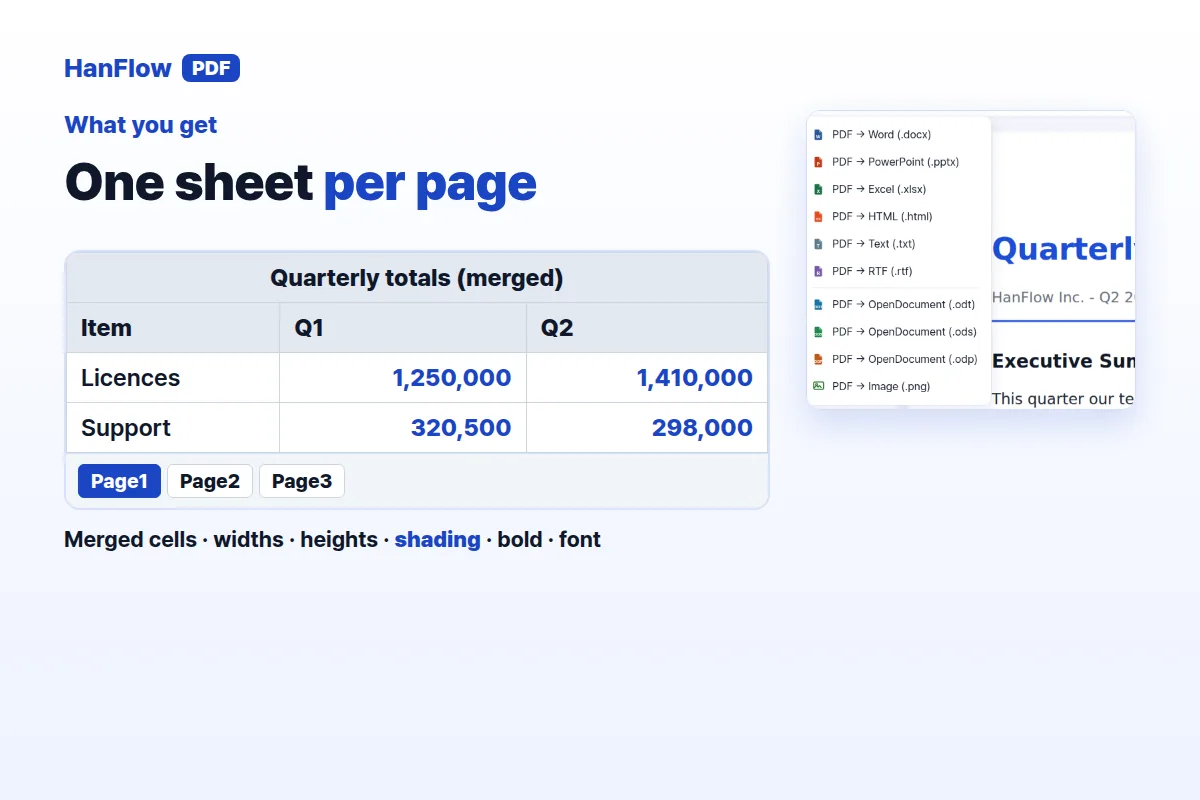
Numbers you can sum vs. numbers kept as text
Not every digit string in a PDF should become a number in Excel. Inside detected tables, the converter draws a deliberate line. Text outside tables is always kept as text.
Converted to real numbers (SUM works):
- Values with thousands separators such as 1,250,000 become real numbers and keep a comma format.
- Plain whole numbers up to nine digits without a leading zero become numbers too.
Kept as text on purpose:
- Digit strings of ten or more digits — account numbers, registration numbers, application IDs. In a numeric cell these would collapse into scientific notation like 1.40012E+11, destroying the original value.
- Codes with leading zeros, such as 00123. A numeric cell would strip the zeros.
- Date-like strings such as 2026.07, which Excel might misinterpret.
If you see a number stored as text and know it is safe, you can convert it inside Excel afterward. The converter errs on the side of preserving what the PDF actually shows.
Scanned or picture-only pages
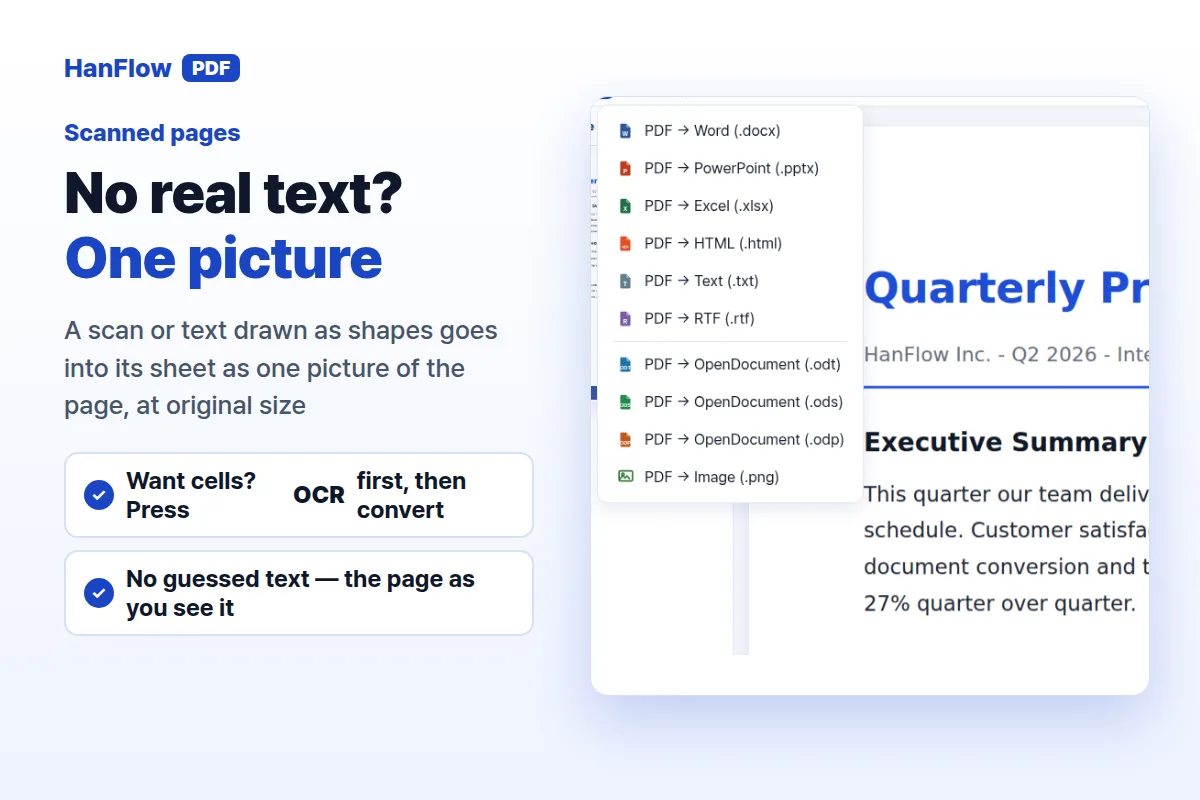
A page with no real text — a scan, or text drawn as vector shapes — goes into the worksheet as a single picture of the whole page at its original size. There are no editable cells on that sheet.
Conversion does not run text recognition on its own — a scan comes across as the page you see, not as guessed text. If you want editable cells from a scan, press OCR on the toolbar first to add a text layer to the document, then convert. How much ends up as cells then depends on the quality of the scan, so check those sheets first.
Tips before converting
Check the result. Open the .xlsx and verify that tables, numbers, and images landed correctly. Complex layouts occasionally need a manual touch-up.
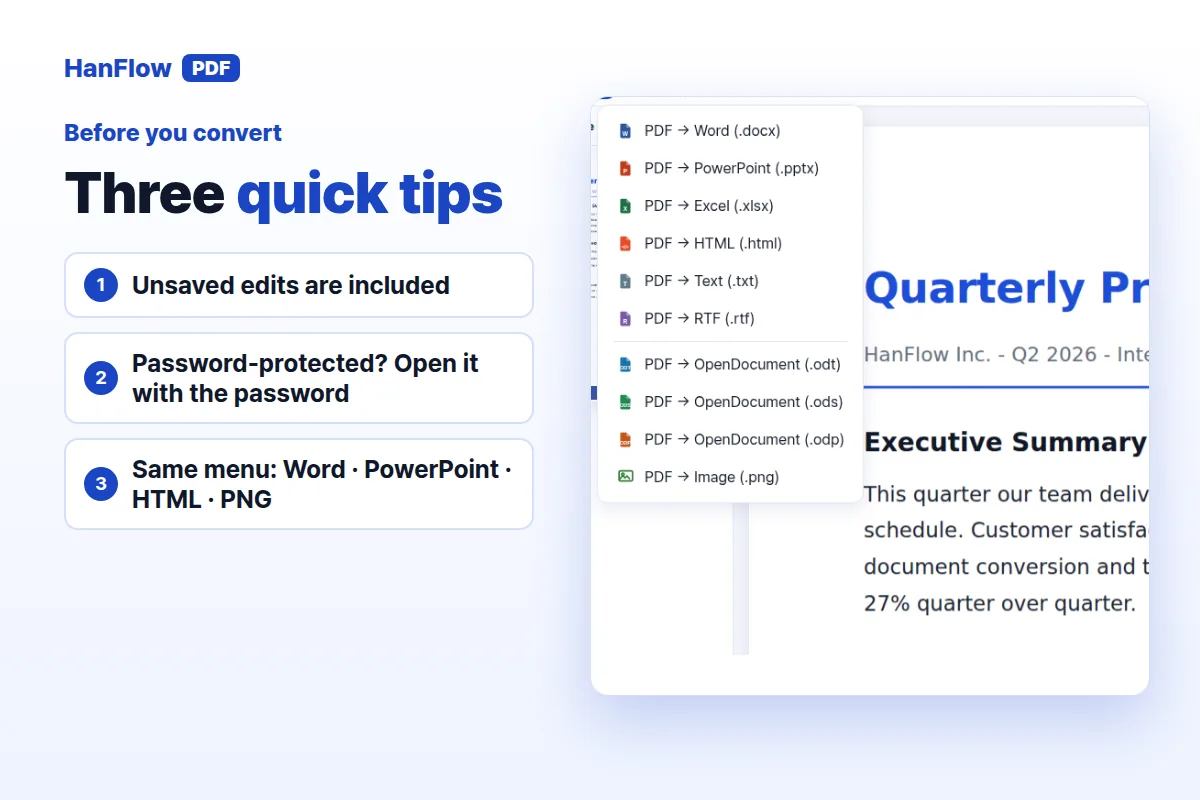
Unsaved edits are included. If you have been editing or annotating the PDF, those changes are carried into the workbook even before you save. If you want a workbook of the original only, convert before you edit.
Password-protected PDFs work. If you opened the PDF with its password, the conversion uses that access. You do not need to remove the password beforehand.
Convert menu has other formats too. The same Convert button offers PDF → Word (.docx), PDF → PowerPoint (.pptx), PDF → HTML (.html), PDF → Text (.txt), PDF → RTF (.rtf), PDF → OpenDocument (.odt/.ods/.odp), and PDF → Image (.png).
Frequently asked questions
Do tables in the PDF become real spreadsheet cells?
Yes. Detected tables become genuine cells with borders, and merged cells, column widths, row heights, shading, bold text, font size, and the original font are preserved. You can click into any cell, edit it, or use formulas.
Why are some numbers stored as text instead of real numbers?
Long digit strings of ten or more digits (account numbers, registration numbers, application IDs) would display as scientific notation like 1.40012E+11 if stored as numbers. Codes with leading zeros such as 00123 would lose those zeros. The converter keeps these as text to preserve the original value.
What happens with a scanned PDF that has no selectable text?
It goes into its sheet as one picture of the whole page, at its original size — the converter does not guess at the text. If you want cells, press OCR on the toolbar first to add a text layer, then convert. Results depend on the quality of the scan.
Can I convert a password-protected PDF?
Yes. Open the PDF with its password first. The conversion uses that access and produces the .xlsx normally.
HanFlow PDF is a PDF program with a trial you can install and try, then a licence.