How to Add Page Numbers to a PDF (1 / 12 on Every Page)
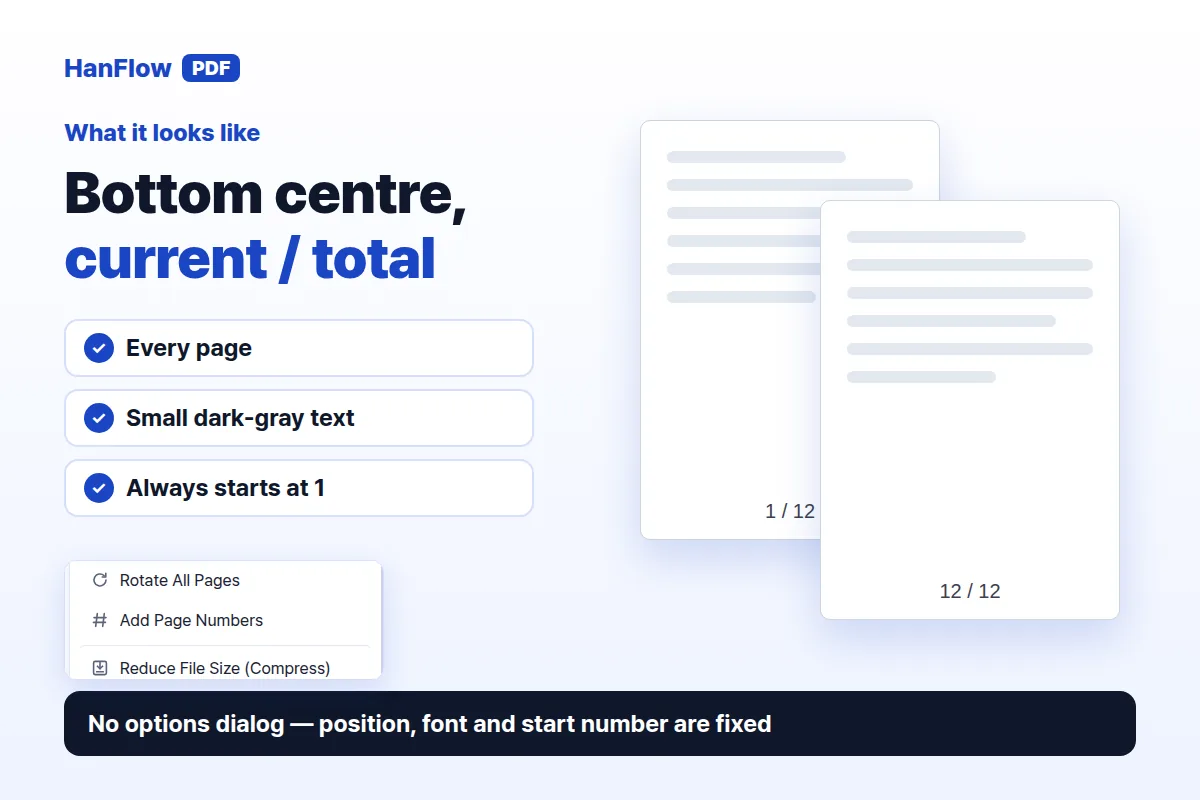
Open your PDF in HanFlow PDF, click Tools ▾ → Add Page Numbers, and save. Every page gets a small number at the bottom centre — "1 / 12" on the first page, "2 / 12" on the second, all the way to the end. No dialog, no settings, one click.

When page numbers help
Hand out a printed report without numbers and someone drops a few sheets. Good luck putting them back in order.
Numbers fix that. "See page 5" gets everyone to the same place during a meeting. A presenter can guide the room without pointing or waving. Before you submit a document, you can flip through and spot a gap instantly. Wherever pages leave your screen and land on paper, numbers keep them in line.
How to add page numbers step by step
- Open the PDF you want to number in HanFlow PDF.
- Click Tools ▾ in the toolbar, then choose Add Page Numbers.
- Check that every page now shows a number, then save the file.
If no document is open when you click the menu item, a message tells you to open a PDF first. Save when you are done — the numbers are drawn onto the pages but will not stay in the file until you save.

What the numbers look like
Numbers appear on every page, bottom centre, in small dark-gray text (10 pt). The format is "current / total". A 12-page document reads "1 / 12" on the first page and "12 / 12" on the last.
There is no options dialog. You cannot change the position, font, or starting number. The trade-off is speed — nothing to configure means nothing to slow you down — but fine-tuning is not available.
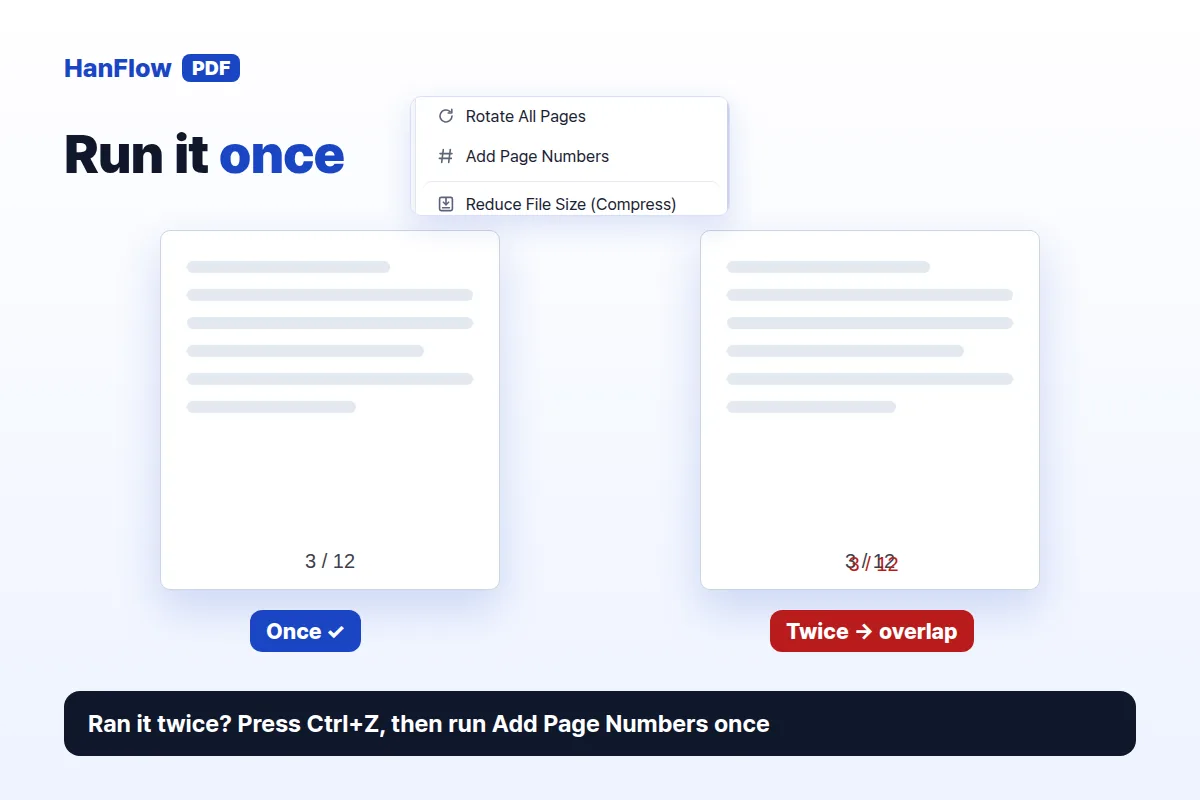
Do not run it twice
The command stamps numbers onto whatever is already on the page. Run it a second time and you get two overlapping sets of numbers.
If that happens, press Ctrl+Z to undo, then run Add Page Numbers once more. Check the result before you save. Once saved, the numbers become part of the page content and there is no "remove page numbers" feature — keep a copy of the original file if you might need a clean version later.
Merge first, then number
Need continuous numbering across several files? Merge them into one PDF first, then add page numbers. The result is a single document numbered 1 through the last page, with no restarts in the middle. For details on combining files, see how to merge PDF files.

HanFlow PDF is a desktop PDF program for Windows and Mac. The same Tools menu also has Reduce File Size (Compress) and Document Security (Password).
FAQ
Can I change the position of the numbers?
No. Numbers always appear at the bottom centre of every page. There is no option to move them to the top, left, or right.
Can I start numbering from a different number?
No. Numbering always starts at 1 on the first page and counts up to the last. There is no way to set a custom starting number.
Can I remove page numbers after saving?
Not directly. The numbers are drawn into the page, so once the file is saved there is no removal feature. Before you save, you can undo with Ctrl+Z. Always keep an unnumbered copy of the original file.
Can I number a merged file across all parts?
Yes. Merge your PDFs into one file first, then run Tools ▾ → Add Page Numbers. The numbering runs from 1 to the total page count of the merged document without restarting at each original file boundary.