How to Add a Watermark to a PDF (CONFIDENTIAL, DRAFT, SAMPLE)
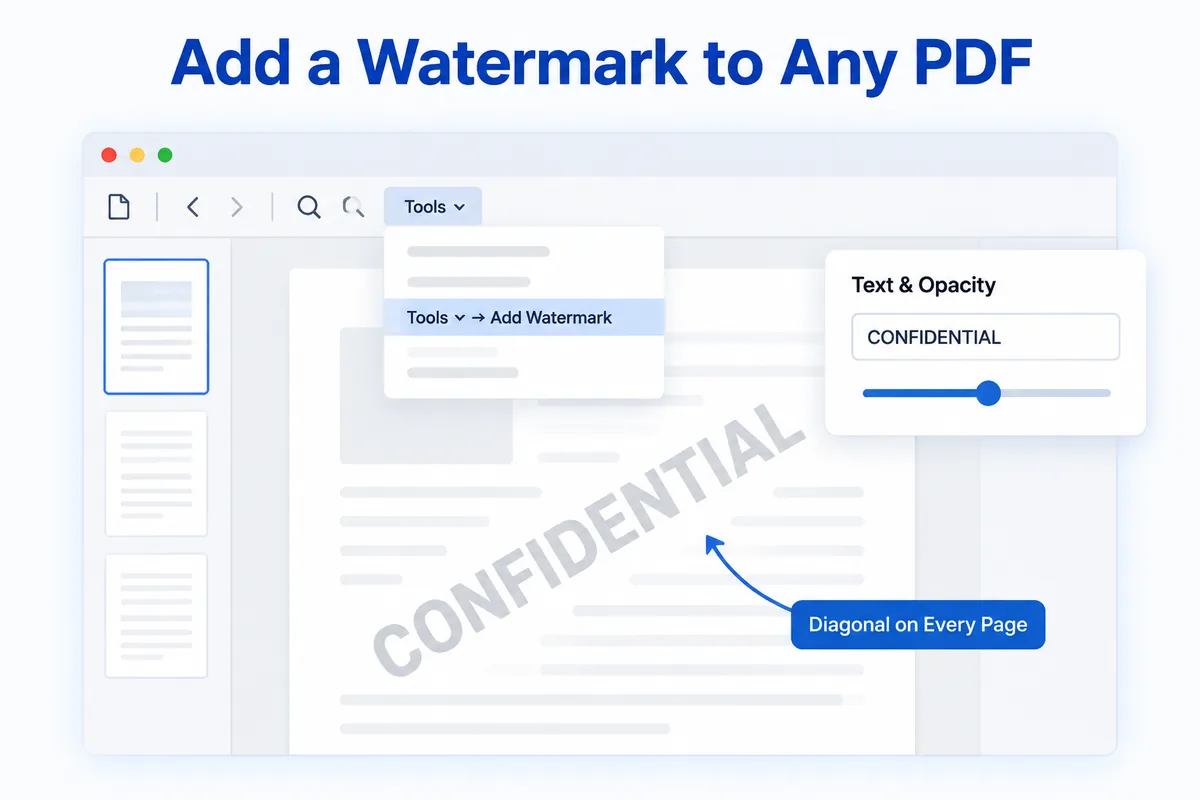
Open your PDF in HanFlow PDF, click Tools ▾ → Add Watermark, type your text, set the opacity, and save. That is the whole process. Every page gets the same diagonal watermark, sized to fit.
When a watermark helps
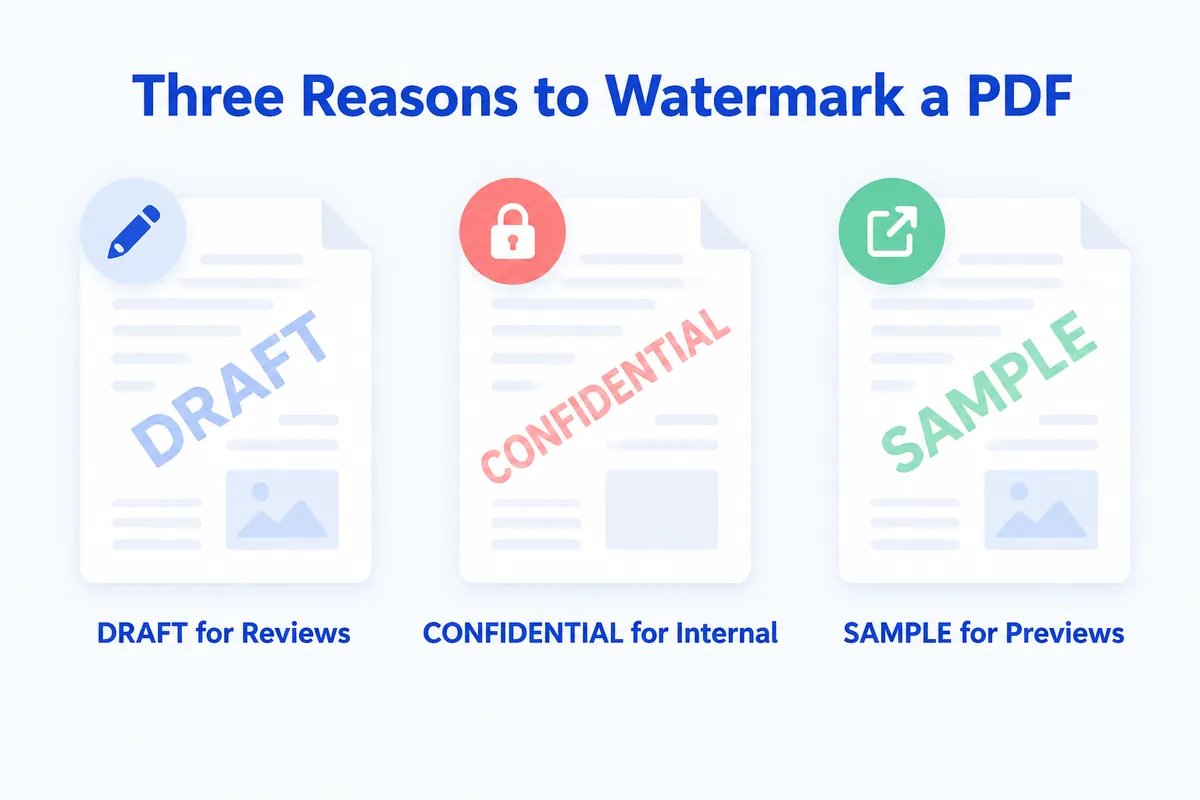
A watermark is a visible label, not a security lock. It tells anyone who opens the file what kind of copy they are looking at.
Mark a document DRAFT before sending it out for review, so readers know the content may still change. Stamp CONFIDENTIAL on internal copies that should not circulate freely. Print SAMPLE across a preview you share with an outside contact.
The watermark does not prevent someone from copying text or printing the file. It simply makes the status of the document obvious at a glance.
How to add a watermark step by step
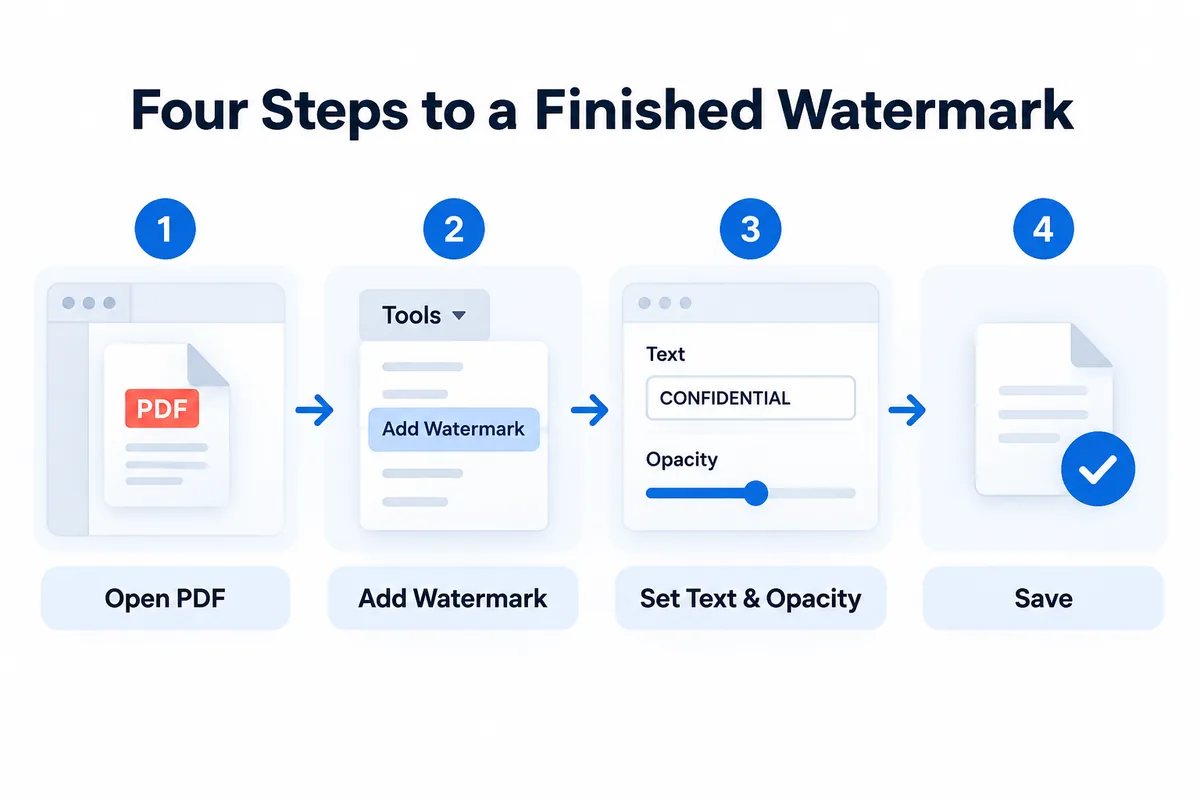
- Open your PDF in HanFlow PDF.
- Click Tools ▾ in the toolbar, then choose Add Watermark.
- In the dialog, enter your text in the Text field and set the Opacity (%) value.
- Confirm, check the preview, then save the file.
The watermark appears as gray diagonal text, centred on every page. The font size scales automatically — roughly one-eighth of the shorter side of the page — so it stays proportional whether you are working with letter, A4, or any other page size.
Choose the text and opacity
The default text is CONFIDENTIAL and the default opacity is 22 %. You can set opacity anywhere from 3 % to 100 %.
A lower value keeps the watermark faint, so the page underneath stays easy to read. A higher value makes the watermark impossible to miss but covers more of the content.
One short word works best. The text size is set by the page, not by the length of the phrase, so a long phrase can run past the edges of the page.

Change or remove it before you save
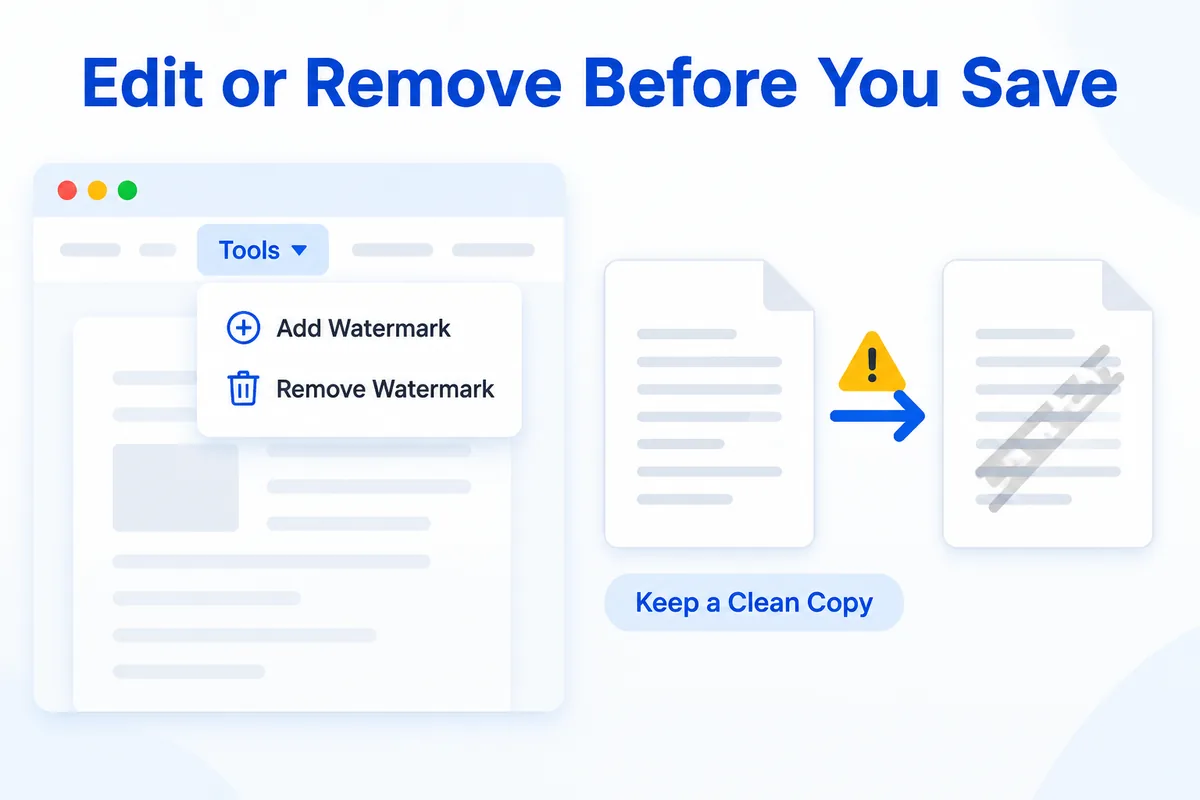
As long as you have not saved, the watermark is a preview overlay. Open Tools ▾ → Add Watermark again — the dialog title changes to "Change watermark" — and type new text or adjust the opacity. If you want it gone entirely, choose Tools ▾ → Remove Watermark. Undo works too.
Once you save, the watermark is drawn into every page of the PDF. It becomes part of the page content and cannot be taken out afterward. Keep an unwatermarked copy of the original file if you think you might need a clean version later.
Pair it with a password
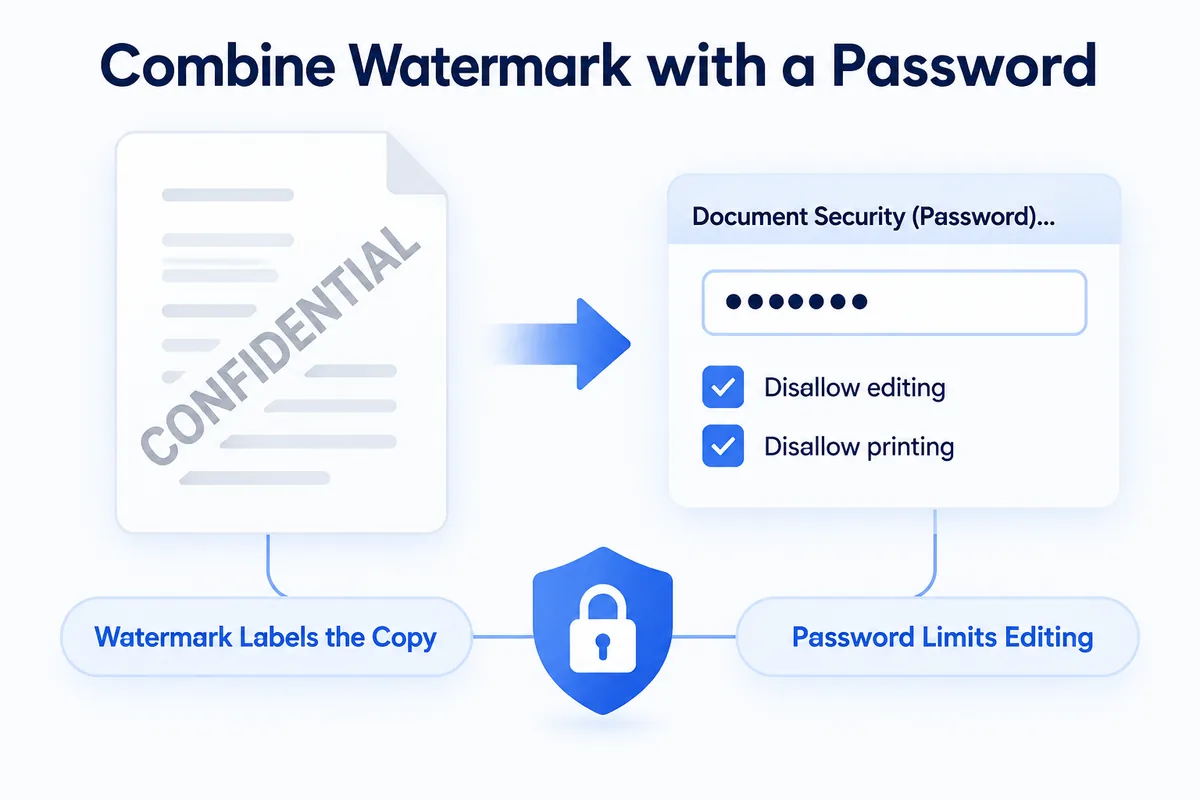
A watermark labels a document. It does not restrict what someone can do with it — they can still copy text, print, or edit the file.
If you need to limit those actions, add a permissions password as well. Go to Tools ▾ → Document Security (Password)… to restrict editing and printing. The watermark shows what kind of copy it is; the password controls what people can do with it. For a walkthrough, see How to Password-Protect a PDF.
HanFlow PDF is a desktop PDF program for Windows and Mac. The same Tools menu also has Add Page Numbers and Document Security (Password)….
FAQ
Can I put a watermark on every page at once?
Yes. The watermark is applied to every page automatically. There is no need to add it page by page.
Can I remove a watermark after saving?
No. Once you save, the watermark is written into every page and becomes part of the page content. Always keep a clean copy of the original file before you save.
Does a watermark stop people copying the PDF?
No. A watermark is a visible label, not a restriction. Anyone can still copy text, print, or edit the file. To limit those actions, use Tools ▾ → Document Security (Password)… to set a permissions password.
Can I use my own word instead of CONFIDENTIAL?
Yes. Type any text you like in the Text field — DRAFT, SAMPLE, your department name, or anything else that fits.