How to Fix "PDF File Size Must Not Exceed 2 MB" Before Your Deadline
You click Submit on a job application and the page spits back one line: "PDF file size must not exceed 2 MB." No suggestion, no workaround, just a wall. The file you spent two hours assembling is 6.8 MB. You already re-exported it once and somehow it grew larger. The portal closes at midnight, and the error message does not bother telling you where those megabytes are hiding.
Forget why the file is large — that is a separate conversation. What follows is the sequence of steps, in the order that saves the most space first, to bring a PDF under a fixed upload limit: 2 MB, 1 MB, even 200 KB.
Figure Out What Is Heavy Before You Compress Anything
Resist the urge to hit "compress" right away. Spend thirty seconds scrolling through the document, page by page. What you are looking for is simple: images.
Photos and scanned pages account for nearly all the weight in an oversized PDF. Typed text, headings, tables, formatting — these weigh almost nothing. A hundred pages of plain text take up less space than one photograph embedded at full camera resolution. A fully scanned document, where every page is essentially a photograph of paper, can reach tens of megabytes even if it is only a handful of pages long.
Once you know whether the weight comes from inserted photos, scanned pages, or both, you know which of the following steps will do the most good. The order starts with the change that typically reclaims the most space and works toward smaller gains, so you can stop as soon as the file clears the limit.
Resize Images to the Size They Actually Appear
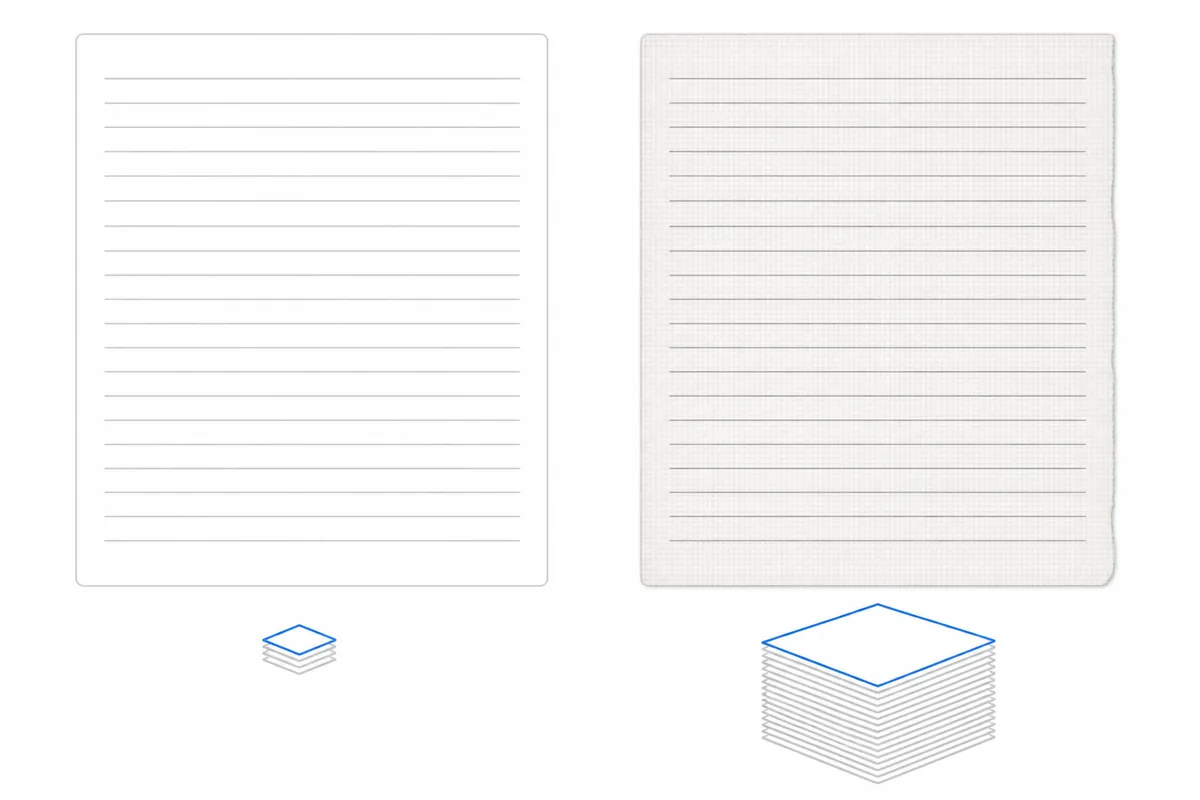
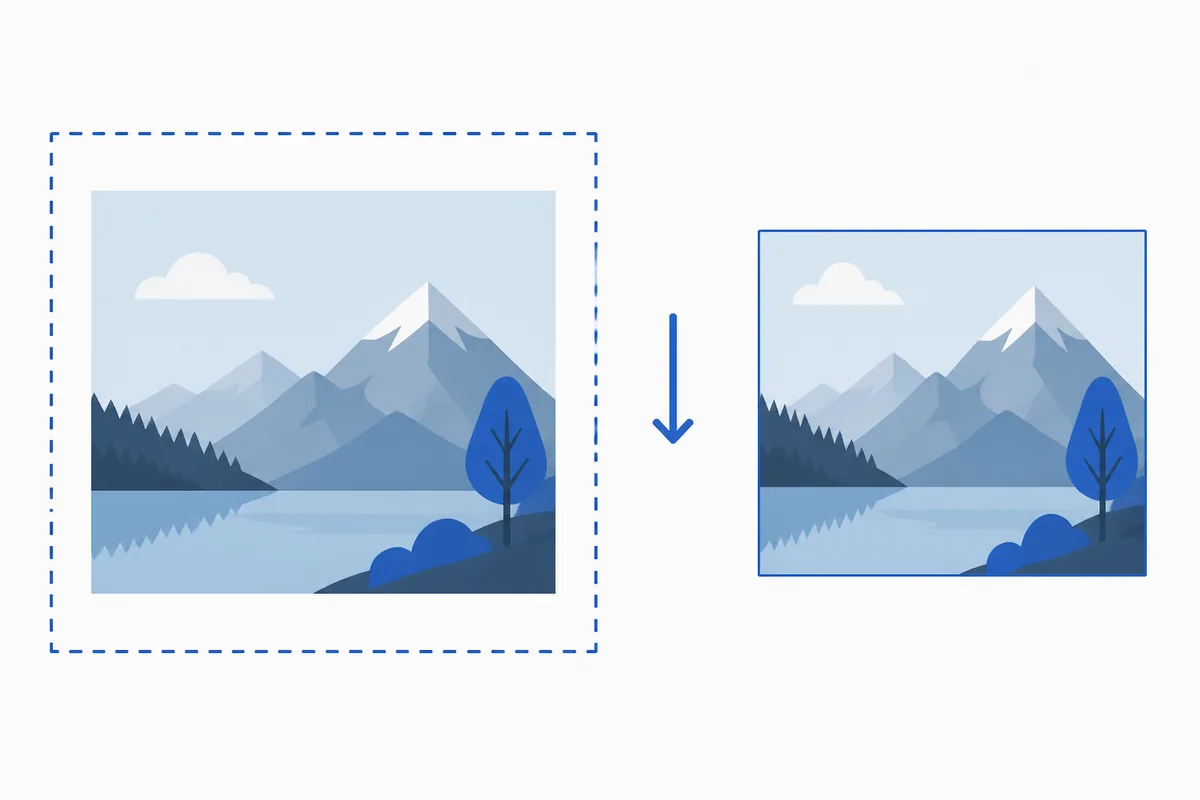
This single step usually removes more weight than everything else combined. A photo pasted into a PDF retains its original camera resolution — often 4000 by 3000 pixels — even though it occupies a small rectangle on the page. The PDF scales the image visually but keeps every original pixel stored in the file. All those extra pixels are invisible to the reader but fully counted toward the file size.
Match each image's resolution to the dimensions it actually occupies in the document. For a PDF read on screen, 150 to 200 pixels per inch at the displayed size is sharp enough. Going below roughly 120 pixels per inch starts to look soft. Going above 200 wastes bytes nobody will notice.
For scanned pages stored in color but containing only black text on white, there is a second lever: switch the color mode to grayscale or black-and-white. Color data occupies roughly three times the space of grayscale for the same content. Receipts, signed forms, certificates, photocopied text — anything where color carries no meaning — are safe candidates for this conversion.
One pass of image resizing combined with a color-mode change is usually enough to clear a 2 MB limit. For tighter caps — 1 MB, 500 KB, 200 KB — keep going.
Strip the Weight You Cannot See
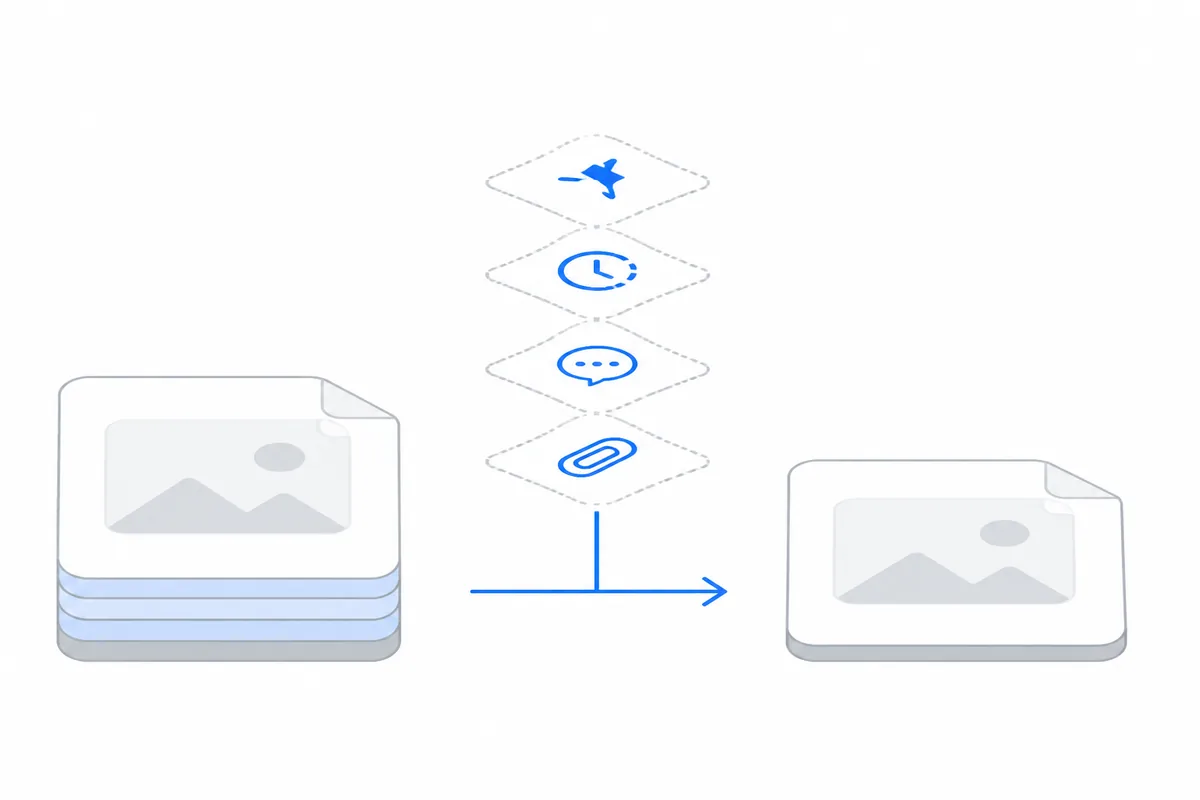
PDFs collect invisible passengers over time. Fonts embedded for languages that appear nowhere in the text, saved editing history, revision metadata, annotations left by collaborators, file attachments tucked inside the PDF container, and duplicate internal objects all take up space. You might not know they are there unless you open the file's properties panel and look. None of these affect what the page looks like, but together they can add hundreds of kilobytes to the file.
Most PDF editors offer a "reduce size" or "optimize" command that handles this cleanup in one pass. There is one more thing worth checking before you hand a document to any size-reduction tool: where the work happens. A job application, a signed contract, a medical record — you may not want it sitting on someone else's server just to lose a few megabytes.
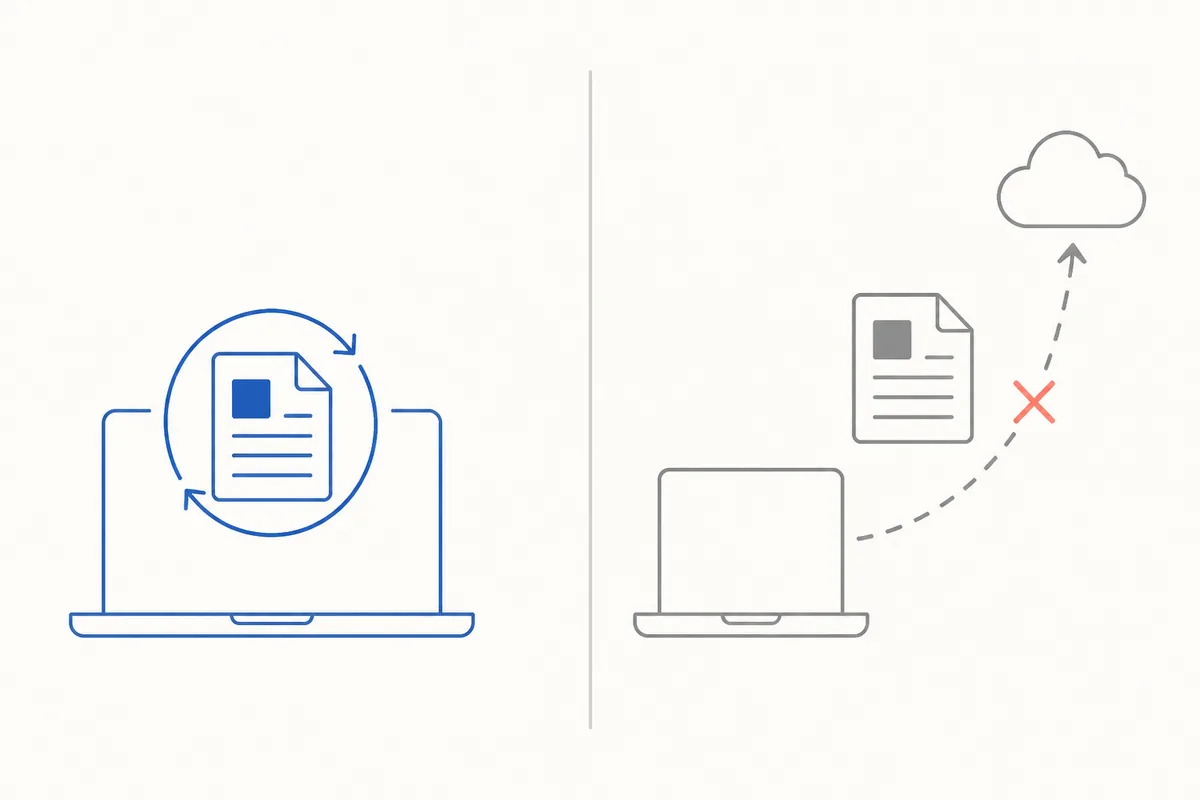
In HanFlow PDF, conversion and editing are processed on your own PC, and the document is not uploaded to a server. It runs as a desktop program for Windows and Mac, and the desktop version installs without administrator privileges — which matters on a locked-down office or school computer, where installing software normally triggers a permissions prompt you cannot clear. There is also a web app and apps for iOS and Android.
When the File Still Will Not Clear the 2 MB Limit
You have resized every image, converted scans to grayscale, and stripped all metadata. The file still sits above the cap. At this point the remaining weight is the content itself — there is simply too much visual information for one file at any quality a reader can parse. Squeezing further means pushing resolution below the threshold of legibility, and a document nobody can read defeats the purpose of submitting it.
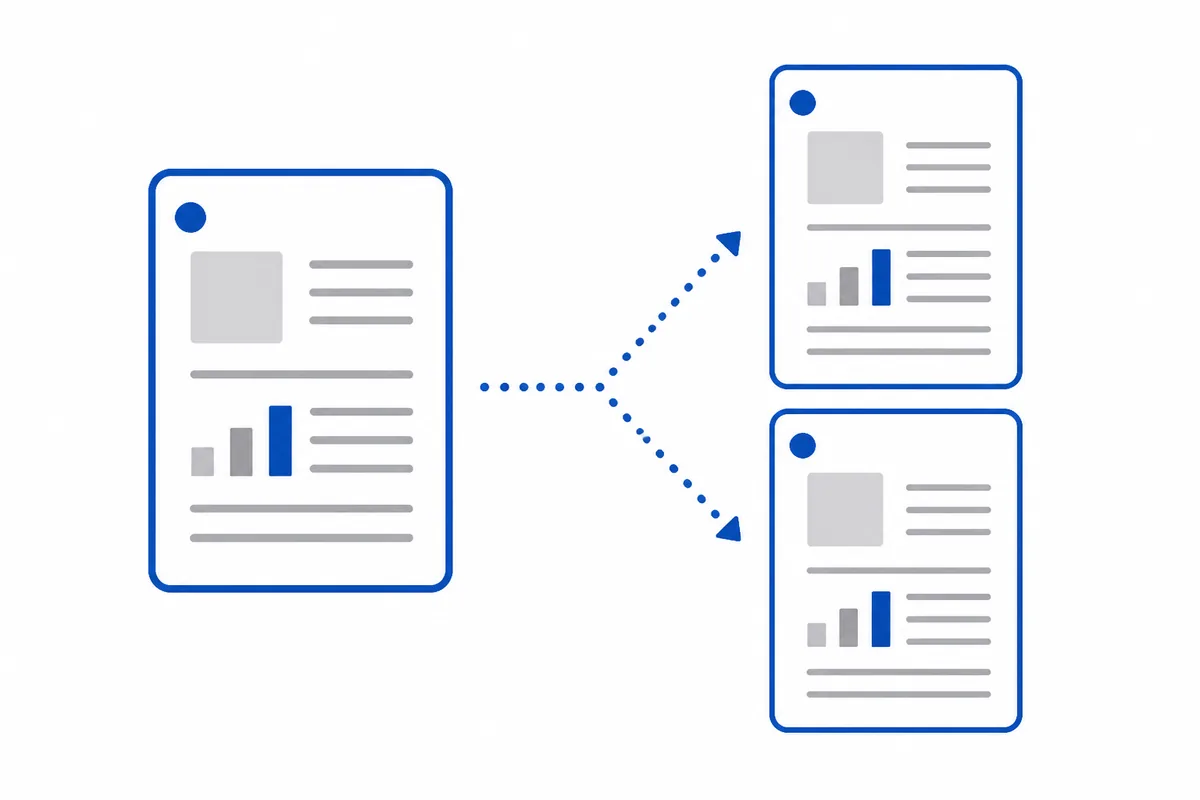
The practical move is to split the PDF into two or more files and upload them separately, if the portal permits multiple attachments. Label each part clearly — "Application_Part1of2.pdf" — so the reviewer knows the sequence and expects the next file.
Two rules apply to every step above.
Work on a copy, not the original. Reducing image resolution is a one-way operation. Once you save the compressed file, the original pixel data is gone for good. Keep your source PDF untouched and only compress a duplicate.
Legibility is the real limit, not the number. It is tempting to drag every quality setting to its minimum to hit a tight cap. But if the person reviewing your application cannot read a line of text or make out a diagram, you have satisfied the portal's requirement while failing the one that actually decides the outcome. Reduce quality just enough to clear the cap, then stop. The point where the document ceases to be readable — not zero — is your true floor.