Convert PDF to PowerPoint on Windows and Keep Slides Editable
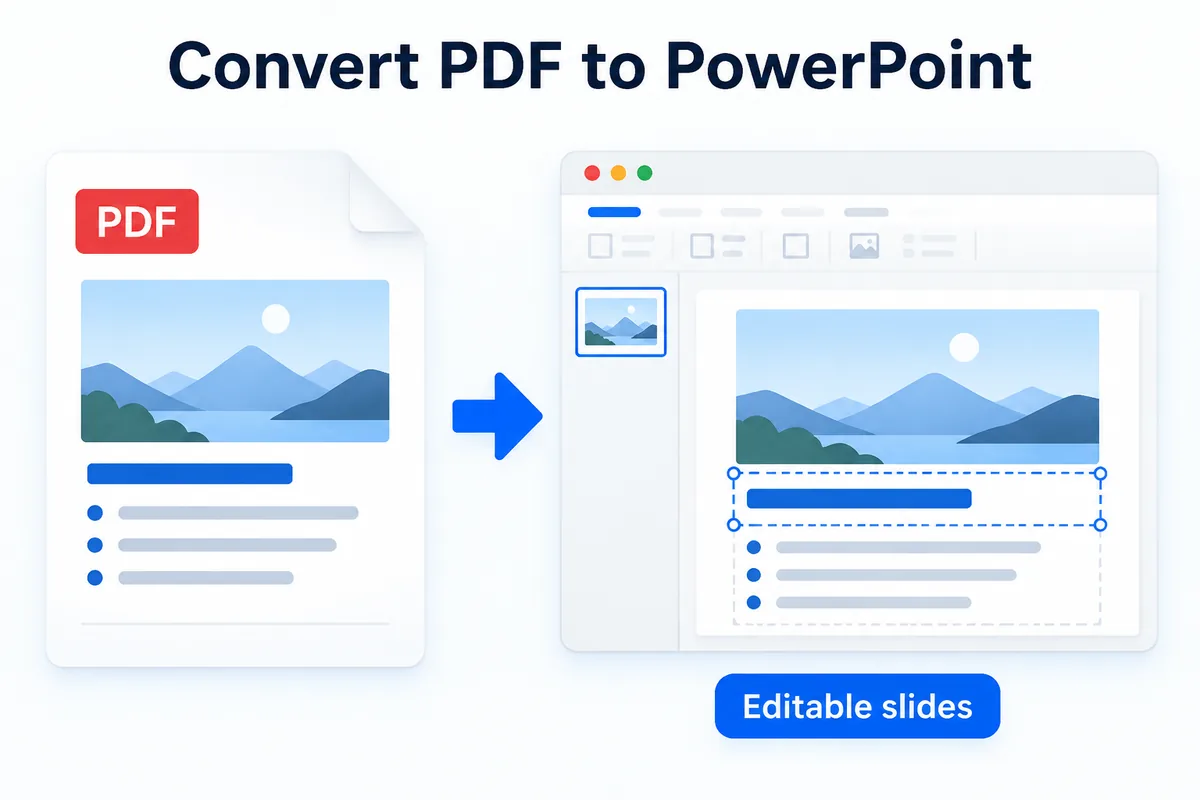
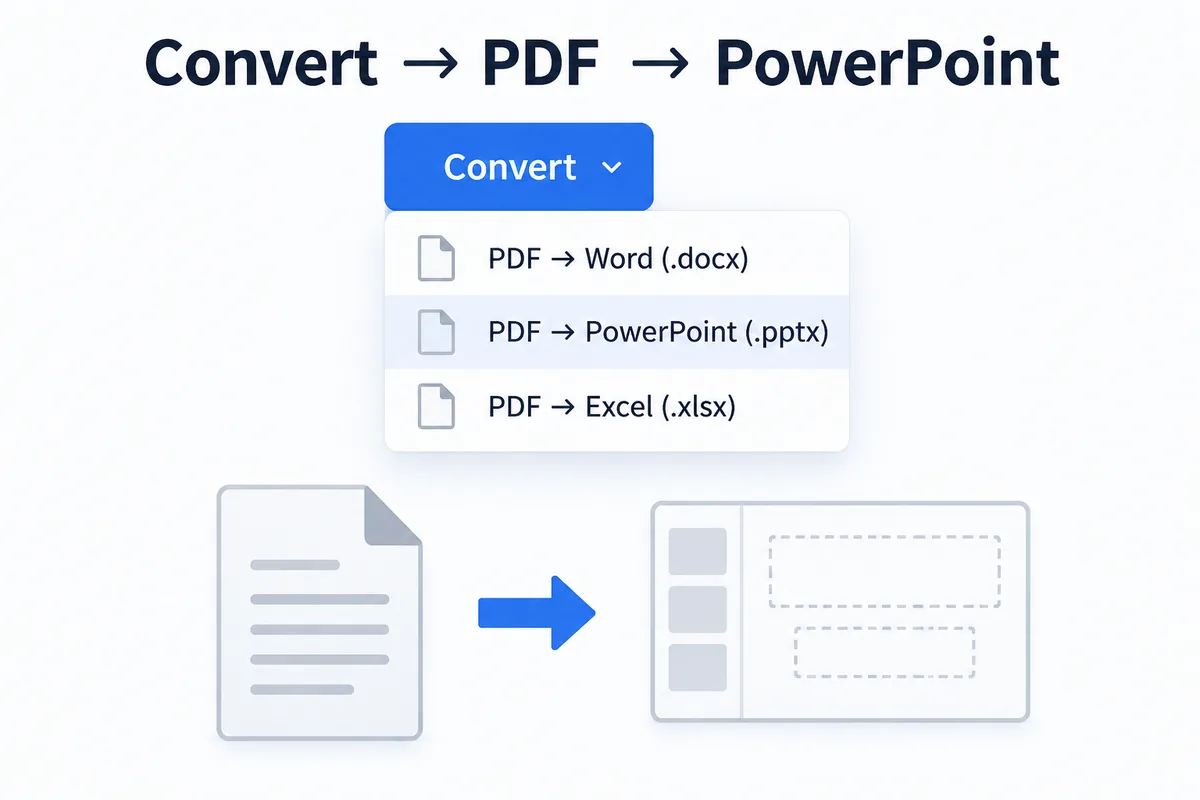
To convert PDF to PowerPoint, open the PDF in HanFlow PDF, click Convert → PDF → PowerPoint (.pptx), pick where to save it, and the new .pptx opens on its own. Text, tables and images come back as slide objects you can edit. Expect a little cleanup — a converted deck is rebuilt, not restored.
Do it now: Convert PDF to PowerPoint — the steps in each app.
Why a PDF is not a slide deck
A PDF stores every page like a printed sheet: each letter and picture sits at a fixed position. It has no idea what a text box, a grouped shape or a slide layout is. A converter has to look at where things sit and build those boxes again.
That is why the overall layout comes through well, while the hardest parts are layered shapes, gradient fills and rotated text. Animations and slide transitions never come back — they do not exist in a PDF to begin with.
How to convert PDF to PowerPoint step by step
- Open the PDF in HanFlow PDF.
- Click Convert in the toolbar.
- Choose PDF → PowerPoint (.pptx).
- Pick a folder and a file name.
- When the conversion finishes, the .pptx opens automatically.
If the PDF is password-protected, open it with the password first, then convert. The same menu also exports to Word (.docx), Excel (.xlsx), HTML, text and PNG images.
Scanned slides need text recognition first
Some PDFs are only pictures of slides — a scanned handout, a photographed printout, a deck exported as images. There is no text in them to move into PowerPoint.
HanFlow PDF does not guess at the words while converting: a page with no text comes over as the original picture. If you want editable text, run OCR on the PDF first — it adds a hidden text layer in 26 languages — and then convert.
What to check after converting
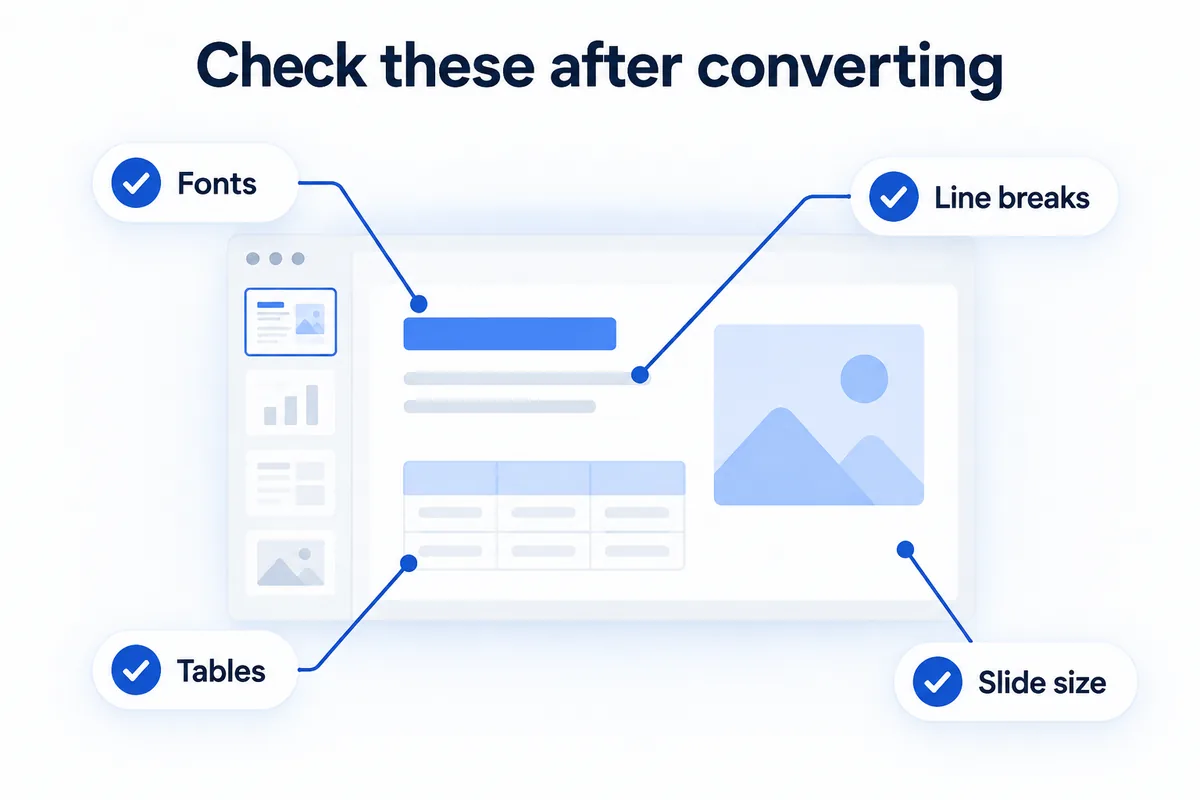
No converter gives you a deck that is identical to the original. Before you present, open the .pptx and look at four things:
- Fonts. If a font from the original is not installed on your PC, PowerPoint swaps in another one, and spacing can shift.
- Line breaks. A swapped font can push a word onto the next line or out of its box.
- Tables. Merged cells and borders are the parts most likely to need a fix.
- Slide size. Make sure the page size matches the screen you will present on.
Convert only the pages you need
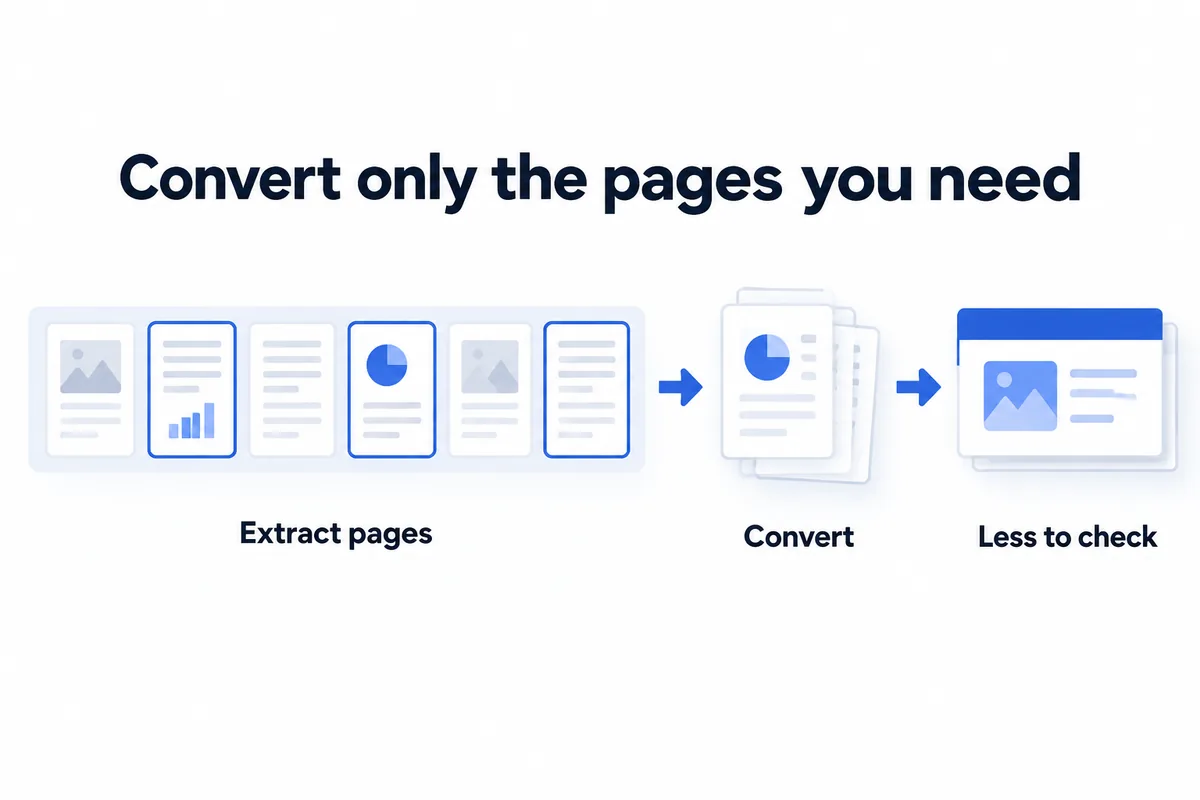
If you only want three slides from a forty-page PDF, take those pages out first with Extract Pages, then convert the smaller file. You get the same slides with much less to check.
And if the original .pptx still exists somewhere, use that instead. Conversion is the right tool when all you have is the PDF.
HanFlow PDF makes editable slides in its Windows app, with a one-month trial before a license is needed. The Mac app has no Convert menu. On a phone or in the web app, each page becomes one picture slide whose text cannot be edited.
FAQ
Can I convert a PDF file to PPT?
Yes. In the Windows app, the converter reads each page and rebuilds it as editable slides in a .pptx file. Text, images and tables carry over, but complex layouts may need a few manual fixes.
Do animations survive the conversion?
No. A PDF only records how each page finally looks, so there are no animations or transitions to bring back. Add them again in PowerPoint after converting.
Can I convert a scanned PDF to editable slides?
Yes, if the text is recognized first. Run OCR on the scanned PDF, then convert. Without that step, each scanned page comes over as a picture.
Should I convert the whole PDF or just some pages?
If you only need a few slides, extract those pages first and convert them. It is faster to check and leaves you less to clean up.