PDF to Word — Convert PDF to an Editable Word Document
Convert a PDF into an editable Word (.docx) file you can open and revise right away. Scanned pages need text recognition (OCR) first if you want editable text.
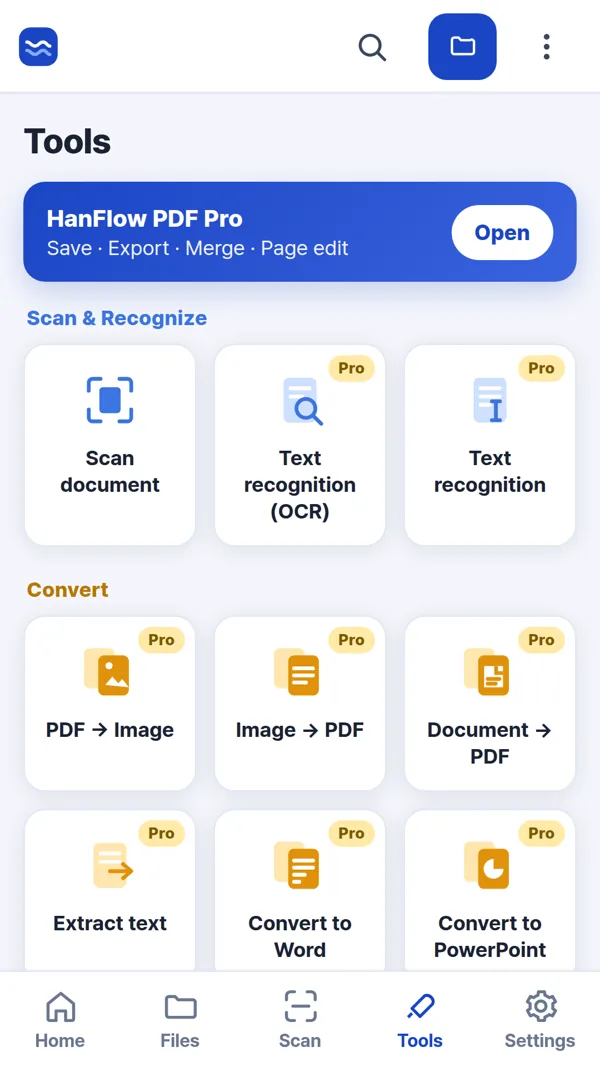
Where it works
| Where to find it | Plan | ||
|---|---|---|---|
| Windows app | Convert › PDF → Word (.docx) | 30-day trial, then a license | Scanned pages are carried over as pictures — to get editable text, run OCR first. |
| Mac app | Not available | The Mac app has no Convert menu. | |
| Phone & web app | Tools › Convert to Word | Pro | For a scan with no text, it suggests running text recognition first. |
Steps
- Open the PDF you want to convert.
- On the Windows app, go to Convert › PDF → Word (.docx). On the Phone & web app, tap Tools › Convert to Word.
- The conversion runs and produces a .docx file. Open it in any word processor to review and edit.
FAQ
Does it work with scanned PDFs?
It converts, but a scanned page is a picture, not letters. On the Windows app: Scanned pages are carried over as pictures — to get editable text, run OCR first. On the Phone & web app: For a scan with no text, it suggests running text recognition first.
Are tables in the PDF preserved?
On the Phone & web app, ruled tables — those with visible cell borders — are detected and recreated as table structures in the Word file.
Can I convert PDF to Word on the Mac app?
The Mac app has no Convert menu.