Password Protect a PDF — Add an Open Password and Restrictions
Set a password on any PDF so only people who know it can open the file. You can also restrict printing, copying, and editing with a separate permissions password.
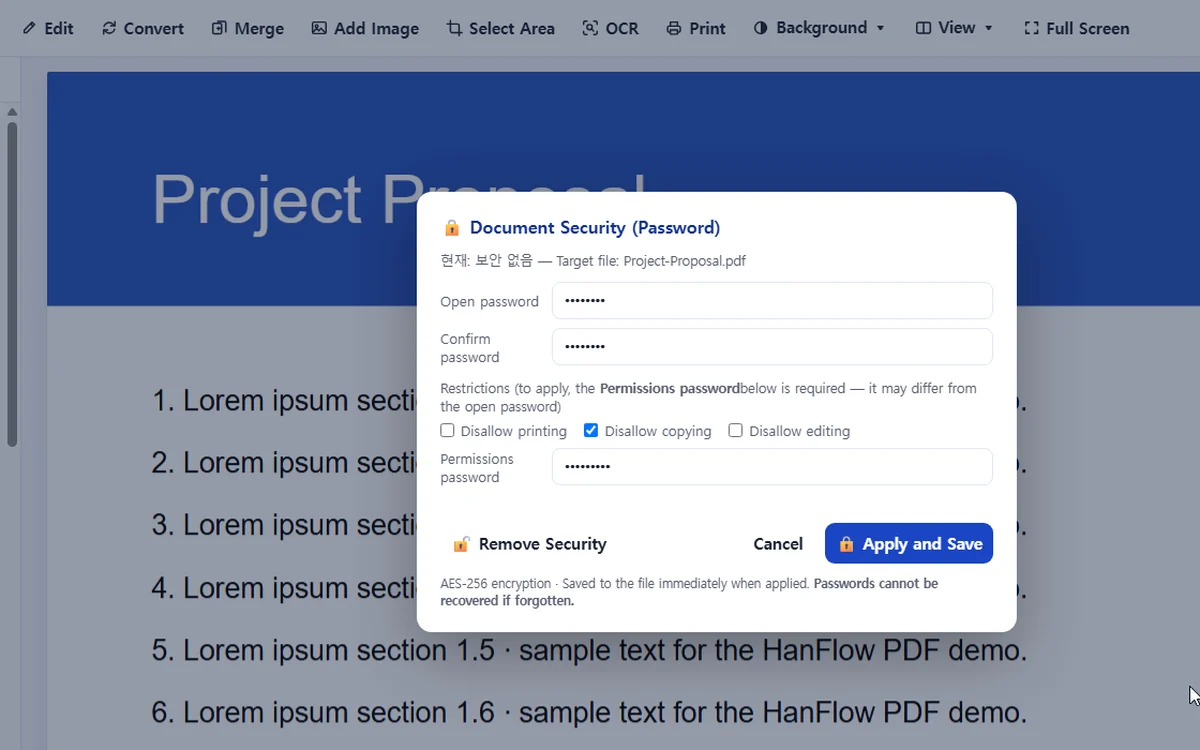
Where it works
| Where to find it | Plan | ||
|---|---|---|---|
| Windows app | Tools › Document Security (Password)… | 30-day trial, then a license | Uses AES-256 encryption. If you forget the password, the file cannot be opened. |
| Mac app | Tools › Document Security (Password)… | 30-day trial, then a license | Uses AES-256 encryption. If you forget the password, the file cannot be opened. |
| Phone & web app | Not available | Not in the phone and web app. Use the Windows or Mac app. | |
Steps
- Open the security dialog from Tools › Document Security (Password)… on Windows app or Tools › Document Security (Password)… on Mac app.
- Enter an Open password, a Permissions password, or both. The open password is required to open the document; the permissions password is required to change or remove restrictions and may differ from the open password.
- Check the restrictions you need: Disallow printing, Disallow copying, Disallow editing. Restrictions require the permissions password.
- Click 🔒 Apply and Save. The file is encrypted with AES-256 and saved immediately.
FAQ
Can I set restrictions without an open password?
Yes. Enter only a permissions password and check the restrictions you want. Anyone can open the file, but the permissions password is needed to change or remove the restrictions.
How do I remove password protection?
Open the file with its password, then click 🔓 Remove Security in the same dialog. If the file has restrictions, you are asked for the permissions password. The file is saved with the password and restrictions removed.
What happens if I forget the password?
Passwords cannot be recovered. If you forget the open password, the file cannot be opened.