PDF to Image & Image to PDF — Save Pages as JPG or PNG
Save each page of a PDF as a JPG or PNG image, or go the other direction and turn a batch of images into a PDF. Pick the format and quality that fit your purpose — smaller JPGs for quick sharing, lossless PNGs when detail matters.
Where it works
| Where to find it | Plan | ||
|---|---|---|---|
| Windows app | Convert › Save each page as an image (PDF → Image) | 30-day trial, then a license | Image → PDF on Windows is a right-click on the image file (“Create PDF”). The Mac app does not have it. |
| Mac app | Right-click a page thumbnail › Convert to Image (selected pages) | 30-day trial, then a license | Image → PDF on Windows is a right-click on the image file (“Create PDF”). The Mac app does not have it. |
| Phone & web app | Tools › PDF → Image · Tools › Image → PDF | Pro |
Steps
- Open a PDF in Hanflow PDF.
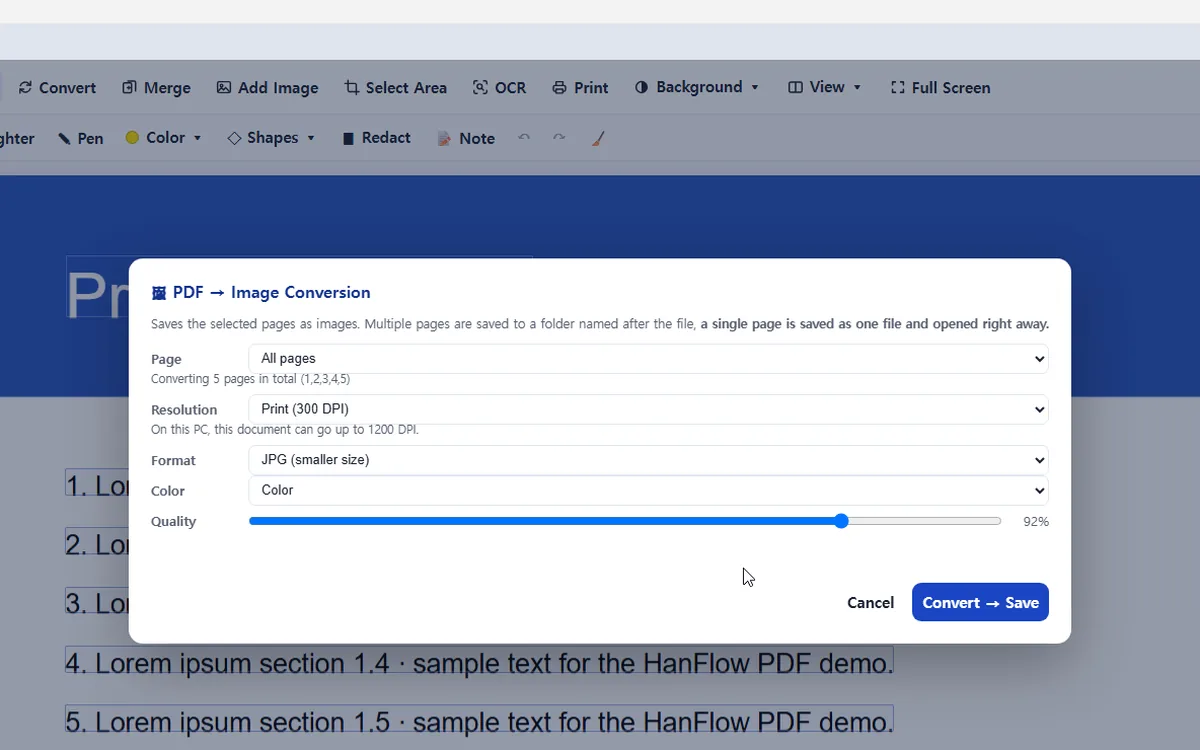
- On the Windows app, choose Convert › Save each page as an image (PDF → Image). On the Mac app, use Right-click a page thumbnail › Convert to Image (selected pages). To export only some pages, select them in the thumbnail sidebar, right-click, and choose "Convert to Image (selected pages)."
- Pick a format. "JPG (smaller size)" produces lighter files suited for sharing. "PNG (lossless)" keeps full detail.
- Choose a resolution — for example "Print (300 DPI)". For JPG, a quality slider also lets you trade size for sharpness.
- If the PDF has multiple pages, the images are saved to a folder named after the file. A single page is saved as one file and opened right away.
Images to PDF
Image → PDF on Windows is a right-click on the image file (“Create PDF”). The Mac app does not have it.
- On the Windows app, select one or more image files in File Explorer, right-click, and choose "Create PDF."
- If you selected several images, choose "Combine all images into a single PDF" to put every image into one document, or "Convert each image into its own PDF" to get one file per image. Each image is placed on an A4 page at its original resolution.
- Supported formats: PNG, JPG, GIF, BMP and WEBP.
FAQ
What image formats can I export to?
JPG and PNG. JPG produces smaller files, making it a practical default when you need to share pages quickly. PNG keeps lossless quality — a better choice when fine detail matters.
Can I export selected pages instead of the entire PDF?
Yes. Select the pages you need in the thumbnail sidebar and choose "Convert to Image (selected pages)." Only those pages are exported. To convert every page at once, choose "All pages" in the same window.
Where are the exported images saved?
When a PDF has more than one page, the images go into a folder named after the original file. A single exported page is saved as one image file and opened immediately.