Organize PDF Pages — Delete, Move, Insert, Extract, and Split
Rearrange a PDF the way you need it. Delete unnecessary pages, change their order, insert blank pages, or pull out a set of pages into a separate file.
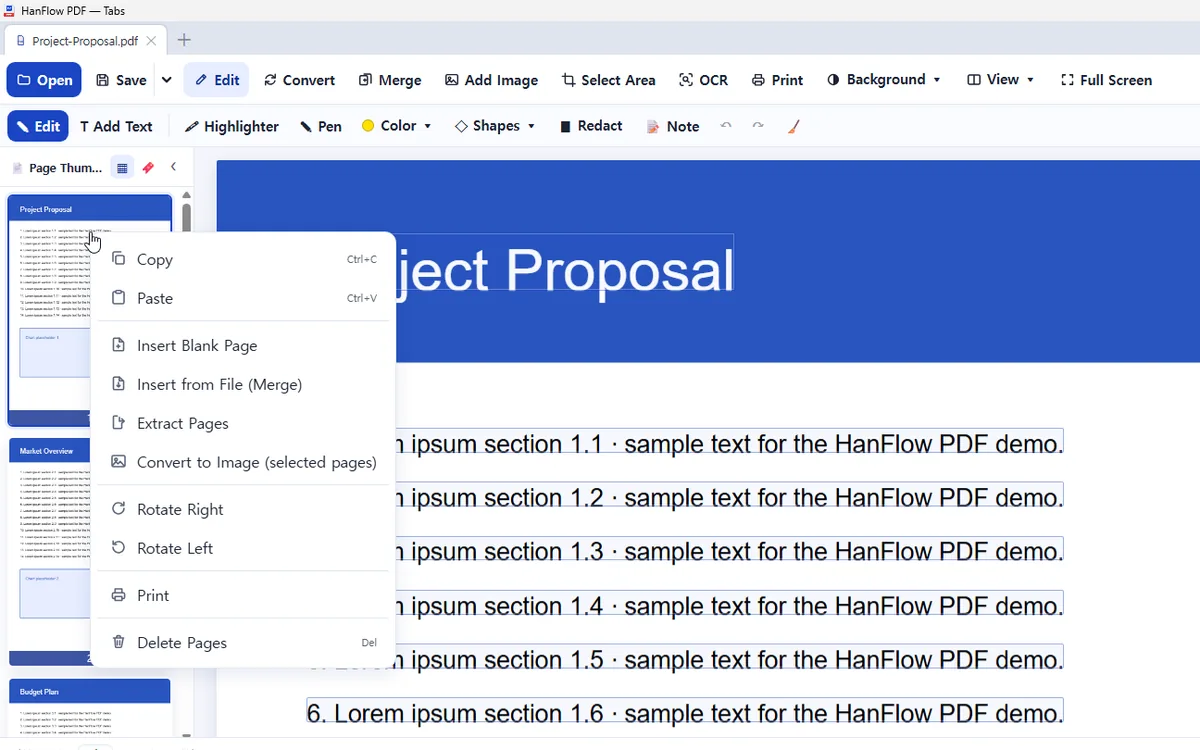
Where it works
| Where to find it | Plan | ||
|---|---|---|---|
| Windows app | Edit › Page ▾ (or right-click a page thumbnail) | Free | Stays free after the trial ends. |
| Mac app | Edit › Page ▾ (or right-click a page thumbnail) | Free | Stays free after the trial ends. |
| Phone & web app | Tools › Edit Pages | Pro |
Steps
- Open a PDF in Hanflow PDF.
- Go to Edit › Page ▾ (or right-click a page thumbnail) on the Windows app, Edit › Page ▾ (or right-click a page thumbnail) on the Mac app, or Tools › Edit Pages on the Phone & web app.
- On the Windows app and Mac app, select one or more page thumbnails, then pick an action from that menu or from the thumbnail right-click menu: Delete Pages, Move Up / Move Down, Insert Blank Page, Extract Pages (saves chosen pages as a new PDF) or Insert from File (Merge) (brings in pages from another PDF).
- To reorder freely, open the overview showing all pages and drag thumbnails into the position you want.
FAQ
How do I extract only certain pages?
Choose Extract Pages and type the pages you need — for example, 1,3-5,8. Leave the field empty to extract all pages. The result is saved as <name>_extracted(<pages>).pdf.
Can I reorder pages by dragging?
Yes. Open the overview that shows all pages, then drag any thumbnail to a new position. You can also right-click a thumbnail to rotate, delete, or copy it.
Does extracting change the original file?
No. Extracting creates a separate PDF containing only the pages you selected. The original document stays as it was.