Merge PDFs — Combine Several PDFs into One
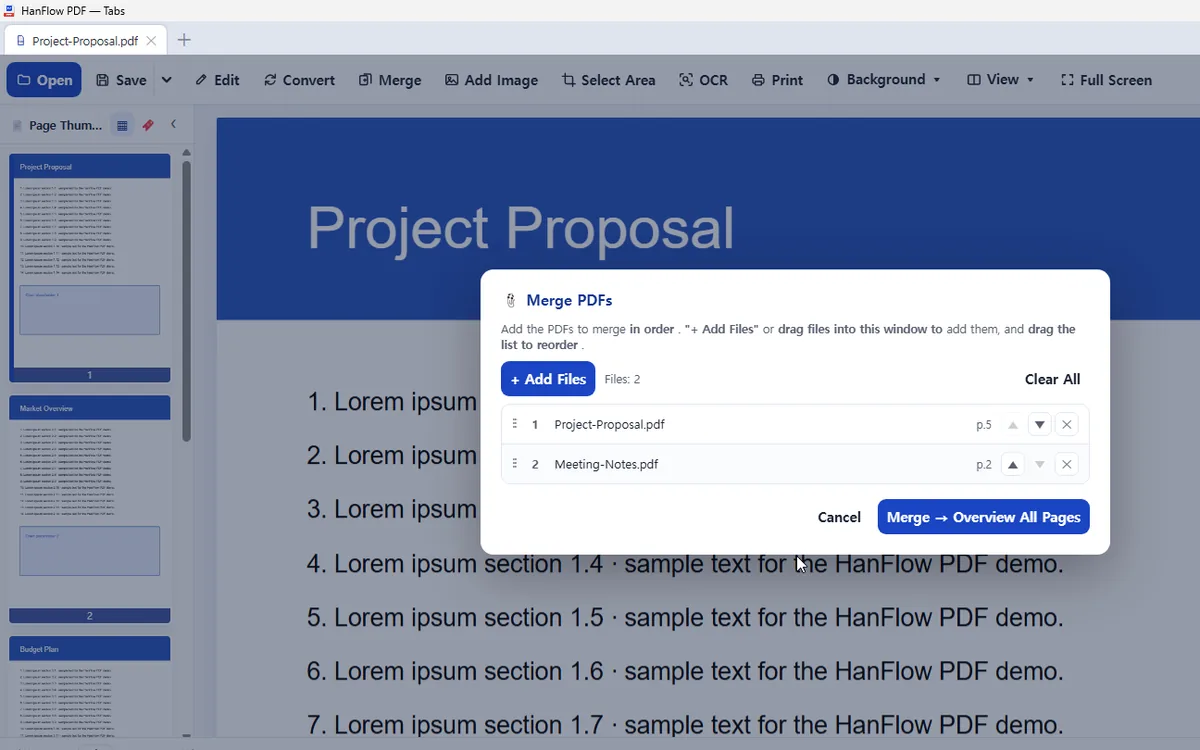
Combine several PDFs into one file, in the order you choose. The merged document opens in a new tab so you can review every page before saving.
Where it works
| Where to find it | Plan | ||
|---|---|---|---|
| Windows app | Toolbar › Merge PDFs · or right-click a .pdf › HanFlow PDF › Merge PDFs | Free | Stays free after the trial ends. |
| Mac app | Toolbar › Merge PDFs | Free | Stays free after the trial ends. |
| Phone & web app | Tools › Merge PDFs | Pro |
Steps
- Open the merge window from Toolbar › Merge PDFs · or right-click a .pdf › HanFlow PDF › Merge PDFs on the Windows app or Toolbar › Merge PDFs on the Mac app.
- Click "+ Add Files" or drag PDFs into the window. On the Windows app, you can also right-click PDFs in File Explorer and choose "Merge PDFs" — each selected file is added to the merge window.
- Drag the list to reorder.
- Merge. The result opens in a new tab named "Merged," showing all pages.
FAQ
Can I change the order after adding files?
Drag items in the list to rearrange them. The merged document follows the order shown in the window.
Can I rotate or delete pages in the merged result?
Yes. The merged document opens with every page shown. Right-click a page thumbnail there to rotate, delete, or copy pages, then save.
Where is the merged file saved?
The merged document opens as a new tab inside the app. Save it from there to the location you prefer.